

GuideAsk KeptiPhoneMac
Ask Kept
An assistant that answers from what you have kept and can act in your account, and Do, the conversation Kept 2.0 adds on iPhone. A question never changes anything, on the device or through the Agent, and a quick command shows every field it will save before it is saved. Ask Kept's thread is not stored; a Do conversation is.
Ask Kept is the assistant inside the app. It reads your tasks, notes, habits, goals, calendar, and the things it remembers about you, and it answers in plain words. When you ask it to do something, it does it in your account and shows you exactly what it did.
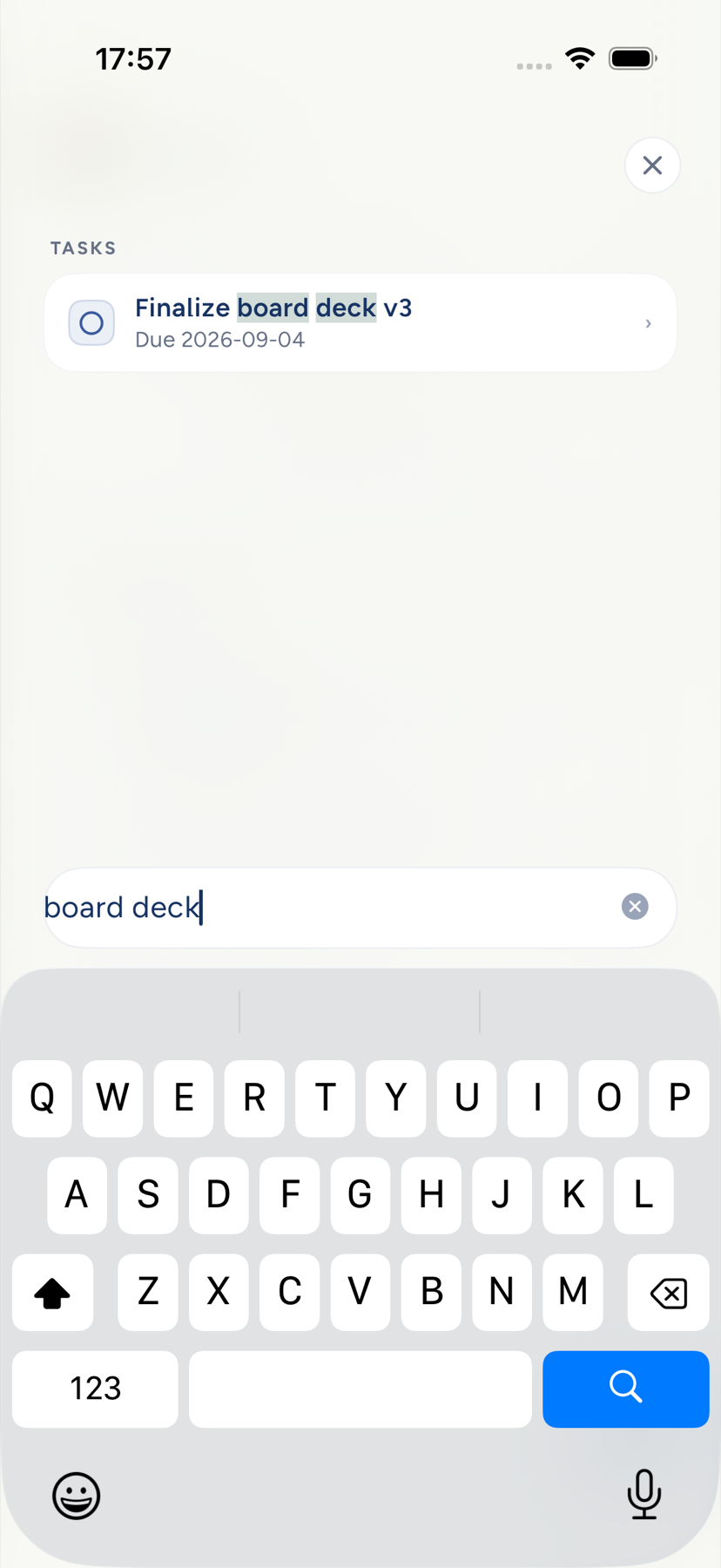
It runs on Cloud AI, so it waits until you have chosen Allow Cloud AI. Until then the entry points explain what they would need and offer the setting. With Cloud AI off, the pull-down surface on iPhone becomes Search notes and tasks: it searches the index on your phone and opens what you pick, with no Send button and nothing leaving the device.
Ask Kept and Do
Kept has two assistants, and they keep different records.
- Ask Kept is the pull-down and panel this page describes. Its thread is not stored: it clears a few minutes after you close it, and nothing from it is kept on the server as a conversation.
- Do is a conversation that lives in your account. In Kept 2.0 on iPhone, Do is turned on account by account; when it is on for yours, it greets you with a short introduction the first time you sign in. Your messages and Do's replies are there when you come back, on every sign-in, until you delete your account. Kept 2.0 has no way to delete a single Do conversation.
Do starts with a small set of abilities. After you allow Cloud AI for Do, Do answers from your notes, tasks, People list and the next 14 days of your Kept calendar, and drafts text for you to copy or use. That is the whole list in this version: Do reads and drafts, and it changes nothing in your account.
Do uses your People list to recognize the people you mention. It reads only your own entries, only after you allow Cloud AI for Do, and sends the model only what a turn needs, never the whole list.
Do looks 14 days ahead on your calendar in Kept. In this version Do does not see Apple Calendar events, which stay on your iPhone.
In this version Do reads your Kept calendar but does not change it or create events, and it does not save or create tasks or notes or set reminders.
Do does not send messages or email, book, spend money, place calls, browse the web or use your connected accounts for you in this version, and it says so when you ask. Texting Do is not part of Kept 2.0. Approval cards are for changes, so they do not appear in this version. Their actions are Approve and Cancel; words in the conversation never approve a card.
When Do is on for your account, a new line you type in Quick Search on iPhone and send goes to Do instead of Ask Kept, and it is saved in your Do conversation. The line stays with Ask Kept when an Ask Kept conversation is already open, when you attach a photo, when you tap one of the greeting's suggested prompts, when you start from Habit Builder or another guided flow, when Do hands your words back to Ask Kept, and whenever Do is off or not ready.
Declining Cloud AI for Do leaves the rest of Kept working. Do never sends a request to a model until you have allowed Cloud AI for Do. Turning Cloud AI off also turns Do off, and turning it back on leaves Do off until you choose Settings → Privacy → Cloud AI for Do → Turn on. See Do, Cloud AI, explained and Privacy and your data.
Open it
- iPhone. Pull down past the top of Today, Notes, or most other screens to open Quick Search (on Tasks the pull opens Quick Find, a search of your tasks that does not ask Kept). It greets you by the time of day and offers a few prompts that fit the screen you came from. Type into Search · or ask anything and tap the send arrow. With a hardware keyboard,
/opens it. - Mac. Choose Go → Ask Kept…, or press ⌘K, type, and press ⌥↩. The assistant opens in a panel beside your work with the composer Ask or tell Kept….
On iPhone Duo, the dock and upright rail open Quick Find first. Search tasks and notes together, including their cached text. On an open spread, the field, chips and Recent are on the left; Results are on the right. With Cloud AI enabled, choose Ask Kept to ask with the words you typed. Selecting a local result opens it.
What to ask
Some questions people ask on their first day:
- "What should I do first this morning?" It suggests an order and leaves your Top 3 as it is.
- "What did I decide about the vendor contract?" It searches your notes by meaning, not just by keyword.
- "When is my next meeting with Dana?" It searches event names instead of guessing dates.
- "How is the marathon goal going?"
- "Plan my afternoon around the 2pm call."
- "Add to today's note: the plumber comes Thursday."
The reply streams in, with a short phase label while it works, _Searching your notes…_, _Checking your calendar…_, so a slow answer never looks like a stalled one. The reply is the answer itself: when the assistant has to look something up first, that phase label is the only sign of it, and a line like "let me check your calendar first" is not shown above the answer. When it looks things up partway through, each part of the answer starts its own paragraph. Press and hold a reply on iPhone to copy the whole thing as plain text. While you type your next message under a reply, notes and tasks that match it appear below the thread; a line that matches nothing leaves the thread as it is, so you are never shown an empty set of results. On iPhone an answer sits on Kept's own solid page, so the screen you opened Ask from never shows through as a blurred bar, and its one way out is Close at the top: the follow-up field has no second clear button. Ask Kept's thread clears a few minutes after you close it, and nothing from it is stored as a conversation on the server. A Do conversation is different and stays in your account, as described above, including a line Quick Search sends to Do.
Replies reveal new text as it arrives on iPhone and Mac. Earlier text stays visible while the answer continues. Reduce Motion shows arriving text immediately.
Times in a reply read in your own clock. In English a span shows as _3:00 to 10:00 PM_, or _15:00 to 22:00_ if your iPhone or Mac uses 24-hour time. In other languages each time follows your clock and the span keeps the separator the reply was written with, so _3-10pm_ shows as _15:00 - 22:00_.
Kept reads a time you type from your own words and adds no guess of its own about which hours you meant. The reply writes the hours it used in full, as in _3:00 to 10:00 PM_, so you can catch a misread, and a request unclear enough to go wrong gets one short question first. In a reply, a span is redrawn in your clock only when both ends are plainly times, as in _3:30 to 5pm_, _2pm to 4pm_, or _15:00-22:00_, or when a plain hour meets a PM time with a hyphen and no spaces at the start of a phrase, or right after a day or _from_, _at_, or _between_, as in _3-10pm_, _Thursday 3-10pm_, or _from 2-4pm_. Kept never stretches a span across midnight to make it fit. Anything less certain stays exactly as written: _Day 2-7pm_, _Oct 2 - 7pm_, _rooms 2 to 4pm_, and _7pm - 2_ are not read as spans. When a request sets a weekday right beside a relative day, as in _tomorrow (Thursday)_ or _tomorrow, Thursday._, the weekday wins, and if the two point at different days the reply says which day it used so you can correct it. Replies name days the way you say them, as in _Thursday, Oct 29_, and never as a stored date like 2026-10-29. If a lookup fails the first time, Kept tries it once more before answering; if it still can't look something up, the reply says what it couldn't find and offers to try again, and a change that didn't save is never repeated on its own. A weekday that starts the next thought, as in _tomorrow, Friday I'm busy_, is left alone.
Switch apps mid-reply
On iPhone you can leave Kept while a reply is still streaming. Kept keeps the reply going for the short time iPhone allows. If iPhone stops it anyway, the reply shows _Picking this back up…_ and continues when you return: Kept asks again once under the same request and gives you one answer, and an event the first attempt already added is never added twice. If that second attempt also stops, or the reply failed for another reason, you see the stopped line and Retry. You can still stop it while it waits. On Mac, Kept marks a streaming reply as work you started, which asks macOS not to slow it down while the window is hidden or covered.
Retry
If a reply stops before it finishes, Retry asks again without repeating what may already have happened. It can read your data to answer. The one change it can still make is the event that request was adding, and it can only ever add that event once: if the first attempt already put it on your calendar, Retry says so and adds nothing. Anything else, such as a task or a note, Retry checks and reports rather than doing again.
Asking never changes anything
A question is answered, never acted on, even when it names a task or a note. _Is my dentist task done?_ tells you whether it is and leaves it as it is. _Which task is my venue note linked to?_ finds the link and saves nothing. A line that ends in a question mark, starts like a question (_what_, _which_, _is my_, _did I_), or asks Kept to show, list, or tell you something reads your account and changes nothing. So does _find_, _check_, or _look at_ when it points at a note, your calendar or schedule, your tasks, goals, habits, plan, or Top 3: _Find my venue note_, _Check my calendar for Friday_, _Look for the venue in my notes_. A request to add, change, or do something stays a request even with a question mark; see below. Words in quotation marks are treated as words you are talking about, not as a command.
This holds wherever the answer comes from. A question the Agent answers is sent as a read-only turn: the Agent can search and read, and it cannot add, complete, move, delete, send, or save anything in that turn, including when you tap Retry. If it looks like you want a change, it says what it would do and you can ask for it. _What should I do first?_ gets a suggested Top 3 without replacing yours; to keep one, choose Modify plan on Today and ask for a new Top 3, which saves only when you choose Save Top 3.
Errands stay errands. _Do my taxes by Friday_, _Find a dentist_, _Check the oil in the car_, _Look into flights to Denver_, and _Buy a 27" monitor_ are things to do, not questions, so Kept can keep them as tasks. Saying _my_ does not make an errand a question: _Check my tire pressure_, _Find my passport before the trip_, and _Give my mom a call tomorrow_ are errands too, because a tire, a passport, and a call are not things Kept keeps. _Did my stretches_ can mark a habit kept. _Remember what I said about the venue?_ and _Add up my hours this week?_ are questions and save nothing.
Quick commands show the change first
Simple asks never leave the device. _Add a task: call the vet_, _Note that the garage code is 4821_, or _Mark stretching done_ comes back as the exact change, with every field it will save: a task's title, due day, priority, area, and details; an event's day, start and end, place, and area; a note's title, text, folder, and tags. Days read as you would say them (_Wed, Sep 30_), never as a stored date. When your words rule out a day, as in _Add event Meet Dana Thursday rather than Friday at 3pm_ or _Add event Lunch with Dana, not Oct 23, at noon_, Kept does not choose a day for you and never fills in today: an event gets no card, the reply asks which day, and nothing is saved until you ask again with the day you want. A task asked for that way shows no due day and is added with none. Then choose Add task (or Add event, Save note, Add habit, Keep) or Not now. Nothing is saved until you choose; Not now leaves everything as it was. If Kept can't save it after you choose, the reply says so and that nothing changed. Keeping a habit you already kept leaves it kept. You can ask politely too: _Can you add a task to call the vet?_ shows the same change. _Start focus_ and _Open Calendar_ happen at once, even offline. A request to change something you already have, such as _Move my 3pm to tomorrow_, goes to the Agent instead of becoming a new item, with everything it needs to make the change. That holds when you ask politely or end with a question mark, as dictation often does: _Can you move my 3pm to tomorrow?_, _Can you invite Dana to the 3pm?_, _Can you change my Top 3?_, and a follow-up _Can you do that?_ are requests, not questions. Deleting a note, a task, or an event, and any change that emails other people, still comes back as a confirmation card first. When the Agent ends its answer with a question, what you type next is your answer, so it goes back to the Agent and never becomes a new item or opens Goal Builder: after _Want me to archive them?_, _Yes, all but the reading one_ continues the conversation, and after _Which race are you aiming for?_, so does _A half marathon by spring_. If Kept can't reach the Agent then, it says it needs a connection and saves nothing.
What it can do
The assistant can create and edit tasks, notes, events, goals, and habits; complete or reopen tasks and habits; file a note into a folder or link a task to a goal; find free time on your calendar; and suggest a Top 3, which you keep from Modify plan on Today, or Change Top 3 on the Mac Tasks page. Each action arrives as a card that names what happened, with a way to undo it.
When an answer shows you one of your notes, the card under it reads Open note and opens that note itself, on iPhone and on Mac. Kept checks the note is yours before it offers the link. When the answer covers several notes, or the note can't be found, the card reads Open Notes and opens your notes list.
Anything that emails another person, such as inviting a guest or replying to an invitation, and deleting a note, a task, or an event, comes back as a confirmation card first: Send invite or Not now, Delete or Cancel. Your tap is the decision. Meals, workouts, and check-ins return a draft and open Body rather than writing a record for you. Connecting Apple Health from a conversation is a card too. While Body is paused, Ask Kept cannot read or draft meals, workouts, weight, or sleep, and it says so if you ask; a mood check-in still drafts for Today.
A folder is created only when you ask for it by name; with Notes discovery enabled, the request uses the same hierarchy and revision checks as Notes and retries return the saved folder. Organization belongs to Notes: use Tidy now there, while the assistant can read the stored report when you ask what changed.
Attach an image
On iPhone, tap Attach photos to add up to five: a whiteboard, a receipt, a menu. The image goes to the server model only after Cloud AI is allowed, and earlier turns never resend it. The Mac panel has no photo picker.
Skills
Skills are focused instruction sets for planning, calendar work, habit design, training, nutrition, sleep, and memory. The assistant picks them up when they fit. A skill can narrow which tools it uses; it can never widen your permissions. The skills library and personal skills are rolling out under their own switch in Settings.
Device calendar context
When you ask about time, the iPhone or Mac can attach a bounded snapshot of your calendars and upcoming events, including Apple calendars the server cannot see, so the assistant does not propose a slot you already gave away. The snapshot is context for that one request, not a calendar connection.
Next: Briefings and reminders.