

GuideCaptureiPhoneMac
Capture
Write one line in plain words. Kept files it as a task, an event, or a note, and shows you the decision before it lands.
A written time range uses the same reader on iPhone and Mac. Lunch with Marcus Monday 12:30 to 1:30 is an event on Monday from 12:30 PM to 1:30 PM, titled Lunch with Marcus. Board meeting Thursday 10am to 11am keeps both ends too. You can still choose Task or Note yourself; your chosen kind and any fields you edit take precedence. 12:30 to 1:30am previews and saves as 12:30–1:30 AM; 12:30 to 1:30pm stays 12:30–1:30 PM.
Capture is the habit the rest of Kept is built on. You do not decide where a thought belongs. You write it down the way you would say it, and Kept files it.
"Dentist Thursday 3pm" becomes an event on Thursday at three. "Renew the domain before it expires" becomes a task with a due date and a high priority, because your words carried both. "Idea for the garden: raised beds along the north fence" becomes a note tagged garden. You review the result for a second, and it lands.
On iPhone, Choose photo and Take photo beside the text and voice entry let you choose or take a picture, preview it, optionally name it, and tap Save photo to keep it in a private note. Your typed capture stays in the composer, and cancelling the photo leaves those words untouched; camera access is optional and the photo library remains available.
Open Capture
- iPhone. Tap the round button at the bottom of any main screen. Touch and hold it instead to skip detection and pick Task, Event, or Note directly, plus Meal when Body is on.
- Mac. Press ⌥Space from inside any app, or ⌘N inside Kept. The global panel floats over whatever you are doing and disappears when you press Return.
- Everywhere else. The Capture widget, the Capture control, the Action Button, and Siri open the same sheet. Widgets and controls also offer direct doors that skip detection: Quick note, Add task, Log meal. Hand Capture in Kept a line from Shortcuts and it files without opening anything. See Widgets and controls.
While Body is paused, Capture asks for a task, note, or event. Its placeholder, tips, and quick-log hints do not offer or name a meal. Mac Capture already offers those same three kinds. Meal wording returns with the Body switch.
When Body is paused, food words can be saved as a task or note; Capture does not offer Log meal or hand them to the meal flow.
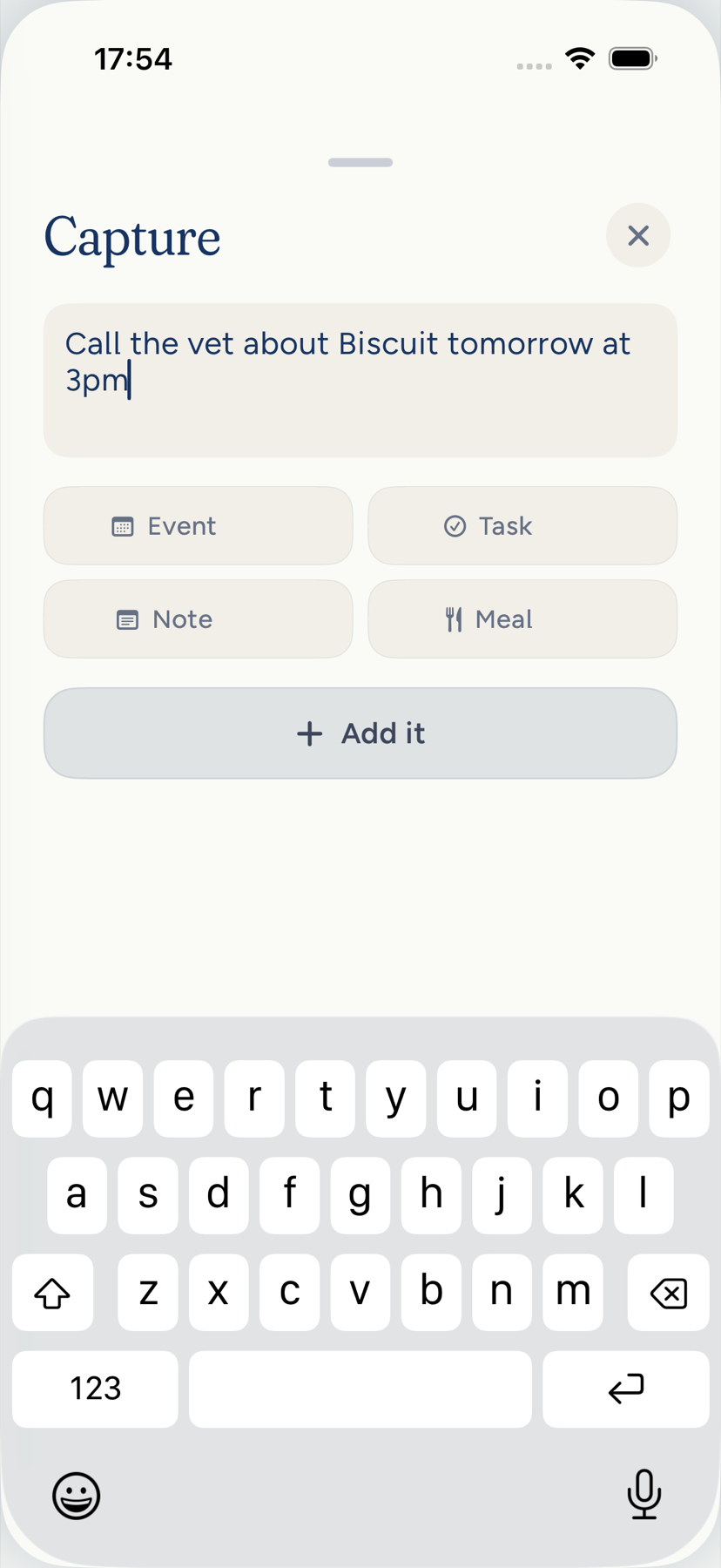
On iPhone, until you have captured something of your own, an empty sheet with no kind selected offers three examples that file when tapped, each as what it reads as (_Buy milk_ a task, _Ideas for the weekend_ a note, _Call Mom Sunday_ a task, due Sunday when Kept reads the day); the examples leave when you choose a kind or enter text, and once you have captured anything they no longer appear. When no model can sort a capture, the line under the kinds says what to choose and what would let Kept sort it, and it wraps in full at every width rather than cutting off. Return inserts a new line in Capture. During first-session setup, an example fills the field for review. Keyboard Done or Return files your whole draft, just like Keep it. Pasted or dictated line breaks stay in the draft for review without filing it. Save journals your words and the kind and details shown above it before filing, then shows the filed result.
What happens to your line
As you type, Kept reads the line and lights up the kind it detects: Task, Event, or Note, and on iPhone a Meal when Body is on. Detected details appear as rows under your words: Due, Priority, Area, and for an event its time and calendar. A value Kept guessed carries an auto mark, and so does the kind Kept lit, so a guess never reads as your choice; tap any row to change it. A title you are editing starts at the left of its row, like any words you write; the pickers keep their values on the right. At the largest text sizes each kind shows its name and its auto mark on one line, the rows below the kinds fade at the bottom edge when there is more to scroll to, and the kinds sit clear of Save. On iPhone, tap the detected date, pick the day, and tap Done to come back to the sheet. The date is written the way your iPhone's language writes dates, the same as on Today: Thu, Oct 1 in US English, Thu 1 Oct in UK English, and the year only when it is not this year. The receipt writes it the same way. A task's due row takes a day, and Add time gives it a clock when the deadline is a real hour, not just a date. Tap the kind pill to lock a different one. The title can leave out a day or clock Kept has read. Keep words restores your full first line. When the title differs, your complete line stays in the description.
The button at the bottom stays put while Kept reads your line, and it is ready from your first word. It reads Save, and the lit kind above it says what it will be. On iPhone the room for the rows under the kinds is held from your first word too, so when Kept finishes reading, Due, Priority, and Area fill in where there was space and Save does not move, even if you switch between Task, Event, and Note; a kind with more rows than fit scrolls inside that room. Press Save at any moment. On iPhone and Mac, Save keeps the kind and details you confirmed. Your exact words and that decision enter the device’s capture journal before filing. A later reading cannot change what you saved. On iPhone and Mac, the shown kind and details save before the sheet or panel closes. Mac then holds the receipt so you have time to read it. If Kept could not decide because you are offline or have Cloud AI off with no on-device model, short clear actions such as "Print the stats reading for Thursday class" save as tasks that keep any day you typed, and explicit repeats still save as repeating tasks; other lines stay notes. An automatic Area suggestion leaves a work-shift action unfiled when only its study purpose points to School, and any kind or Area you choose yourself stays yours. If the displayed kind is unavailable, choose an available kind before saving. With Notes turned off, Save waits for Kept to choose a kind. When you pick the kind yourself the button names it: Add task, Add event, Save note, or Log meal. Press it. The sheet closes and you stay where you were, on iPhone and on Mac. A short receipt says where the new item went, such as Added to Tasks · Buy printer paper or Added to Notes · Garden beds, and its Open button takes you to that exact item, in Tasks, Calendar, or Notes. On iPhone the receipt also names the day a task is due or an event falls on, such as Added to Calendar · Dentist · Thu, Oct 1, and shortens a long title before it leaves the day out, a little more at larger text sizes, so the day stays on the receipt at every text size and a day Kept read wrong shows up right there. At the accessibility text sizes the receipt grows with your text and wraps to up to four lines with Open underneath, so a title such as _Pick up prescription tomorrow_ stays whole. On iPhone, if an earlier change's Undo is still showing when you save (a task you just deleted, say), the receipt keeps Undo instead of Open, and that one Undo takes back the capture and then the earlier change. The filed receipt starts with Added to, followed by where it went: Tasks, Notes, or Calendar. When Kept read a repeat in your words, the receipt names the repeat where the day would be, such as Added to Tasks · Water the plants · Every day, on iPhone and on Mac. On iPhone the receipt shortens the title first, so the repeat and the day are always whole, including in the narrower receipt beside the + on Today. If you did not mean it to repeat, choose Open and set Repeat to Never.
On iPhone, a saved event uses the named Added to Calendar receipt with Open. When Kept offers a notification for a future event, a separate sheet titled Notifications explains the choice and offers Allow notifications. That choice does not change whether your event was saved.
On iPhone, an accepted capture stays in an account-specific journal through sign-out or an interrupted filing. On your next sign-in, Kept checks the saved item before replaying. If you have paused its destination, Kept keeps your words and confirmed details until you turn it back on. Hiding Notes from your menu does not delete protected captures.
A note shows two fields, Title and Content. The title stays on one line: on iPhone, Return in Title moves you to Content, and anything you paste after a line break lands at the top of Content. With the keyboard up, the field you tap comes to the top of the form with the next one under it, and Save note stays below both, so you can always reach Content, see the caret, and type. Tapping anywhere on the Content card puts the caret there.
Two rules govern every capture:
- Kept never invents what you did not say. A due date and a high or critical priority appear only when your words carry the cue, such as a deadline, a penalty, taxes or a tax return, or "before it expires". "Fix the failed charge" arrives undated with no priority, waiting for you to decide. The same bar applies later, when Kept fills in the details of a task in the background.
- Your words are the title. The title you see in the sheet is the title that is saved. Kept trims only what it has already used: a leading label such as task: and, for an event, a lead-in such as I have, I've got, gotta, need to, or don't forget, the date and time words at the start or end of the line, and a place that ends your line, which fills Location. An event title starts with a capital letter. "I have F45 tmr" becomes the event F45, tomorrow, and "Dentist at the office on Burnet" becomes the event Dentist, with the office on Burnet as its Location. A place stays in the title when anything follows it or when a lead-in came off, so "I have to be at the airport tmr 6am" becomes the event Be at the airport, never just Be. When a day or time and a place together end your line, in either order, all of them come off and fill their rows, as long as at least two of your words are left: "Dinner with Maya Thursday 7pm at Uchi" and "Dinner with Maya at Uchi Thursday 7pm" both become the event Dinner with Maya, on Thursday at 7 PM, with Uchi as its Location. With only one word left the rule before applies, so "be at Gold's Gym tomorrow 6am" is still the event Be at Gold's Gym, and "Dinner Thursday 7pm at Uchi" keeps its whole line. When a date sits in the middle of your sentence, the title keeps the whole line, so it never reads with a hole in it: "Call Maya Thursday about the lease" stays as you wrote it. Kept never adds a word you did not type: it may shorten "F45 class" to "F45", but it will not turn F45 into "F45 workout". A late refinement can add fields, never rewrite what you wrote. While Kept is still reading, the Title row only ever shows whole words from your line, never half a word such as First- for First-week goals. Picking a kind yourself applies that kind's rule to the words in the line as they are now: "Ask Rosa to cover Sunday" read as an event has the title Ask Rosa to cover, with Sunday in the date row, and switching it to Task gives the title back its Sunday, because a task keeps your whole line. A title you typed yourself stays as you typed it. A note keeps your first line as its title. A first line too long for a title is split where your first sentence or a short label ends, whichever comes first, and everything after it is the note's words, colons included: "Northfield brand brief. Goal: a 3 minute launch film for their spring range…" is the title Northfield brand brief over Goal: a 3 minute launch film for their spring range…, and "1:1 doc with my skip-level: team health, hiring plan, what could break the launch" is the title 1:1 doc with my skip-level. A period after a short form such as Dr., Oct., or an initial does not end the sentence.
Dates, times, and time zones
Read two-digit years in the century of the current day: “on 9/15/27” means September 15, 2027. A day above 12 makes the order clear, so “on 25/12” means December 25; dates whose two numbers both fit a month keep month/day order. An impossible explicit date such as “2/29/27” or “4/31” supplies no date and cannot be replaced by a guessed date; check the date row before saving an event. A clear calendar range such as “Trip 12/20-12/27” or “Off 9/15 - 9/20” uses its start day for an event or a task, while “on 3/4-5/6” remains a measurement.
Measurements, fractions, ratios and numeric ranges stay in your words and supply no date: “28 1/2 inches”, “3/4 cup” and “10-12 people” are quantities. Use a date context for a slash token that is also a common measuring fraction, such as “on 3/4” or “due 3/4”, while “9/15”, “10/16”, “12/16”, “2/4” and “6/8” stay dates; a named date such as “Oct 17” or “tomorrow at 3” still supplies its day even beside a measurement. The word “for” gives a slash token date context only when the token ends its clause, such as “reservation for 5/16” or “Table for 3/4 at 7pm”; “Buy screws for 3/4 plywood” stays undated. A slash date still supplies its day before a place, morning words, or a spaced dash, such as “Flight 10/20 in the morning” or “10/20 - dentist”. Counts whose numbers are outside date bounds, such as “10/40 practice problems” or “9/45 quizzes”, leave a stated day such as “tomorrow” or “Friday” available.
- "Thursday 3pm" lands on the next Thursday at three.
- "Friday" alone is an all-day event on Friday.
- Something to do that names a day is a task due that day, not an all-day event. "email Dana the Thursday agenda", "update meeting notes Thursday", "cancel appointment Thursday", or "pick up dry cleaning before saturday" is a task due that Thursday or Saturday. Add a time to make it an event ("call mom at 3pm thursday"), and a meeting named by its nouns stays an event ("call with Dana thursday", "review session Thursday", or "book club Thursday").
- Shorthand works the same way. "tmr", "tmrw", "tmw", "tomoro", and "2moro" mean tomorrow, "tonite" means tonight, and "tue" or "tues", "thu", "thur" or "thurs", and "fri" name that weekday. "next fri" is Friday of next week, and "this fri" is the coming Friday.
- Tonight can cross midnight. A small-hours time such as "2am tonight" lands at 2:00 AM tomorrow; an evening time such as "7pm tonight" stays today.
- A weekday in brackets that agrees with the day, as in "F45 tmr (mon)" typed on a Sunday, is read as one day. If the two disagree, Kept does not pick one for you.
- "mon", "wed" or "weds", "sat", and "sun" are also everyday words, as in "c'mon", "newly wed", "the dog sat", and "get some sun". Kept reads them as days on its own only right after next or this, beside a time, or alone in brackets, as in "next sat", "sat 11am", or "(mon)". Everyday words around them, such as on, by, before, from, until, every, or night, never make them a day, so "go for a run before sun sets" and "results from sat" get no date from those words. Anywhere else, as in "brunch on sat" or "brunch sun", a date appears only when Kept's reading of the whole line finds one, and "Get some sun" gets no date.
- "10:30 AM EDT" is placed at that instant, and the sheet shows both that clock and your local time.
- An ambiguous abbreviation such as CST stays as you wrote it until your region makes it clear.
- A day of the month counts. "Monday the 21st" and the spoken "Monday the twenty first" land on the 21st, the Monday it names, and "pay rent on the 1st" is due on the next 1st. If the weekday and the day of the month disagree, check the date on the sheet before you add it. A number inside a name or a rank, as in "the 3rd floor", "my 21st birthday", or "read the 2nd in the series", is not a date.
- A day counted from today works too. "in two days", "in 2 weeks", and "a week from today" land that many days out. "in a few days" or "in a day or two" keeps the day Kept's reading of the whole line finds.
- A Spanish day name, as in "el jueves" or "el lunes", keeps the day Kept's reading of the line finds instead of losing it.
- A zero-prefixed 24-hour range keeps its written hours: 06:00 to 07:00 stays 6:00–7:00 AM, and 01:30 to 02:30 stays 1:30–2:30 AM, in the preview and after saving.
- A time can be short or spoken. "at 7", "tmr 10", "thu 415", "at 1830", "one pm", "seven o'clock", and "at noon" are all times. For a bare hour such as "at 7", Kept picks morning or evening from the rest of your line, and you can change it on the sheet. A number that belongs to something else, as in "at 10 Downing Street" or "fri 3 slides", is not a time.
- A time is never a place. "Soccer Wednesday at 7" or "at one pm" fills no Location, and neither does "in two weeks". A place ends where the day begins, so "dinner at Nopa next friday" fills Location with Nopa alone. Only an event fills Location from your words; a task or a note never does.
- A task with a time and no day, as in "remind me to take my inhaler at 10 pm", is due today at that time, the same way an event with no day lands today. If that time has already passed today, the task is due tomorrow at that time instead, so "call mom at 9 am" typed at 11 pm is due at 9 tomorrow morning. A day you name is always kept: "call mom today at 9 am" stays today.
- Measurements and room numbers leave the date in its own clause available. “The draft is 3/4 done. Don't book Oct 23” and “Room 13/2. Don't book Oct 23” leave the day for you to choose. “Can't finish 3/4 of the draft. Meet Oct 23” keeps October 23.
- A day you rule out is never the day Kept files. When your line rules out a day, as in "Meet Dana Thursday rather than Friday at 3pm", "call mom not on friday", "Dentist not 10/23 at 3pm", "Meet Dana excluding Friday" or "call mom every sunday except this one", Kept does not choose a day for you and never fills it with today: an event waits on the sheet with Choose a day before saving this event., and a task saves with no day and no repeat. A time in the line does not put it on today either: "call the plumber at 3pm, not the 1st or 2nd" saves with no day. That holds when you Save before Kept has finished reading a line with several things in it, too. Repeat words held back by an exclusion that rules out a day make no repeat, because the repeat would land on the day you ruled out: "every weekday except Friday stand up notes", "every weekday standup excluding Friday" and "every Sunday call mom, not this Sunday" each save once, with no day, and the sheet says the repeat is not set. A "no" or "not" that rules out no day keeps the repeat: "every Monday, don't forget the trash", "every Sunday call mom, not dad" and "every weekday standup, no laptops" each repeat as written.
- A task repeats only when your words say so. When Kept files the line as a task, "every Thursday let me take the bins out", "water the plants every morning", "call mom on Sundays", "pay rent every month", "every other Friday run payroll", or "clean the fridge once a week" makes a repeating task, due on its first occurrence when you named no day. The repeat words have to open or close the line: "lisinopril 10mg every morning, metformin with dinner" is a list, not a repeat. They also have to be about the to-do itself. When they describe something else in the line, the task is a one-off: "cancel the Netflix that bills me every month", "ask Jen if she works on Saturdays", "book the venue we use every year", and "tell Sam I'm off on Fridays" each file once. "I need to call mom every Sunday" and "remind me to take my vitamins every morning" still repeat. Repeat words held to a stretch of time make a one-off too: "every day this week finish the report" and "every week until the launch send a status note" do not repeat. "Every" followed by a thing is never a repeat, so "before every run", "every renewal", and "every sun salutation counts" stay one-off. "daily" and "weekly" on their own never make a repeat either; write "every day" or "every week". The title keeps your words as you wrote them, without the repeat words, because the task's repeat says them: "water the plants every day" is the task water the plants, repeating every day, and "every Thursday let me do the invoices" is do the invoices, repeating every Thursday. The whole line stays the title when taking the repeat words off would lose something they say, such as a time of day ("water the plants every morning"), a clock ("stand up and stretch every weekday at 3pm"), the words they belong to ("pay rent on the 1st of every month"), or all but one word ("stretch every day"). A title you edit yourself stays as you wrote it. A line with repeat words and no time is always a task, never a one-day calendar event, so "every Thursday let me do the timesheet" repeats as a task even when Kept first read it as an event. A line with a time stays an event: "every Thursday at 7pm standup" stays a calendar event. See Tasks for how to change a repeat and what happens when you complete one.
On iPhone, tap a detected date to open the calendar, choose a day, and tap Done. Changing the day keeps your words and does not add a time to an all-day event.
Life areas and goals
Kept files a task or event under one of your life areas when your words point at one. It reads what the activity is, against your own area names and descriptions: a gym session, a fitness class, a run, or a dentist visit files under the area you keep for health or your body when you have one, not under work. If you have no such area, it prefers a personal area over a work one. An area appears only after Kept has finished reading it, so a matching prefix never flashes as the choice while a longer guess is still arriving. Kept only ever files under an area you have: when nothing in your list fits, the capture has no area, never a new one Kept made up. If the right area does not exist yet, choose Add area… in the picker, name it, and Kept creates it on the spot. Undo is one tap away until you close the sheet.
An area is not a goal. Kept never attaches a captured task to a goal just because they share an area, even if it is the only goal in that area. Linking work to a goal is a deliberate act you take from the task or from the goal. See Goals.
On iPhone, tap the detected date, choose the day, and press Done to return to Capture. The Done control remains readable in light and dark appearances.
Tags on the sheet
Suggested tags on the capture sheet are arriving gradually across accounts. Where they are on, a task or an event files by its area and shows no tags. A note keeps the tags Kept can ground in your own words: a subject or a name you typed, never a joining word like out, up, or in, a verb on its own, a pronoun, a day, or a number by itself. A project you name before a colon, as in "ledgr: fix the rollover bug", counts as a name you typed. When nothing in the line names a subject, the note has no tag. Add or remove a note's tags any time in Notes.
Meals
Type what you ate and Kept detects a meal. "Two eggs and toast" looks each food up in a nutrition reference and tells you anything it could not find. Snapping a photo of a plate is a separate path from Body; see Meals, sleep, and training.
Where the thinking happens
Kept routes on your device first. On an iPhone or Mac with Apple Intelligence available, an on-device model detects the kind and pulls out dates for most lines without a network; Settings → Capture on Mac shows whether it is ready and opens System Settings if it is not. When you have allowed Cloud AI and you are online, a cloud pass refines the harder lines: an area that needs judgment, a priority read from tone, a line that holds several thoughts. With Cloud AI off, the cloud pass never runs and the on-device result stands. When this iPhone or Mac has no on-device model (an iPhone on iOS 18, a device without Apple Intelligence, or Apple Intelligence turned off), a line under the kinds says what you can do. With Cloud AI off it reads Choose Event, Task or Note. Turn on Cloud AI to have Kept sort it., and names Apple Intelligence too when turning it on is all this device needs. With Cloud AI on it reads Kept sorts it in the cloud, or choose Event, Task or Note.
If the cloud is unavailable, Kept keeps your line as the single best thing it can be on the device, and nothing is lost. A capture never depends on keeping the sheet open; the raw line is written to a durable inbox on the device the moment you add it.
Before a router answers, a short instruction such as “Print boarding pass” or “Call mom” saves as a task; a line holding several intents, such as “call mom and buy milk”, stays together in one note.
Fix a wrong guess
Kept will sometimes choose the wrong kind or miss an area. The fix is always the same: open the saved item and change it. Your correction becomes the record. If you wish Kept had asked, it is easier to lock the kind before you press Add: tap the kind on iPhone, or press ⌥1, ⌥2, or ⌥3 on Mac for Event, Task, or Note.
To take a capture back, choose Open on its receipt and delete the item where it lives.
A draft you did not send
Close Capture with words still in it and they are kept. The next time you open Capture on iPhone, a line above the field offers them back: Your unsent draft with Restore and Discard. Typing something new leaves that draft on offer until you choose; the two are never joined. If what you type already holds the draft's words, because you typed it again, the line goes away: nothing is left unsent, and a saved line never comes back as a draft. Restore puts the draft in the field, and whatever new line you had typed becomes the draft on offer in its place. Discard removes it, and Undo on the same line brings it back until you close the sheet. Close the sheet with both a new line and an unused draft, and Kept keeps both: the newer one is offered first, the older one after it.
On iPhone, restored words appear in the field at every text size. Discard removes the offered draft and keeps any new words you have typed.
On iPhone, restoring a draft clears typing Undo for the line it replaces, and the line you are writing stays visible at the largest text size.
On Mac, a reopened capture panel puts your draft straight back in the field with Picked up where you left off. Clear empties it, and Undo returns every word until you start typing something new.
Your first todo
A new account starts with one small task on Today: Capture one to-do. It asks for the one habit the rest of Kept is built on, and it has behavior behind it.
- Capture on the starter (on Today, on its page, or its Add a todo step's Capture a todo) opens Capture with the Task kind already chosen. The sheet asks What's one thing you keep meaning to do?, shows an example from the area you chose in setup, and preselects Today as the due day. The due day is yours: clear it in the Due row like any date. The button reads Add todo.
- Add todo closes the sheet onto Today rather than Tasks, and one receipt confirms it, the same receipt any capture leaves: Added to Tasks · Email the TA about lab 3 · Mon, Oct 5. Its Undo takes the todo back and unticks the step. Offline, the receipt says the todo is saved on your iPhone or Mac and syncs when you are back online.
- The starter's Add a todo step ticks itself the moment a real task capture lands, whichever door you used (the round button, ⌘N, the ⌥Space panel). Those other doors leave you where you were, and the same one receipt confirms the todo, with Undo rather than Open: it takes the todo back and unticks the step. On your first day, the todo that ticks the step also joins Today's Top 3 right after the starter, on iPhone and on Mac. A note or an event never ticks it.
- A todo in the starter's own words counts too: write Capture one todo if that is what comes to mind, and it is your todo like any other. Kept never mistakes it for the starter or removes it.
- Once you have captured a todo of your own, the starter leaves Quick wins on iPhone and on Mac (on Today, and in the Focus launcher on iPhone) and stays in Tasks until you tap Done. A finished todo counts, and so does one you add by hand in Tasks, import, or write in a note. The first step Kept set up for your goal does not, and neither does a task an agent made for you. This is a once-per-account milestone: taking the captured todo back with Undo, deleting it later, or opening Kept on another device does not return the starter to Quick wins. With no todo of your own yet, the starter is the one Quick win Today shows. Not today keeps it out of Quick wins like any task.
- Find your todo then offers Open todo, which opens the todo you captured. Before you have captured one it says Save a todo to open it here. Look around welcome to Kept opens the welcome note; it is never required. If you delete the Add a todo step, the starter's button becomes Done.
- On Mac each step keeps three separate controls: the circle completes it, clicking the words edits them, and the button beside them runs the step.
- If Tasks are off in your layout, the step explains how to turn them on (Settings › App layout › Modules) instead of opening a Capture that could not save a todo.
Tap Done on the starter when your first todo is in, wherever it shows: on Today, in Tasks or on its own page. The first time you finish it, Kept marks the moment once: Kept. with what you captured and where it is. From there you can set a reminder on your todo (Remind me tomorrow at 9:00 AM, or Change time; the system asks for notification permission right then, and if notifications are off your todo is still saved), go to Today, or Undo, which reopens the starter, puts it back at the top of Today, and takes back a reminder you set from the card. If you already set that reminder from your todo's receipt, the card says it is set instead of offering it again, and Undo leaves it in place. If you finish the starter without capturing, Kept says your first task is done and offers Capture a todo. On Mac, the card also names your capture shortcut (⌥Space unless you changed it), ↩ runs its highlighted button, and esc closes it.
The moment appears once. The device you finish on remembers it right away, and your account records it too, so another iPhone or Mac skips it once that record has synced; a second device that has not synced yet could show it one more time. It never appears for a completion made by a widget, Siri, the assistant, or another automatic path, and never for a Your first five minutes starter from an earlier version. An agent working through the Kept tools (Kept for AI agents) can complete the starter or tick its Add a todo step like any task and step, and the moment does not appear for it.
Capture more than one thing
Write several thoughts in one breath, separated by periods or new lines, and Kept can file each one separately. This needs Cloud AI and is rolling out; if your account has the single-item route, or you are offline, the whole line files as one item and you can split it by hand. A note saves exactly what the sheet showed: the same title, and each line you wrote as its own line in the note.
Next: Capture on Mac covers the keyboard-only flow in detail. Today and your Top 3 shows where captured tasks go.
On iPhone, photo actions stack at accessibility text sizes so their full labels remain readable as you scroll the Capture sheet.
Save and Undo receipts use one elevated-paper surface on iPhone and Mac, with one trailing action such as Open or Undo. The receipt appears from below and stays above the iPhone capture button. It names the outcome without a slogan.
Successful multi-item plan capture says “Plan saved” on iPhone and Mac.
Review the kind and time
The selected Event, Task or Note button has a filled background. Choosing it keeps that kind, including when you choose it again. Save uses your choice. Beside Save, one line names what will be saved and when, such as a task with its due day and time, an event with its day and start and end, or _Note · Notes_; until there is a kind it reads _Choose a kind_. This line and Keep words are on iPhone and Mac.
When the title Kept made for a task or event leaves out words from your first line, such as a day or time it read, Keep words puts your full first line back as the title. If a task's words ask for a repeat Kept cannot read, the sheet says _Repeat isn't set. Edit the repeat words before saving, or set Repeat on the task._ On iPhone, if the kind you chose is turned off in your layout, Capture says _That destination is off. Choose another kind and try again._ instead of saving. A parsed day and clock appear before saving, including a 24-hour time such as 17:30. The event receipt includes the time too. Setup's filing chip lets you choose the kind before Keep it.
On iPhone Duo's cover and spread, Capture opens in a card over a dimmed page; the dimming runs to the bottom edge of the screen, with no undimmed band under the card. Its title stays above the scrolling fields while the keyboard is open. Example chips wrap in full, and the photo choices precede the kind choices in every pose, drawn with the same hairline and gutter so the two rows read as one set of chips. A long title wraps and grows to eight lines before it scrolls. Save in the card is the single commit control; the dock holds Close. The upright layout keeps its own Close beside the title.
At accessibility text sizes, Capture keeps the Event, Task and Note decisions separate from the scrolling fields. The complete choices remain reachable with the keyboard up; at the largest sizes their own short list scrolls. The unsent-draft offer puts its title above separate, full-height Restore and Discard controls. Capture preserves its card gutters after typing and keeps the photo alternatives whole. When an event’s date and time cannot fit side by side, they use separate rows inside the same scrolling form. Keep words remains in the editable form, while the summary and Save stay together.
“Next week’s Friday review” uses Friday of the following calendar week. An independent deadline stays separate: “Submit next week’s grid by Tuesday” uses the coming Tuesday. The same deadline rule applies to before, due and until. Short dated deliverables such as “bio lab report fri” file as Tasks with that Friday; an explicit “note:” still files as a Note. A verified trailing “due Wednesday” leaves neither a duplicated deadline nor a dangling “due” in the task title. These deterministic readings also apply with AI off.
The contextual Notifications offer appears only when its cohort feature is enabled. With that feature off, saving a timed task or event keeps the item and its receipt without opening the offer. An enabled offer starts in a medium sheet at standard text sizes and can expand; accessibility text uses the larger presentation.