

GuideStartiPhoneMac
Install and sign in
Install Kept on iPhone and Mac, sign in with Apple, Google, or an email code, and finish the few-minute setup that ends on Today.
One account works across iPhone and Mac. Sign in on either device first, and the other one recognizes you when you get to it.
Install Kept
- iPhone. Get Kept from the App Store and take each update the App Store offers before you investigate a problem.
- Mac. Download Kept from kept.do/mac. It is one universal app for Apple silicon and Intel and needs macOS 26 or later. Open the disk image. Drag Kept to Applications to install, then open it.
Your account is separate from the app on the device, so updating or reinstalling never creates a new account or touches your data. The Apple Account that installed the app does not have to match the email you use inside Kept.
Sign in
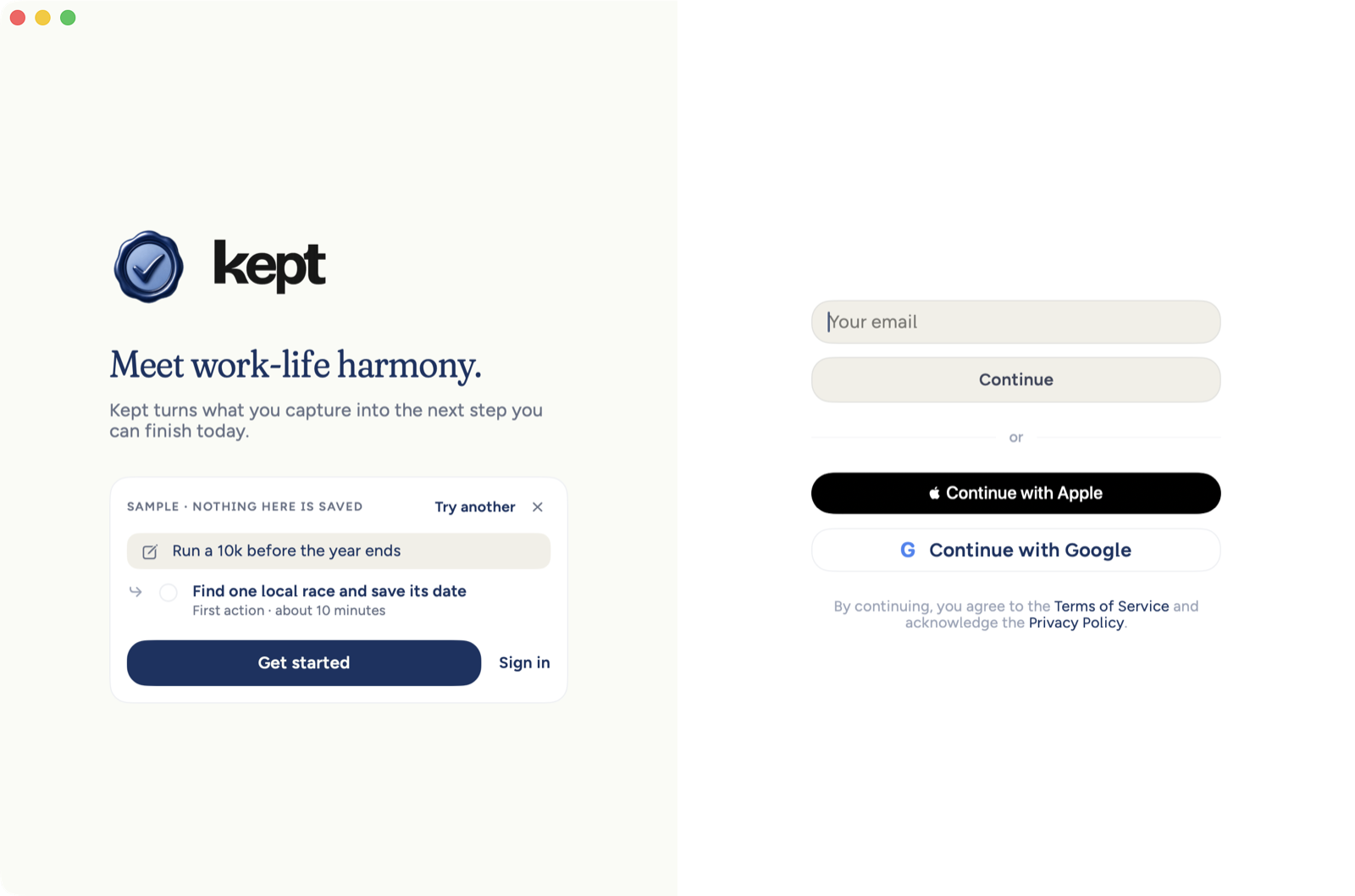
Kept offers three doors, and they all lead to the same account. On iPhone, sign-in is the first screen you see: your email and Continue, then Continue with Apple and Continue with Google, and the Terms and Privacy line. The keyboard waits until you tap the email field. With the keyboard up, Continue stays right under the email field and both sit above the keys; Apple and Google are a short scroll below. When the keyboard comes back up, the field and Continue stay above it and the heading stays clear of the top edge, including at the largest text sizes. On Mac, Continue with Apple and Continue with Google sit first as matching buttons, Apple on top whenever it is offered. Type an email below them when you want a code instead. Keyboard focus still starts in the email field so you can type without a mouse. Nothing is pre-selected or hidden. If you run the iPhone app on a Mac, Continue is in the same place, right under the email field.
The iPhone sign-in screen reads _Turn ideas into action_ and _Kept helps you capture your thoughts and stay organized._ On iPhone, the keyboard closes as soon as you tap Verify code, so it never rides along into setup. On iPhone the sixth digit checks the code for you, whether you type it or fill it from Messages. Until you type, the cursor sits at the start of the code field, just before _Paste your code_, and the code centers itself from its first digit. A code that does not match puts you straight back in the code field with the code selected, so the next digit you type starts it again. The message sits right above the code field, where you are looking, and VoiceOver reads it out as it appears. At large text sizes the whole sign-in screen scrolls, the Kept mark included, so the code field, any message and Verify code stay within reach with the number pad up. The Resend in countdown is set in the same readable grey as the rest of the screen's small print.
- Continue with Apple. The fastest path on iPhone and in the Mac App Store build. Apple may offer to hide your email behind a relay address, and that works fine. The Mac app downloaded from kept.do cannot use Apple's built-in sign-in, so its Continue with Apple opens Apple's sign-in page in a small window instead, and you come back signed in. That button appears once Kept turns on Apple sign-in for the web, with no update to install; until then the download offers Google and email. Sign-in at kept.do works the same way: Continue with Apple shows up there only when it can finish.
- Continue with Google. Uses the Google account you choose.
- Email code. Type your email and tap Continue. Kept sends a six-digit code. Paste it and tap Verify code, or on iPhone just type or fill all six digits. There is no password to remember. If Kept cannot reach the network when you verify, the message says _Couldn't connect. Try again._ instead, and your code is still good.
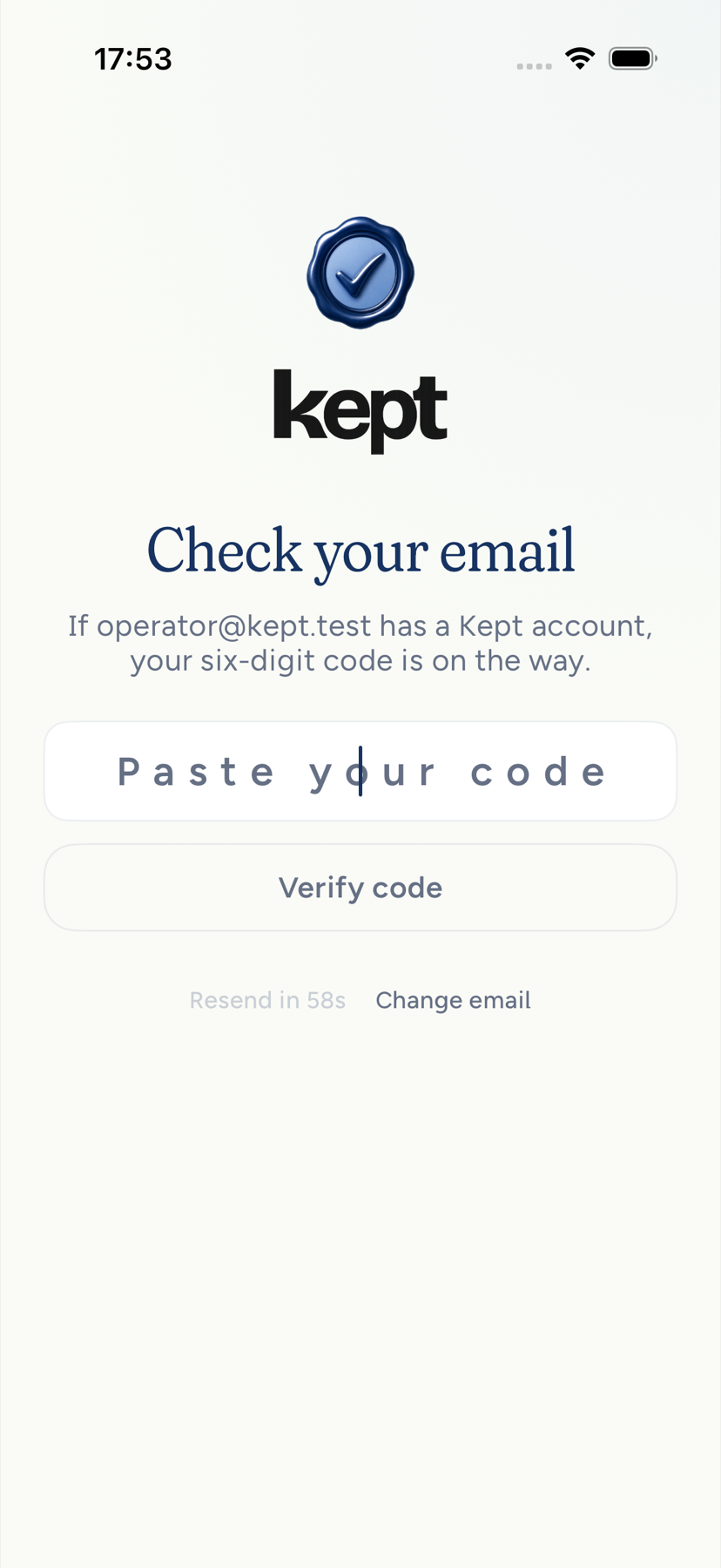
Every door creates your account the first time you use it: Apple, Google, or an email code for an address Kept has not seen before. After you ask for a code, the screen says _Check your email_ and _Your six-digit code is on the way._ If Apple shares your name, Kept uses it during setup; change it any time from your Profile on iPhone or the identity card at the top of Settings on Mac.
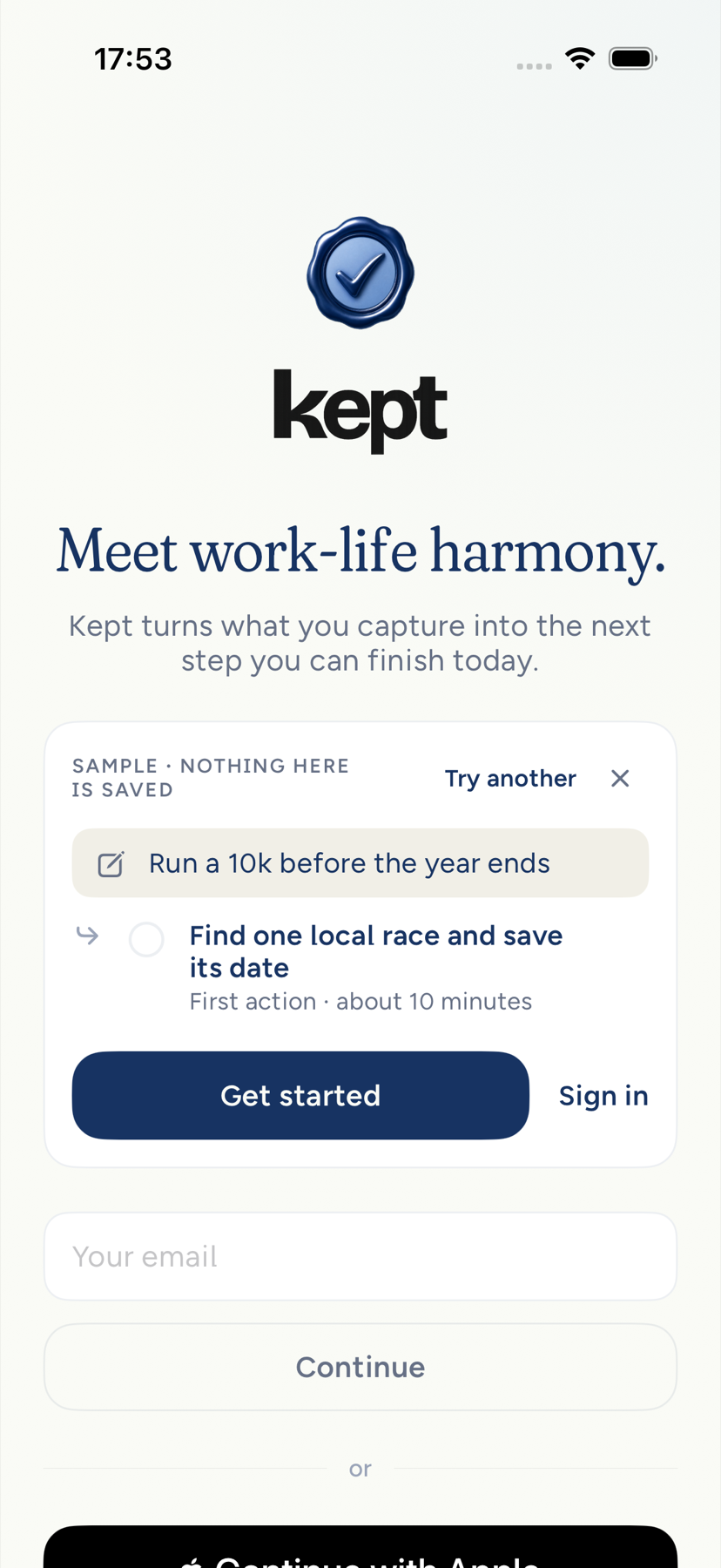
On iPhone, signing out returns to the sign-in screen; clearing the outgoing account does not show a failed sign-in message.
Your first session on iPhone and Mac
Choose an area, then write one line in _What's on your mind?_. On iPhone, example lines leave once you start typing. Choosing an example fills the field so you can review it before Keep it. On Mac, the hint behind the field leaves when you type; Keep it waits for your words. It can be a task, note or event. The filing chip shows the kind and any day and time before Keep it. Open that chip to choose another enabled kind. Notes-only and Calendar-only setups can keep their first line too. If a destination is turned off before you save, choose an enabled kind and try again. On iPhone the keyboard closes when you keep the line. On iPhone and Mac the confirmation's headline is where the line went, such as _Filed to Notes_, _Filed to Tasks_ or _Filed to Calendar_, and your own words sit below it as body text that wraps in full, however long. The receipt names what you saved, and names its day only when it became a task or event. Continue stays in the footer at the bottom of the window or screen and advances without turning notifications on. You then choose Cloud AI separately and enter Today. Later saves no item. A new session does not ask for a goal or a starter plan. Mac's Skip setup continues without a confirmation.
After your first future timed capture, Kept may offer notifications once, using that item's words and time. A task's action sets a local reminder at the offered time. For an event, Allow notifications allows reminders you set in Kept; it does not add an event alarm. You can dismiss the offer and keep using Kept. Allowing local notifications does not turn on remote push delivery or Cloud AI. Settings shows the real system permission separately from push delivery.
Write a note, the Notes +, and New note open a blank page with the caret in its title. On a keyboard, Command N in Notes does the same. A new empty subpage starts in its title too.
Members who started setup on an earlier version keep their saved step and typed goal. Goals remains available whenever you want it.
Older iPhone draftsiPhone
An older saved setup can retain the earlier goal and starter-plan steps. On iPhone it is one room: the brand mark, a progress bar with one segment per stage, and the buttons along the bottom stay put while only the middle of the screen changes. Four stages, then Today: one focus, a Cloud AI choice, one goal, and a starter plan you keep what you like from. There is no separate Ready screen and no reminders step in this setup; new iPhone sessions use the saved-task reminder offer described above. Each screen fills its own segment when it arrives, so the first screen shows one of four and the starter plan shows all four; the bar has no segment for a screen that never comes. With VoiceOver, each step is announced as a new screen when it arrives, and on every setup screen VoiceOver starts at the screen's title. At the largest text sizes each step is one page that scrolls instead, with the Kept mark and progress bar at the top. A step you type in (your goal, or the one thing you say) ends with its buttons, so no button ever sits over the field you are typing in; every other step, Cloud AI included, keeps its buttons at the bottom of the screen while its words scroll above them, so the answer is always in view. The _Skip setup?_ card keeps its title and Keep going whole at every text size and scrolls when it is taller than the screen.
- One focus. _What matters most right now?_ Choose one area to focus on: Career & Craft, Body & Health, Relationships, Growth & Mind, Wealth & Money, or School & Study. Continue fades in once you have chosen, in a place already kept for it, so nothing moves. The area becomes your first life area; add more any time in Profile → Life areas. Area names are never cut off: at large text sizes or on a narrow screen a pill moves to the next row or wraps between words.
- Cloud AI. _Turn on Cloud AI?_ _Kept can write your starter plan from your goal._ Six short tiles say who receives it (OpenAI and Anthropic, only for features you turn on), what is shared, why (to write your plan, sort what you capture and answer your questions), how it is protected, that you stay in control, and what still works without it. Read the Privacy Policy and See what is shared are one tap away. While the Cloud AI screen arrives, Allow Cloud AI and Not now are unavailable for a moment (VoiceOver reads them dimmed), so a double tap on the step before can never answer. Allow Cloud AI turns it on for your account, on iPhone and Mac. Not now asks once more, once per account: _Keep Cloud AI off?_ _Cloud AI lets Kept write your plan from your goal, sort what you capture into tasks, notes and events, and answer questions about your notes. It sends what those features need to OpenAI or Anthropic. Without it, Kept uses its own starter plan, and capture, notes, tasks, calendar, habits and sync still work._ Keep Cloud AI off and Allow Cloud AI are the same size and either continues at once (at large text sizes they stack, full width, and the card scrolls so its title and both answers are always reachable); tapping outside the card, or Escape on a keyboard, counts as Keep Cloud AI off. Once you have kept it off this way, setup does not ask again on any device. Only your own Allow Cloud AI turns it on. Setup skips this screen when Cloud AI is already on for the account, or when the account is on-device only and has turned Cloud AI off before (a Cloud AI revocation on the account, for example turned off in Settings or kept off on another device). A new account is asked once, and nothing in setup turns Cloud AI off.
- One goal. _What's your first goal?_ Name one outcome in the area you chose, in your own words or with a spark such as _Run a 10k this year_. Below the goal, three optional questions help the plan fit. Their space is there from the start, dimmed until you have a goal: for school or work, _Which class?_ or _What are you working on?_; _When could you give this a real hour?_ (Mornings, Midday, After work, Evenings, or Weekends); and _Why does this matter now?_ Return in the goal field moves you to the next question. Build my plan is ready as soon as you have typed a goal, with no separate step to set it. It closes the keyboard first, then shows the plan. With Cloud AI on, Kept starts writing the plan the moment your goal is set, so it is usually ready when you get there. If you come back to setup on another device, it asks for your goal again with _Name your goal to continue._, because the words you typed stay on the device where you typed them.
- Your starter plan. _A start on it, three ways._ Three cards, one per swipe, all the same height: something to do Today in 5 to 15 minutes, A habit with its rhythm and what still counts on a bad day, and a block On your calendar with its day, time, and exactly what to do in it. Each card has a Keep this checkbox; a card you do not keep dims. The first action and the habit start kept. The block starts kept only if you chose a time on the goal step; otherwise its card offers Choose time, where you pick a day in the coming week and a start between 7:00 AM and 10:00 PM (shown in your device's own clock, and never earlier than now on today), and choosing a time keeps it. If Kept has no first action it can stand behind for your goal and Claude did not write one, the first card asks _What would be a small first step?_: type one and tap Use this action to keep it, word for word. A line under the cards says who wrote them: _Includes suggestions from Claude_ when any card came from Claude, otherwise _Kept's starter plan_. If you allowed Cloud AI and Claude could not write the plan this time, the line reads _Starter plan_ with Retry, which asks Claude once more. With Cloud AI on, the cards show _Writing your starter plan_ while Claude writes them, for at most about ten seconds before Kept's own plan shows instead, and Write another plan asks for different cards a couple of times. Without Cloud AI, nothing about your goal leaves your iPhone and Kept's own plan for your goal shows at once. The button reads Add 3 to my plan (or however many you kept), or Continue when you keep none. Back returns to your goal with everything you typed.
Tap Add 3 to my plan (or Continue) and setup puts what you kept in place, then fades away over Today. On iPhone, a custom first step you are still typing counts in Add N to my plan and is kept when you tap it, without first pressing Return or Use this action. Setup saves only what you chose: a habit keeps the words it was shown with, no task gets a priority (setup never asks for one), and only the step shown for Today is due today. Anything else setup adds for you has no date until you give it one. Choosing a habit adds it to Habits; it does not mark it done. Everything is yours to edit, move or delete. Setup does not ask about notifications; the system asks the first time you set a reminder on a task.
On iPhone and Mac, setup can then ask one last question before Today, with its own segment on the progress bar, after Add 3 to my plan or Skip setup: _What's on your mind?_ Write anything and tap Keep it: Kept files it as a task, a note or an event, as Capture would, and the line under the field names which (a task shows the day and time it will be saved for: a day or time you name is kept, a line without a day is due today with no time, and a line that rules out a day, such as "call mom not on friday" or "call Dana, not Oct 23", is saved with no day for you to choose, even when it names a time). Later goes to Today with nothing added. The saved receipt names what it became, and Open opens the exact item; a todo for another day stays off today's first plan.
If setup is interrupted, your unsaved line stays on this device for up to fourteen days from first saving its draft, and restoring or editing it keeps that original expiry; it returns with the capture step when you reopen Kept, or one Mac capture window can recover it when that step is turned off. Keep it saves it, while Later discards the setup draft and continues setup. Kept saves those words after a short typing pause and when you leave the app or capture window; signing out or deleting your account removes its unsaved setup draft from this device. If you reopen Kept before answering the Cloud AI choice during setup, that choice comes back. Not now keeps Cloud AI off and opens Today, with your saved first line kept once.
Setup and Skip setup keep the welcome reference note but create no “Capture one todo” task, steps, task comment, reminder or completion credit; tasks come from what you write or explicitly keep in your plan.
Use Capture to write your own task, note or event, and reopen the welcome note in _Get to know Kept_ whenever you want the tour. Its capture line is guidance rather than a box to tick, so it never reads as undone after you have captured. The welcome note no longer asks you to finish a task on Today that setup did not add. Finishing or skipping setup on iPhone also keeps Mac from adding an extra Capture one todo task after your account syncs.
Setup never writes a line for you. Your line, the sentence under your name, stays empty until you choose or write one; where it would go, Profile and Settings show _Add a line you want to keep_ in italics. On Mac, the Declare step's lines are optional: pick one, write your own, or leave it for later, and a line you picked can be unpicked.
On Mac, a fresh session is Focus, one line, the saved-item receipt with Continue, then Cloud AI and Today. A fresh session's Not now keeps Cloud AI off and setup continues. A resumed draft that already has a goal uses the older Focus, Cloud AI, Goal and Plan rail before Today. On the resumed rail, the second ask is a sheet; Escape keeps Cloud AI off and Return never turns it on. After each step, the keyboard lands on that step's main button or field; on the Cloud AI step it lands on Not now, so Space never turns Cloud AI on. Saving the plan goes straight to Today, with no Ready screen and no reminders step on Mac. Changing focus to another Mac window keeps a starter plan request in progress instead of asking for it again.
Skip setup is on the focus and goal steps if you would rather start without a goal. The card says _Start on Today and capture a todo when you're ready. To add a goal later, tap your picture at the top of Today, then Goals._ Choose Keep going or Skip setup. If you skipped setup, the _Set one goal_ notification opens Goals. In the older setup a few links still open (and on Mac when the new setup is off), Skip asks first once you have typed a goal: _Skip setup? Your goal won't be kept._ with Keep goal and Skip. That setup also says when its plan is Kept's own starter plan rather than one written from your goal, with Retry, and names the rule that at least one habit stays kept.
Other permissions come later, in context: Kept asks for calendar access when you connect a calendar. Apple Health is paused with Body in Kept 1.8.6, so setup does not offer that permission. Cloud AI stays off until you choose Allow Cloud AI, in setup or later: nothing is sent to OpenAI or Anthropic before that. If you kept it off, Settings › Privacy › Cloud AI holds the choice any time. A setup started in an earlier version that had already reached its last screen does not ask again. See Cloud AI, explained.
Meet Do on iPhoneiPhone
In Kept 2.0 on iPhone, Do is turned on account by account. When it is on for yours, the first time you sign in Kept shows a short introduction to Do: _Meet Do. Get help with your plans, notes and tasks. I answer from your notes, tasks and calendar, and draft text for you._ Try Do asks for Do's Cloud AI permission, then opens the conversation. Not now closes the introduction and turns nothing on. A privacy explanation and a link to the Privacy Policy are on the same screen.
Do asks for its own Cloud AI permission, so Try Do shows the Cloud AI screen first, with Allow Cloud AI and Not now side by side, even if you allowed Cloud AI in setup. Allowing it there turns on Cloud AI for your account if it was off and gives Do its own permission. Nothing is chosen for you, and declining leaves the rest of Kept working. After Not now, Settings › Privacy › Cloud AI for Do › Turn on brings the introduction back. See Cloud AI, explained and Do.
Each admitted account sees the introduction once. Signing in to a different account, or reinstalling, shows it for that account if it has not seen it. Texting Do is not part of Kept 2.0, and the introduction never asks for a phone number. See Ask Kept for what Do can do.
Welcome back on a second device
Sign in on your Mac after setting up on iPhone, or the reverse, and Kept skips setup and opens on Today with your data. Device permissions, such as calendar access on the Mac, are asked for when you first need them. If you started setup on one device and did not finish, the other device starts again at your goal.
If you finish setup on your iPhone and your Mac before either has synced, you still get one goal, one first action for it, one habit and one plan for your first day: the second device keeps the rows the first one saved and reports nothing as failed.
Open to anyone
Kept is open to anyone. There is no invitation, access code, or waitlist step: after your first sign-in, setup starts right away.
Do is different in Kept 2.0: Kept turns it on account by account, so it may not appear for you yet. Everything else in Kept works without it.
If sign-in does not work
- The code is not right. The screen says so directly above the code field and moves up so Resend code and Change email stay above the number pad, at every text size. Type the code again, or use either one.
- The code never arrives. Check spam, then tap Resend code once the short countdown ends. The screen says the code is on its way if the address has an account; it will not say whether the address is unknown, on purpose.
- Too many codes. If you asked several times in a few minutes, wait and try once more. Kept will not send another code until the wait is over.
- The app returns to the sign-in screen after you verify. Update to the current build and try again. If it persists, write to privacy@thesis.do with your build number.
- Kept could not finish signing you in. The device could not load your profile in time. Tap Try again; if it keeps happening, check your connection and try once more.
- You signed in with the wrong account. Sign out from Settings, then sign in again with the right one. Your data is on the account, not the device.
Goal Builder
Goal Builder is how you turn a sentence into a goal. Say what you want, answer up to three questions, and keep it: you get a tracker, a first step and a weekly check-in. It is on iPhone and Mac, from Goals and from setup. See Goals for what it asks and what it makes. Connected agents still cannot build or confirm a goal for you.
Next: Get around Kept.
At accessibility text sizes, setup choices and Cloud AI explanations scroll together with their buttons on iPhone and Mac. Continue remains visible while disabled until you choose an area. The verification-code instruction uses ordinary spacing; only typed digits are spaced apart.
The Mac setup goal introduction uses the same plain explanation as Goal Builder: say it in your words, answer a few questions, and set up a first step.
On Mac, the first-session saved-item screen says Continue because the separate Cloud AI choice follows it. The first capture screen says Your first line while setup is still in progress.
On iPhone and Mac, the first line’s filing menu offers only the destinations currently enabled for your account. Turning off Notes or Calendar removes that choice from the menu.
On iPhone Duo, setup keeps its prompt, field and buttons together on the right page of the open spread. The left page previews the day being set up. A partial fold keeps controls outside the crease; folding preserves your step and typed line. Upright setup uses one centered column. The system status column stays clear throughout setup.
On Duo, starter-plan cards measure their width within the setup page. Swiping between the first action, habit and calendar block keeps the deck inside that page through a partial fold.
The first-capture field keeps one native text editor as setup updates. Focus is requested after the current UI update, and unchanged updates do not invalidate the editor’s size. Your typed line and Return action stay with that editor.