

GuideAI agentsAI agentsiPhoneMac
Connect Kept to your AI
One sentence connects Claude, ChatGPT, Claude Code, Codex, Cursor, or any MCP agent to your Kept. Sign-in happens in your browser, and your agent never sees a password.
Kept speaks MCP, the open protocol that Claude, ChatGPT, Claude Code, Codex, Cursor, and most other agents use to reach tools. Connect Kept once and your agent can read your tasks, notes, calendar, habits, goals, and memory, and write to them with your permission, all through one address:
https://mcp.kept.do/mcpThe default connection currently exposes 87 tools. Kept can register additional tools without making them available to a connection: a tool stays out of the list until its backend, account access, consent, and rollout gates are all ready.
The one-sentence setup
Paste this to any agent that can fetch a web page:
Fetch https://kept.do/agent-setup/prompt.md and follow its instructions to connect Kept (my notes, tasks, and calendar) to this agent over MCP.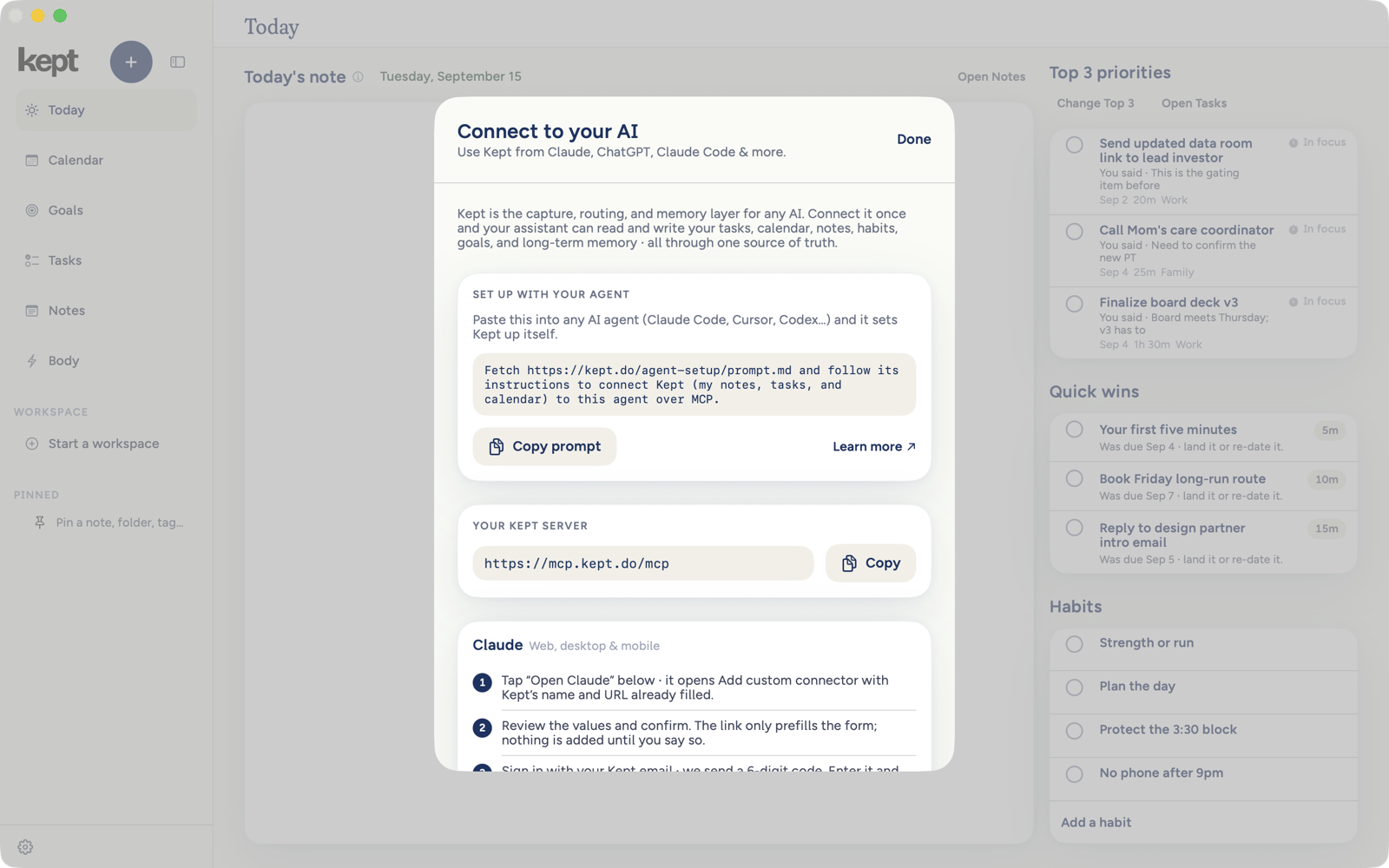
The agent reads the instructions, adds Kept as a server, and walks you through sign-in. Both apps carry the sentence with a copy button beside it: Settings → Connect to your AI on iPhone, Settings → Connect to your AI (MCP) → Set up on Mac, or Help → Connect Kept to your AI… in the Mac menu bar.
Sign in once, in your browser
When the agent first calls Kept, a browser page opens: The organizer your agent can use. Enter your Kept email and tap Email me a code. The code arrives with the subject line ending is your Kept sign-in code, works once, and expires in an hour. On the Approve access page, paste it, choose whether tasks this agent creates are For me or Its own work, review the permissions, and tap Approve and connect. Kept mints a short-lived token for that agent and hands it back. The agent never sees your password, because Kept has none, and never receives a Kept session token.
Client by client
Claude (web, desktop, mobile). On a Pro or Max plan, open Settings → Customize → Connectors, press +, choose Add custom connector, name it Kept, paste the server address, and sign in. On Team and Enterprise plans an owner adds it from organization settings. The apps offer an Open Claude button that prefills the form; you still review and confirm.
Claude Code. Run these two lines, then /reload-plugins --force in the same conversation, then /mcp and choose kept to finish sign-in.
claude plugin marketplace add keptdo/skills
claude plugin install kept@kept
If you added Kept before with claude mcp add, run claude mcp remove kept first; a directly added server of that name hides the plugin's own.
ChatGPT. Turn on Developer mode under Settings → Security and login, then Settings → Plugins → + and create a developer-mode app for the server address. Authorize with your Kept email and code.
Codex.
codex mcp add kept --url https://mcp.kept.do/mcp
codex mcp login kept
Cursor, Copilot, Windsurf, OpenCode. Add an HTTP MCP server pointing at the address. The exact JSON for each lives at kept.do/agent-setup.
What to ask once connected
- "Capture: call the plumber Tuesday." Filed as the right thing, same as in the app.
- "What's on my plate today?"
- "Close today's plan. Carry the renewal forward and let the errands go."
- "Add a comment to today's renewal priority: waiting for finance."
- "What does Kept remember about my training?"
- "Add a strength day before the half marathon."
- "Export my open tasks as markdown."
- "Search Kept's docs for how habit groups work."
- "Mark the Atlas row Done in my launch table." Where Tables is on for your account, your agent can read and change a table in a note. Until then those two tools are not in the connection. The arguments they take are in What your agent can do.
Make it a habit your agent keeps
The connection persists across sessions. The habit of using it does not, unless it lives in your agent's standing instructions. Paste this where your agent keeps its rules:
When you work with my Kept account:
- Every todo, follow-up, or commitment goes to kept_create_task. I have one list, and it lives in Kept.
- Meetings and dated events go to kept_create_event.
- Durable facts and preferences go to kept_remember.
- Before answering from guesses about my life or work, call kept_get_today and, for the topic, kept_recall.
- You are a guest in my memory. The full skill: https://kept.do/agent-setup/memory.md
kept_get_today includes the available card title, grounded reasons, suggested time block and sentence, and suggested steps for each priority. A connected agent can close the plan with kept_today_close_plan, reopen it with kept_today_reopen_plan, and add a card comment with kept_priority_comment_add. Closing reads completion from Kept; the agent only chooses Tomorrow or Let go for priorities that are still open. These writes require the Tasks or Notes write permission shown during connection approval.
Notes folders and filing
With Notes discovery enabled for your account, kept_list_note_folders includes parent folders, revisions, and direct and including-subfolder note counts; kept_create_note_folder and kept_update_note_folder create, rename, nest, or unnest folders with revision checks and a persistent retry key. With Notes organization enabled, kept_tidy_notes runs Tidy now for eligible notes or selected note IDs and returns the receipt, kept_list_note_filing_receipts and kept_get_note_filing_receipt read results, kept_list_notes_needing_filing only reads pending note IDs, and kept_undo_note_filing restores the whole receipt or one destination of an automatic receipt (explicit null means unfiled), preserving later edits; Tidy requires request-authorized Intelligence at Ask first or Full, while receipt reads and Undo require no cloud permission, and these seven tools stay hidden until their account flags are enabled.
See and disconnect connected agents
Both apps list your connected agents under Connected agents on the same Settings screen, with when each was last used. Disconnect revokes that agent immediately on the server, with no confirmation and no undo; connect again from the agent if you change your mind. You can also remove the connector inside the agent's own settings.
Next: What your agent can do.