

GuideToday and TasksiPhoneMac
Today and your Top 3
Today shows the day as it is. The Top 3 names the tasks that lead it, and says why in words that point at the task itself.
When cloud planning uses your saved notes, it can read writing from both current and older note formats, including text inside toggles. Generated Today pane labels stay out of the note excerpts used for planning.
For the same account and day, iPhone and Mac use the same saved Top 3 order and Quick wins rules. Not today removes a task from both lists. Open seats use the same rules on both devices, including tasks you captured today that are not already in Quick wins. Completing a task updates Mac Today while it stays open, including work completed on your iPhone. A checked Quick wins row keeps its latest completion state while there is room. When five open Quick wins are available, they fill the list and completed work remains in Kept today, on both devices.
In Change Top 3 or Modify plan, the request field is ready for typing. You can name an order, such as Put Send deck to Priya first, then Call Marcus, then Wire retainer, or a swap, such as Swap Wire retainer for Send deck to Priya. Kept keeps that order or swap in the review. A named swap replaces that seat and keeps your other two priorities in order. An empty day can have no priorities to review. If a name cannot be matched to one available task, the sheet asks for its full name or another task. You review before saving. A place you name, such as first or in my Top 3, keeps the review on the exact task you named, even when its name holds words such as _and_ or _then_. When two open tasks share a name, the sheet asks you to choose the task you mean and shows when each one was added. When a reason mentions a task's estimate, it uses the estimate saved on the task, such as _4m_ or _1h 30m_.
Hiding Quick wins changes the page layout while preserving the same task selection on iPhone and Mac. The daily note uses the same Quick wins ranking and any server picks as Today.
A task that has no title yet still appears on Today, in Quick wins and wherever else it is listed, as Untitled task in quieter type. Tap it to open the task and give it a name.
Today is where a fresh sign-in lands, and where most days start. It shows what is next, the three tasks that lead the day, Quick wins, Habits, and your writing for today.
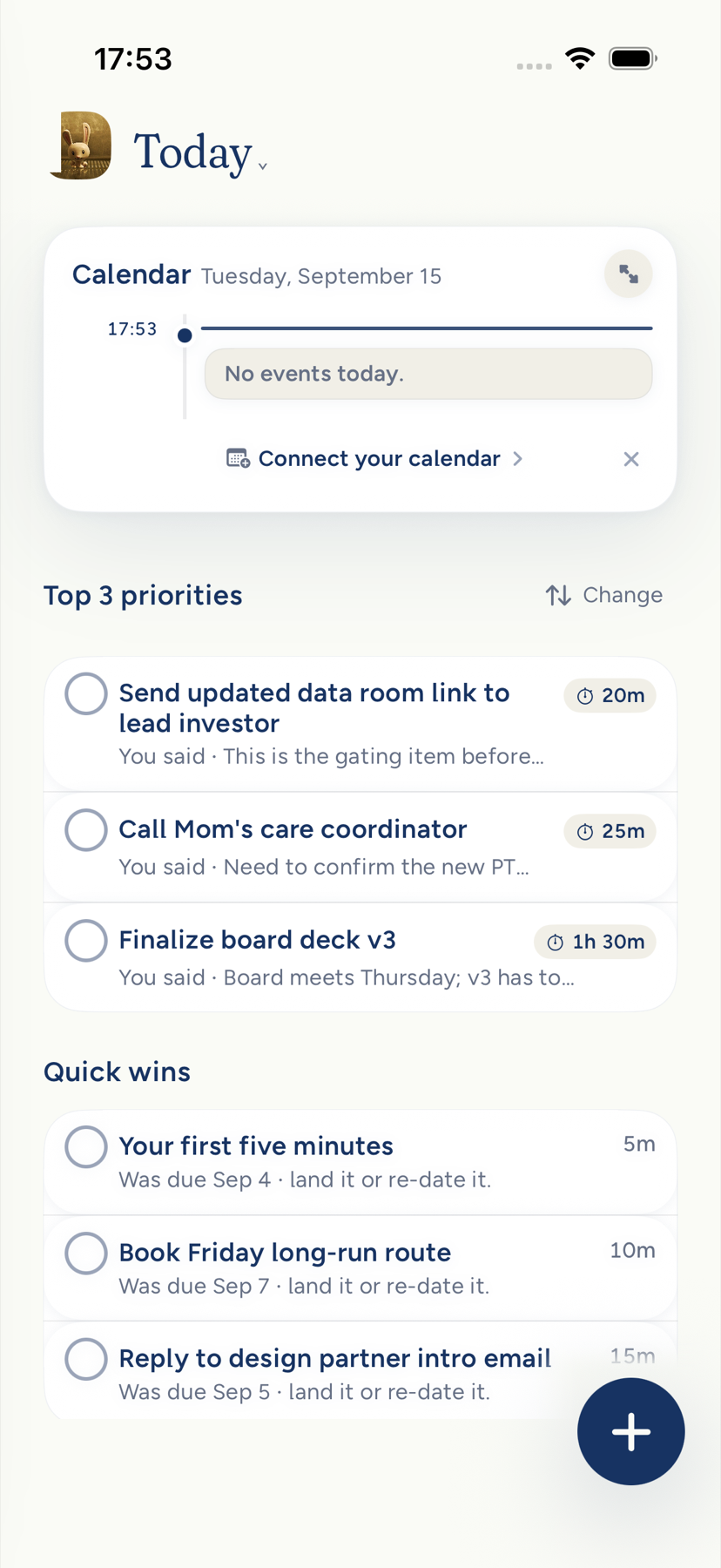
While you look at Today, your Top 3 holds still: capturing more tasks never swaps or reorders the cards on screen, and a capture shown in an open seat keeps that seat too. Leave Today and come back to see the latest plan. A task you hand off leaves your Top 3, and Undo after Not today puts the task back in its own seat. A Quick win that moves into Top 3 leaves Quick wins, and the capture starter retires after your first saved todo. Habits use one time and part-of-day order across scheduled and library rows.
Kept today · N lists the tasks you finished today, through relaunch, until the day changes. Tap a task's check there to put it back into your open work. Turning off Tasks also hides this record and its actions. Today shows each task in its own words: a step Kept wrote for a goal appears without the goal's quoted name, on the card, the opened card, linked tasks, and offline pages.
Today on iPhoneiPhone
On iPhone Duo, opening navigation slides Today aside at the same reading width. Quick wins and card descriptions keep their line breaks on the cover and the spread.
On iPhone Duo held sideways and open, the calendar day is the left page and the Today column stays on the right, beside the dock. The left page uses Calendar's hour grid, half-hour rules, tinted event blocks, current-time marker and faint past-time wash. It follows the hour density you saved in Calendar. All-day events stay pinned above the hours. With no calendar connected, the same compact Connect calendars prompt appears; dismissing it rests the prompt in Today and Calendar for 30 days.
Timed Top 3 suggestions are dashed blocks whose titles match the cards on the right. Their small time line says when, without a rank prefix or visible reason. VoiceOver still reads their priority, time and reason. Suggestions stay packed around events and each other; tap one to put it on your calendar, where it becomes a tinted event block. Tapping an event linked to a task opens that task; another event opens its own card. Before your first capture, the left page keeps its first-plan invitation. Upright, flat or creased, Today uses the iPhone page without the day-summary card or extra time rows between priorities. Cards and habit times share the page's right edge. The opened card still offers the same suggested calendar time.
The timeline leaves room above its first visible hour so the complete label stays clear of the pinned rows and fades softly at the top edge.
When the plan supplies a card description, iPhone, Duo and Mac show that fuller sentence beneath the title, with room for two lines. On Duo it uses full ink; a quieter second line appears only for a distinct, separately supported fact. Duo allows three lines at accessibility sizes. Plain iPhone uses the short reason at accessibility sizes. Without a description, each surface keeps its existing reason layout and on-device fallback. Duo descriptions sit directly under the measured title, without bullets, and leave the card’s normal bottom padding.
The header reads Today with the date beside it. Under the header, Next names the next timed event today, when it starts, and how far away it is. A priority's own time block drops out of Next once you finish that priority. Tap that line to open the event. Tap the avatar or Today to open the menu. Tap the sliders to open Today note settings. The header keeps solid text above the scrolling fade: the title and event name use full ink, the time uses your accent, and the date, Next and countdown use a readable secondary ink. Returning from another page keeps this header clear.
One sheet holds the rest of the day. Top 3 Priorities comes first, then Quick wins, Habits, and the day's writing. At the largest text sizes, the date moves onto the sheet and the priority cards stack at full width.
While the plan is loading, three quiet card shapes appear in place. When nothing has been picked, one wide card reads Pick your first three and names the first events on the day. With no events left, it says what a tap does instead: _Ask Kept for today's three_ on iPhone, which opens Modify plan (with Cloud AI off, the card reads _Choose tasks in Tasks_ instead), and _Choose tasks_ on Mac, which opens Tasks. If the day could not be read, the iPhone card reads _Couldn't refresh your Top 3_ and Retry, but only when you have a list worth ranking: with fewer than three open tasks it stays the calm Pick your first three card, and before your first capture it stays the invitation below. Until you capture something for the first time, that card asks _What's on your mind?_ instead, with two equal buttons, Write a note and Add a task, each opening Capture on that kind, on iPhone and Mac. It never asks for a first todo, even after you chose Later in setup. On widgets and in Your Day, the Capture one todo starter can also stay among the day's three until your first capture, for up to 72 hours after you sign up.
When open, actionable tasks remain, Kept seats the best available actions even if none is due today or linked to a goal. It keeps the reason honest by using only facts it knows, and overdue work leads the deterministic fallback. An empty Top 3 is reserved for a task list with nothing eligible to do, such as when every remaining task is closed, held for another day, or blocked on another person.
Your day
When yesterday's plan outcomes are available, the next Top 3 plan can use how many days a task has carried and whether you chose Tomorrow or Let go when closing the day. On iPhone, Your day can show yesterday's Top 3 result, such as _2 of 3 done · Call the plumber carried a 3rd day_, plus how many you let go; this summary is omitted when there was no plan or its outcomes are unavailable, and tapping the line marked with a chevron opens the carried task when it is available on your device.
Where it is rolling out, Today on iPhone opens with a small card titled Your day, directly under the header and above your Top 3, in every Today layout. Its two lines say what changed Yesterday and This morning in plain facts about your notes and your plan, such as _10 notes found their place in Startup._ and _3 priorities for today._ No assistant signs it: the sentences are about your notes, your day, and you.
Tap Read report, or anywhere on the card, to open it: Yesterday, This morning, Today's plan with the tasks it names, and In your notes, where each filing reads like _10 notes found their place · View_. View opens that filing's receipt in Notes, where you can put the notes back. On a quiet day the card says _No changes recorded yesterday._ When part of the day could not be read, it says _Some activity could not be loaded._ instead of a zero. If today's report cannot be loaded, the card shows the last one with its date. When there is no report, there is no card.
Today on MacMac
The Mac uses the same cards and rows. Today and the date sit above the page, with the Next line directly below. A wide window keeps the day's calendar beside the page. The page and calendar scroll independently, and the calendar leaves at narrower widths.
Top 3 cards come first. Quick wins and Habits share a row when the window has room, then the daily note continues below them. The calendar beside the page remains live while a priority is open.
Your note stays where it opened. Today keeps the room your Top 3, Quick wins, and Habits took the last time your day was read on this Mac at this window width, and holds that room while they load, so they fill in without pushing your note down. If your day turns out shorter than last time, the held room stays empty until your day arrives, and then your note moves up; a longer day grows the room instead. Until your day has been read, the Top 3 holds its place as quiet loading cards and never says _Pick your first three_. A read that fails teaches nothing, so the next open still holds the last day that was read. The first time Today opens at a window width there is nothing to hold yet, so your note can settle lower once your day arrives. Kept keeps two heights for each window width, never a title or a task, and forgets them when you sign out.
Your day. When it is on for your account, a Your day card sits under the date, above the Top 3, with two lines about what changed in your notes and your plan; Read report opens the whole report right on the page, and Close report folds it back. When the day's plan comes from the server, Quick wins shows only its picks, even none; if the plan could not be read, Quick wins picks from your saved tasks under From your saved tasks.
Read the Top 3 cards
Each priority is a card with an action title, a square box, and the plan’s explanation when one is available. A plan title can use two to six words, up to 36 characters, while your original task title remains available in full. The compact card wraps its title and uses “…” only when it runs out of room; opening the card wraps the complete title. The box stays to the left of the title.
A card description explains why the task matters using a fact in your record, in up to 90 characters. It does not name a goal or repeat the title. A description can name a weekday within the next six days; more distant dates use the month and day. When it cannot be used, the card keeps its short planner reason, then a due-date or other on-device fact. If it has nothing to explain, the iPhone card keeps its existing time sentence or range. A missing or invalid description never blanks the priority. The opened card keeps the fuller description when there is one.
Each priority is a full-width card, one per row, on iPhone and Mac, at every text size and window width. Titles wrap between words: when the first word does not fit beside the box at larger text, it starts the next line whole. Only a word wider than the whole card breaks with a hyphen inside it. When a generated reason cannot be used, Kept names the strongest fact it knows, such as its due date, time or critical priority. When no task fact explains it, no reason line appears.
Fallback copy uses the task's saved due date, even when your original title contains an old countdown. Your title stays as you wrote it. When a fallback reason names a carry date more than a week ago, it uses the date rather than a weekday that could sound recent.
While the day is still loading, Top 3 and Habits show gray placeholder cards and rows. Pick your first three and Add a habit you want to keep appear only after Kept knows the day really is empty. Kept uses a shorter title only when it still describes your task; otherwise the native cards keep your own complete title and let only the compact face decide whether it needs an ellipsis. A period after a short form such as _Ms._ or _Dr._ never ends the title. The opened title always shows the complete value. When Kept wrote a shorter action title, the opened card's Your task line also keeps your original title. A reason for a task due today or tomorrow reads _Due today_ or _Due tomorrow_; later dates stay as dates. A reason credits you only for what you chose: an estimate or an area you set reads as yours, as in _You planned 45 minutes for it._ One Kept supplied is stated plainly, without naming you. A task carried over from another day reads _From an earlier day._
Tap or click the box to complete the priority. Kept saves it at once, and the card keeps its place: the title is struck through, the reasons above the final line dim, and that final line becomes _Kept · time_. A card with no reason uses that one line for the receipt. The card you completed shows a quiet _+1_. The opened card keeps its reasons. A toast reads _Done_, and its Undo takes the completion back. With Reduce Motion on, the card shows the same state and words at once, without the pop or the _+1_.
On iPhone and Mac, completing the last of three priorities says so. The toast reads _Top 3 kept._ with Undo, and one quiet line under the cards says the same, with one next step: Pick another from Tasks when other open tasks of yours are waiting, which opens Tasks, or otherwise Close today's plan, which opens the close review. On Mac, Modify plan opens the same plan controls. A day with one or two priorities gets no all-three line: each card you complete reads _Kept · time_. The room for that line is held from the start, so Habits below it never moves when it appears. Undo or reopening a priority takes the line away.
Tap or click the card to open it. On iPhone and Duo, the task page uses the same serif title, rounded task checkbox and profile-avatar comment field as Search and Tasks. Task rows and steps share their square control; habit check-ins use a ring. On iPhone, it grows into a full page over Today. Close it with the close control or pull down from the top. On Mac, it grows into a centered card while the rest of Today dims. Use ‹ Today, esc, the window's Back control, or click the dimmed page to close it. ⌘1 through ⌘3 switches among the three open priority cards on Mac.
The opened card shows the priority in this order:
- The box and title.
- _Kept · time_, once you have completed it.
- The reasons it leads today.
- Its suggested time block.
- Steps.
- Comments.
- Your task, followed by the task's original title. Open it to see the task itself.
Your three stay three
Kept keeps the day's plan until you change something it plans from: you add or edit a task, change a goal or a habit, or your calendar changes. Kept's own background work never replans your day. Preparing a task suggestion leaves the plan as it is, as do a habit you log, your sleep, mood, workouts, and what Kept remembers about you. Descriptions and estimates stay in Kept suggests until you choose Keep; then they become task fields. Completing or reopening a task updates its live state, completion record, and the context Kept uses later without automatically planning today again. When the plan made overnight already covers your tasks, opening the app shows that plan instead of making a new one. A refresh never takes a priority away. A finished priority keeps its seat as earned credit, even when other work remains open.
An event or habit edit can ask Cloud AI for a fresher plan, but the plan already on screen stays there while that answer is prepared; Kept does not cover it with a temporary on-device three. Adding or editing a task works the same way: the priorities Kept planned stay on Today, and the new task waits in the list below them, until the fresher plan is saved. That holds however many tasks you add before then, and after you reopen Kept. Calendar sync details you did not author, such as an RSVP, an attendee's reply, or a calendar color, do not ask for a new plan.
When Today opens, it keeps your saved Top 3 while the day's plan loads, including when you have fewer than three priorities, and a summary of the day that arrives first cannot add a task to them. When the plan arrives, Today checks your saved choice against it: a newer plan with a different order takes its place, and an open seat can still fill with a due task from the plan's ranking.
While Today is open, the cards keep who they are and their order through a capture burst or a background plan refresh, on iPhone and Mac. A newer plan shows the next time you open Today, or straight away when you change it yourself: Save Top 3 puts the reviewed three on Today, in the reviewed order, before Modify plan closes. Completing a card updates it in place.
Quick wins keeps an open task it has already shown when a later curation omits it. A task you delete, hand off, or hold for another day leaves the list. Finished tasks remain visible under Kept today · N through relaunch until midnight; tap the check to reopen one. A completed priority can also keep its card in place.
Today habit rows use their saved clock time, including minutes, then their part of day and your order. Habits without a clock sit with their part of day. The same rule applies on iPhone and Mac.
The Top 3 is your own work. Capture one todo, the starter Kept adds when you set up, never takes a priority seat; it waits in Quick wins until you have captured a todo of your own, then it leaves Quick wins and stays in Tasks until you tap Done. That retirement is once per account, so finishing, undoing, deleting, or returning much later never brings the starter back to Quick wins. When the day has an open seat, a task you add that is due today, overdue, linked to a goal, or marked critical takes it right away, after the priorities already there, without a trip to Modify plan. On iPhone, a seat the plan still leaves open shows what you captured today, with or without a date and with Cloud AI on or off, so what you just captured shows on Today instead of only in Tasks. Its card reads _Added today_ when it has no date to name, and a generated step reads as an ordinary task, without its quoted goal title, after your own captures. It is only shown there: it does not change the plan or the task, any seat the plan fills comes first, and when the three are full it waits in Tasks. Only your own open work shows this way: never work handed to Do, a task Quick wins already shows, or one you finished before it showed there (one you finish on its card keeps the card), so a task never appears twice on Today. Modify plan and the close review list only the plan's priorities. A checkbox you wrote in a note becomes a task, but Kept never picks one for the Top 3 on its own while it has no date: a shopping list is not the day's priorities. Give it a date, or mark it high or critical, and it can be picked like any task; one you put in the Top 3 yourself stays there. It always stays in Tasks.
Late in the day you still see three priorities when three of your tasks belong there. The time left changes where each one goes, never how many there are. A priority with no room left today keeps its seat, and Kept does not squeeze it into time you do not have: its suggested block moves to the next day with room.
Only you replace the day's three through Modify plan (see Change the plan). A priority you mark Tomorrow or Let go while closing stays out of the rest of today's plan.
When the compact Cloud AI planner preview is enabled, it can consider up to 24 plausible tasks instead of 12, includes every goal linked to those tasks, and discounts age after two weeks so an old backlog cannot crowd out newer dated work. The Top 3 cards, their saved plan, and everything you can do with them stay the same.
When goal-aware planning is enabled for your account, Kept gives one bounded ranking credit to a task you linked to a goal or accepted as that goal's next step. A matching title, an inferred link, or a proposal you have not accepted receives no credit. Work due today keeps its place first. If a grounded goal move is available after that mandatory work, at least one of the remaining choices moves it. A choice with no calendar room keeps its seat and reads Choose a time instead of inventing a start.
Give a priority time
On iPhone and Mac, select a task's time estimate on a Top 3 card, suggested task or quick-win row, or priority page to change it. Choose 5, 15, 30, or 45 minutes, 1, 1.5, 2, or 3 hours, or Custom for a whole number from 1 to 600 minutes. The edit saves to the task, including when you are offline, and updates its focus duration and scheduling preview. An estimate supplied by Kept is yours to change. Calendar changes still use Add to calendar or Confirm. A block that is already planned or on your calendar keeps its length until you change its estimate yourself (declining an estimate Kept drafted does not count); the new length is a suggestion until you confirm it, and an unconfirmed length returns to the planned one after Kept restarts or on your other device. On iPhone with VoiceOver, a Top 3 card reads its estimate, and its Change estimate action opens the priority page, where the estimate is a control of its own.
Where Choose time offers Pick a time, select a day and adjust the time control. Use this time keeps the exact minute you selected within that day's available scheduling window. The latest start accounts for your edited duration. The iPhone wheel opens in a full-height sheet; Mac uses its native time field. Confirming a future time keeps that minute.
The time block names the suggested range, its duration, and where it fits among your events. After the last event, a free room that begins before 5:00 PM reads _the rest of the day is open_; one that begins at or after 5:00 PM reads _the evening is open_. Start focus starts a session for that duration. For a suggested block that is not yet on your calendar, the bar keeps the planner's future time and offers up to two nearest non-overlapping openings from the same free-time options, in local time order. The choices avoid other priorities' blocks and times already in the past. Each time you open the card, its bar captures a fresh set. The choices stay fixed while you choose; the bar also captures a fresh set when options first arrive or you change the duration. On iPhone, the range and editable estimate remain above the bar.
Tap a suggested time in the bar to move only the planned slot. This does not add or move a calendar event. If that time has passed or another priority now occupies it, the tap leaves the planned slot and selected chip unchanged. Earlier and Later still move through the openings that fit today. In a long free stretch, Kept offers its opening, each full hour inside it, and its latest start when there is enough room. A control that has nowhere to go is dimmed and explains that there is no earlier or later opening today. With fewer than three choices, the bar stays left aligned; with no room it reads _No room_. At large text sizes the choices stack full width. A pending choice is disabled without a spinner. The selected chip follows the accepted planned start and clears if Earlier or Later moves outside the bar.
Choose Add to calendar to put the shown block on the calendar Kept would normally use. On iPhone, Duo, and Mac, a placed block shows its time read-only in place of the bar's choices, with On your calendar and Remove from calendar. On plain iPhone and Mac, Earlier and Later move that calendar event. On Duo, a placed block keeps its committed time until you remove it from your calendar to choose another time. Remove from calendar takes the block off your calendar, including after you changed its length. If an add fails, the card returns to Add to calendar and says _Couldn't add it to your calendar · Try again_. If a remove fails, the card stays On your calendar and says _Couldn't remove it from your calendar · Try again_. On Duo, open, pending and kept bars keep the same height.
On Mac, the calendar beside the opened card shows the suggestion as a dashed block. Moving the time moves that block. After you add it, the calendar shows the event itself.
Work through steps and comments
Steps are the task's real subtasks. The first open step reads more strongly, and checking a step updates the task everywhere.
When a task has no steps, Kept may suggest one to three in dashed rows. These suggestions use the task, an accepted goal link, its next milestone, permitted note excerpts, and any steps already there. They never replace a step you wrote. Add keeps one as a subtask. Add suggested steps keeps them all. Checking a suggested step keeps it and marks it done. Choose Add a step to write your own.
Finishing every step does not finish the priority by itself. The card offers Mark the priority done when all steps are complete. That band eases in, and its button ignores a tap in its first moment so a tap meant for something it moved does not finish the priority.
Comments stay with that priority in the day's plan. Write in Add a comment, or how it went, then send. You do not need to write in the daily note first: your first comment starts today's note if it does not exist yet. If a comment cannot be posted, your words stay in the field and Kept says so, so you can send again. While you type a comment or a step, the card scrolls the field above the keyboard. Drag the card or tap outside the field to put the keyboard away. Each card keeps its own unsent comment: it is still there when you open that card again and never appears in another card. Opening a card never raises the keyboard.
Close today's three
Choose Modify plan, then Close today's plan, when you are done with the day's Top 3. The review, Close today's three, records finished priorities as Done. Each unfinished priority starts on Tomorrow, or you can choose Let go. You can also add a note about the day, then choose Close plan. Keep planning returns to the same Modify plan workspace without closing. On Mac, Escape does the same: the first Escape leaves the review and keeps Modify plan open, and a second Escape closes it.
- Tomorrow returns the task to tomorrow's planning as a candidate. It does not promise the task a place in tomorrow's three.
- Let go keeps the task open but leaves it out of the next day's Top 3 and Quick wins.
After you close the plan, the cards become the day's record: the close time, each title with Done, Tomorrow, or Let go, and your note. The record stays as it was when you closed it, even if you finish, reopen, or add tasks later that day, and the day stays closed until you choose Reopen. Undo on the _Plan closed_ toast takes the close back. Reopen brings the live cards back for the rest of the day. At the largest text sizes, Tomorrow and Let go sit under each title.
On Today, toasts such as _Plan closed_ and the Open receipt after a capture always appear in one place, beside the + button, so they never cover Modify plan. A finger resting on a toast holds it on screen until you lift, and a tap that arrives just as a toast leaves is absorbed by the toast's spot instead of reaching the page. With a card open, they appear at the bottom of the card. The daily note space's sentence wraps short of the + button.
Quick wins and Habits
Quick wins and Habits use the same to-do row: a rounded square, the title, and a trailing time or number of minutes. A row may add one useful fact, such as _Was due Sep 26_ or its due time. A row you finish stays where it is, struck through, with the time you did it.
Quick wins are zero to three short tasks with an estimate from 1 to 15 minutes. The estimate is one you set or one you accepted. Each row needs an item-specific reason Kept can verify, such as a due date, a priority you set, or a reason you wrote. If none qualify, the section stays empty rather than filling itself from random short tasks. A task already in the Top 3 does not appear again here, and neither does one you chose Not today for, until its day. Neither does a checkbox from a note that has no date and no high or critical priority: it stays in Tasks, and comes here once you give it a date or a priority. To keep a note's checkboxes out of Tasks altogether, use Keep as a list (The note editor). The Capture one to-do starter shows here only until you have captured a todo of your own. Habits follow the order of your day and can be checked in place.
An older goal link does not remove a Quick win chosen for its date or other evidence. A later curation change does not remove an open Quick win you have already seen.
Where curated Quick wins are rolling out on iPhone, the rows are the ones your plan chose, each with the reason it was chosen; if the plan chose none, the section stays away rather than filling itself. When the iPhone has to choose from your saved tasks instead, the section says so: From your saved tasks. The row does not show goal names or progress.
Tap a row's words on iPhone to open it as a card. On Mac, rest the pointer on the words for a preview with Focus, Schedule, and Open, or click to open the card.
If you have no habits, the Habits block offers Add a habit you want to keep. Today note settings can show or hide the block. The same setting follows your account on iPhone and Mac.
Change the plan
Choose Modify plan, the renew control beside Top 3 Priorities, for one workspace on iPhone and Mac. Every current priority appears there with its full title, with Not today on the same line. Not today applies the existing one-day hold, or the seven-day hold after a repeat, and shows its receipt, such as _Not today · back Oct 4_, with Undo in the sheet instead of behind it. The receipt and its Undo stay in the sheet until you close it, even once that priority leaves your plan. Undo lifts the hold. Completed priorities stay read-only.
Use Ask for a new Top 3 to say what changed and review Kept's exact proposal before saving it. Your current plan stays in place until you choose Save Top 3. While Kept prepares the review, a line under your request says it is still working, with Cancel; cancelling keeps your words in the field. A review that takes too long stops with _This review took too long. Your Top 3 is unchanged. Try again._ On iPhone, if your day changed after Kept made the proposal, saving says _Your day changed since this proposal_ and offers Ask again, which sends the words in the field (or your last request, when the field is empty) with Remember this guidance as it is set now. Nothing asks again on its own. A row action or the closing review discards an earlier proposal because the day it reviewed has changed. On iPhone, Remember this guidance can keep the accepted request for later plans; Mac guidance is not available yet. Changing priorities needs Cloud AI and a connection, but Not today and closing remain available without them. On Mac, while today's plan is still updating, for example just after Not today, asking for a new Top 3 says _Finishing today's plan · try again in a moment._ and keeps your request in the field. On an empty day, Pick your first three opens the same workspace. With no priorities yet it says _No Top 3 yet today_ and what Modify plan does, then asks What matters today? so you can start the day's three the same way, reviewing them before you save. If you ask before you have any open task to rank, the sheet says _Nothing to plan yet · add a task first_ instead of reporting a failure, on iPhone and Mac.
Kept can still build a first plan on the device from the tasks, dates, reminders, goal links, priorities, and calendar information it can read. When you allow Cloud AI, it can prepare a richer plan from the context you have chosen to share. It never sends task data for this purpose without that permission.
Today and the daily note
The writing under the rows is today's daily note. Opening Today does not create the note or place the caret in it. Your first character creates it, and the writing grows on the same page.
On Duo, the empty daily-note prompt has no caret while unfocused. Tap it to write; the focused editor supplies the caret.
On iPhone, the save line sits directly below your writing at the same leading edge, with the daily-note sheet’s close spacing, states and save details. It stays quiet during a typing burst, shows Saving… when a write is taking longer, and shows Synced after the write lands. Words held only on this device remove that success; VoiceOver and the save details say Not synced yet. Offline, the line says Offline, and VoiceOver says Offline · not synced when your words still need to sync. While Kept checks local recovery storage after opening, the line stays quiet and VoiceOver says Checking save status. Finishing that check does not count as a save or create a sync time. Tap the line to open save details and any available Retry or Review action. The line keeps its place in light and dark and with Reduce Motion, without moving your writing.
On iPhone, if a shared edit cannot be applied, Today offers Keep a copy, just like the daily-note sheet. It keeps your words in a separate private note before returning to the saved day.
An empty day says what the space is for. When nightly filing will run, it also says Kept will organize notes that night. That sentence is a label, not saved note text. See The daily note for the exact conditions and what filing does.
To-dos you type in the daily note use the same row shape as Quick wins and Habits. A /card block stays in the note and can move up or down. A Top 3 pane you place with /three reads the current day's plan without making a second copy on Today. See The note editor.
Hold Top 3, Quick wins, or Habits on iPhone, or open the block's ⋯ menu on Mac, for Hide for today, Hide every day, and Today note settings…. A toast offers Undo. Show now brings a block hidden for today back immediately.
A Cloud AI offer, once
If Cloud AI is off and you have not answered its offer on this device, the offer appears after your day and your writing. Turn on opens the explanation and asks for Allow Cloud AI or Not now. Not now hides the offer on that iPhone or Mac. See Cloud AI, explained.
With Reduce Motion on, cards open and close with a fade instead of growing. VoiceOver names each completion box with its item and gives priority cards Open and Complete actions, with Reopen once a priority is kept. A kept card reads _Kept._
Next: Tasks, where the rest of the list lives.
When plan activity is enabled for your account, a prepared or reordered plan keeps its historical snapshot references even after an old snapshot is removed. New plan activity can refer only to snapshots that belong to your account.
When curated recommendations and quick wins are enabled, a task appears in only one of those lists. Recommendations without an allocated time offer Choose a time.
Today does not show goals, goal progress, goal suggestions, or links to pick or build a goal. Goal-derived tasks still appear by date and priority as ordinary tasks. Goal links remain available in Goals, Habits, and the task detail goal picker.
Tasks marked done or cancelled in their titles or closed by their own project note stay out of recommendations and curated quick wins. Reopening the project note restores eligible work.
Curated quick wins require a duration you supplied or accepted. A duration inferred during task enrichment does not qualify, even on a task you created.
If Cloud AI cannot produce a valid plan, enabled recommendations and curated quick wins still use the checked fallback. An empty curated list remains empty. Recommendations without calendar capacity keep no allocated time.
When Intelligence is enabled and its settings are temporarily unavailable, Today planning, Now, and onboarding ask you to try again shortly. The saved plan and brief stay available while cloud work pauses. A valid feature refusal still directs you to Intelligence in Settings. An ordinary model failure keeps the checked planning fallback.
A checked fallback stays available after a model failure. Refresh retries the model.
Midday and late-day refreshes reconsider the time that remains.
After the day they are created, setup actions and coach suggestions do not gain Top 3 ranking pressure just because their dates have passed. Your own overdue tasks keep their existing date pressure; changing the ranking does not change any saved due date.
Reviewing task suggestions
On iPhone and Mac, descriptions, estimates and labels prepared by task enrichment appear in a separate Kept suggests block on the task card and task page. Keep suggestion adds the proposed fields where you have not already written your own; Dismiss leaves your task as it is. VoiceOver reads them as Keep suggestion and Dismiss suggestion, so they never sound like the task's own Keep, which completes it. An estimate is labelled ~40 min · Kept's guess until kept. Suggestions do not appear as your description or estimate on Today before you keep them. A newer edit wins over a suggestion. Review choices sync with the task.
In Modify plan, a suggested heading is shown once. The task list and reason beneath it omit an identical title. If your plan has one task and the proposal keeps that same task, the review says Your Top 3 is already this.
On iPhone Duo, Today cards use the space beside the dock. The calendar opens to the left of Today when the phone unfolds sideways. Today settings move to the dock, and its X closes an opened priority. Quick wins follow the priorities without reserving room for an unshown completion message. The first open spread frame uses its settled page header and list measure, so rows do not briefly reflow through a late title band or crease width.
On Duo, events opened from Today's calendar or Next band stay in Today. Their card fits beside the dock; on the open spread it uses the right page and leaves the timeline visible. The open spread uses Calendar’s Day components on the left and the Today column on the right. Duo suggestions are produced by the shared TodayDayPack value model, with non-overlapping times and a one-tap calendar action. Plain iPhone retains the planner's suggested times and sentences. An opened priority grows from its own tile through the Today stage and closes back into that tile; the spread never replaces the calendar with an embedded task pane.
On the Duo cover, a Top 3 priority opens and closes in one move. Its title and reasons keep their final line breaks while the page reveals them. Reduce Motion uses a crossfade.
On Duo, suggested times keep feasible previous placements as the day changes. Earlier and Later keep your chosen time, even beside an event; returning to Today or the foreground refreshes the plan, and a suggestion more than ten minutes late moves forward. A confirmed block appears once and cannot be added twice. Plain iPhone keeps the planner's suggested time and sentence. Kept asks you to choose a new time before adding a suggestion whose start has passed.
On the open Duo spread, calendar blocks linked to tasks open the same task card as Top 3. The Next line opens the event itself. A task's original-title receipt opens its full task page on the right. Upright, the opened card covers the whole window. Before your first capture, the left page explains the three suggested times with ghost outlines. If no calendar is connected, Connect opens Calendars on the right page; Not now keeps a smaller Connect option.
On Duo, a slipped suggestion moves forward while feasible future suggestions keep their planner times and sentences. A past or conflicting Earlier/Later choice gives way to the repacked time, so the opened card and timeline show the same start. Earlier and Later also avoid fixed Top 3 blocks that have not yet appeared in the calendar event list. On Duo, a priority already on your calendar keeps its committed time. Earlier and Later give way to “Remove it from your calendar to choose another time.” Remove from calendar remains available. On plain iPhone, Earlier and Later remain available after placement and move the existing event, as described above.
On the Duo cover and spread, Today note settings keeps its heading above a scrolling form that fits the page, including at larger text sizes. On Duo held upright, Today note settings has one navigation title and one Done button. Done returns to Today; Undo remains in the same bar after a change. On Duo, Connect a calendar, Today note settings, the Next event, and a priority's original-task receipt open above the Today pages and opened card. These sheets stay on the anchor page. Calendars has one pinned title and one Done button, which returns to Today. Its settings scroll within the available page height, keeping the title and Done visible on the cover and spread. In column poses, Calendars also owns the dock's Close door; both Done and the dock door return to the same Today page. The presented sheet stays available to VoiceOver while the priority cards behind it are hidden from reading and touch. The other sheets use the dock's Close door. On plain iPhone, Calendars uses its native sheet with one title and Done button. Next keeps you in Today; closing a task receipt returns to the priority you had open. Plain iPhone keeps its existing event route and settings sheet.
VoiceOver reads a Duo suggestion block's priority number, title, time and reason as one button. A double-tap performs its calendar action, or opens the priority when no calendar action is offered. A confirmed block always opens the priority. Duo suggestion blocks show their priority number and time; the reason appears when all three lines fit at your text size. Text stays inside its time block. On the spread, Today and the date sit above Next on the right page. Tap Next to open that event while staying in Today. Each suggested priority's time bar offers its fixed choices; a separate calendar button adds the suggested block without opening the card. A confirmed time chip opens the priority instead. Opened cards extend to the window bottom, including below the safe content area.
When a priority is open on Duo, folding or unfolding keeps that card open as it moves with the page. Reduce Motion places it directly in the new workspace. Next and the other Today controls remain individually reachable with VoiceOver; plain iPhone keeps its existing reading order and grouping.
On iPhone and Duo, each Top 3 tile has a prominent title and a description directly below it on the same keyline, with space below the last line. Due dates and times wrap at larger text sizes. On Duo in every pose, a joined bottom time row offers suggested times with a separate calendar button, or opens a confirmed priority. A completed tile says Kept instead of offering a calendar action. Timed Duo priorities appear in time order; local captures use the same packed times on the tile, timeline and VoiceOver label.
The first Duo day uses the same Today/date heading and section eyebrows as a populated day. Connect calendars appears on the left calendar page; the right page contains no second mini Calendar card. Example time outlines are labelled priorities with a plus, aligned with the invitation above them. Cloud rollout flags continue to control reads and actions.
Every timed Duo Top 3 priority also appears on the left timeline. Suggestions have dashed edges; confirmed priorities have solid Calendar blocks, including while their linked calendar event is still arriving. The real event replaces that temporary solid projection, so one commitment never draws twice. A confirmed block opens its priority and cannot be confirmed again.
An opened Duo priority keeps the tile’s checkbox and title keylines and uses the available page width. Its description is plain text aligned with the title. The original-task receipt stays on one line at ordinary text sizes, truncating its long title while retaining the full accessible label; at accessibility sizes it may wrap.
Short Duo priority descriptions keep the same compact title gap and bottom padding as longer descriptions. Each tile reserves only the description’s actual lines, including at larger text sizes.
On the Duo cover and spread, the empty daily-note prompt uses the full writing column. Its last two words stay together, and it reserves no space for the capture button in the separate dock. The same wrapping applies after leaving an empty editor. Plain iPhone retains its existing capture-button clearance.
On Mac, comments on Today's task cards save to the task's thread in your daily note. You do not need to share the note or invite a collaborator to comment on your own day.
On Mac, the first comment can start today's daily note. Comments stay visible while an earlier thread read finishes. If a comment cannot be posted, its words return to the field ahead of anything you have typed since, so you can try again.
Mac Today comment times use your profile's time zone while a post is being saved and after the thread reloads.