

GuideSettings and accountiPhoneMac
Settings, explained
Every row in Settings on iPhone and Mac, what it changes, and where it syncs.
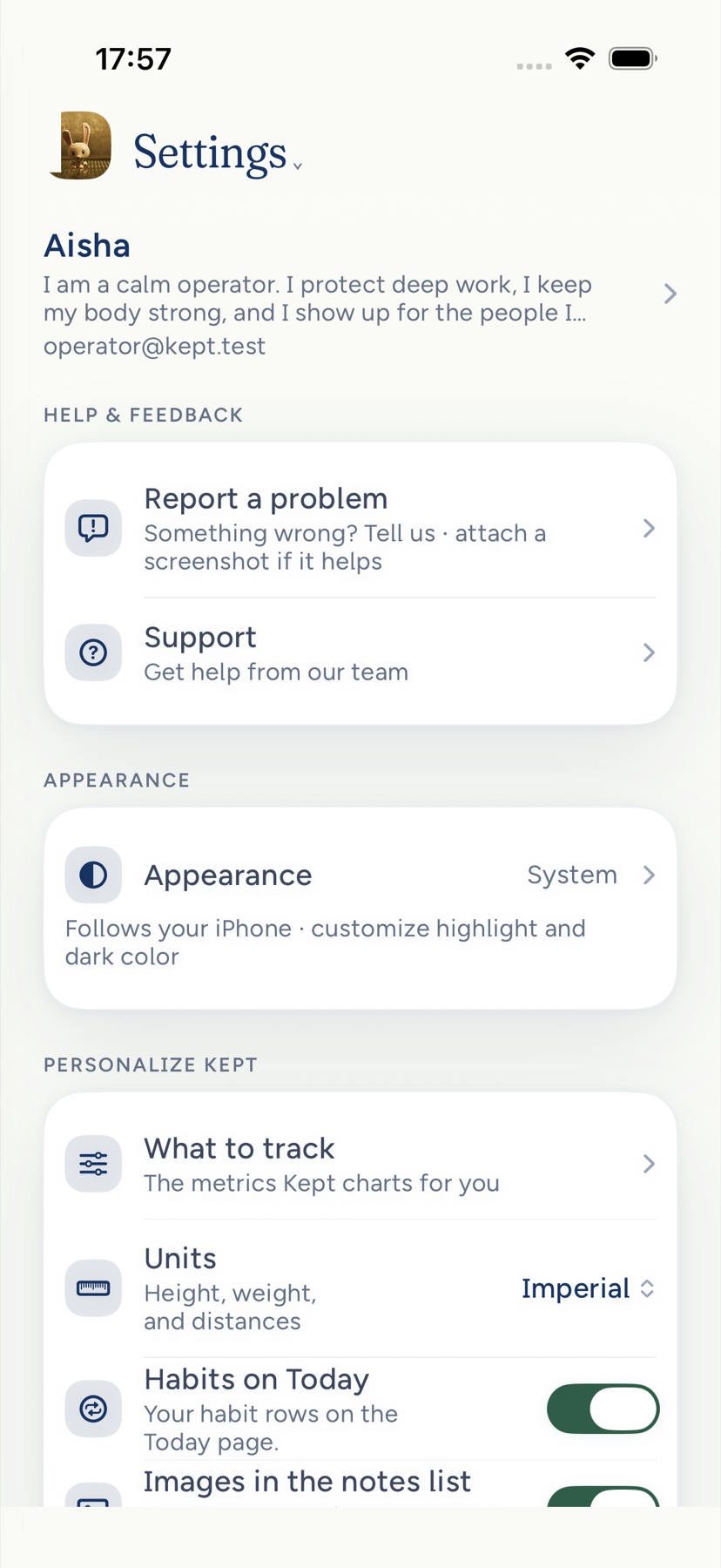
Settings is one long scroll on iPhone and a list of sections on Mac. Most choices belong to your account and follow you between devices. A few belong to the device you set them on, and this page says which.
Open it from the bottom of the drawer on iPhone, from the gear at the bottom of the sidebar on Mac, or with ⌘,.
On iPhone Duo, an open Settings spread keeps the list beside your selected section. The selected row has a quiet ink wash. Fold the phone and that section stays open on the cover in the same update; unfold it and the same section sits beside the list. Use the dock's Back door to return to the list on the cover. In upright layouts, Back sits beside the section title. Save stays beside the title for pages with a draft. Profile's goal rows open their goal pages, and Life areas opens an editor with Cancel and Save.
On iPhone Duo, opening navigation over a Settings section keeps the section's reading width. Appearance's text keeps its line breaks while the page slides aside.
You
The card at the top shows your name, your mantra, and your email. With no mantra yet it shows _Add a line you want to keep_ in italics instead; Kept never writes one for you. Tap it to open Profile.
Profile holds your photo or avatar, your name, your mantra, then up to three active Goals with Add goal as the last preview item, Your record, and your Life areas, in that order. With no goals, Add goal is the preview's first item. It opens Goal Builder, or shows its retry state if it cannot open. Body metrics returns with Body and is hidden while Body is paused. An empty name reads "Add your name" and an empty mantra reads "Add a line you want to keep", so a blank field never looks like one you already filled in. Tap the mantra to change it. Return ends the line; a line you paste in keeps a single space where its line breaks were. Tap the avatar to upload a photo and frame it, or pick one of Kept's twenty avatars. The mantra is the line that appears under your name in the drawer and on the Identity widget.
Life areas are the broad domains your work threads through. Add, rename, or remove them here, and give each a line of detail that helps Kept file captures into the right one. Opened from Profile, Cancel sits beside Save; if you changed anything, Kept asks before discarding it, and a swipe down does not drop your changes.
Help & feedback
Report a problem opens the report sheet. Support opens kept.do/support. If a report could not send, a row shows how many are waiting and offers Try now.
Appearance and preferences
Appearance says what you chose under its name: _Follows your iPhone_ for System, _Always light_, or _Always dark_ with Graphite or Deep navy. Inside, the opening line and the line under System, Light, and Dark describe the look you picked and name the highlight you chose. Choose a highlight color (Ink is the default, and green is kept for what you've kept, so no highlight is green's twin), choose System, Light, or Dark, pick Graphite or Deep navy for dark mode (in either one, the quietest text, like timestamps and hints, is bright enough to read on a card), and set Task row detail to Minimal, Normal, or Detailed, which is how much each task says in a list (see Tasks). Notifications comes first under Personalize Kept, on the first screen, with the system notification permission beside it (see Notifications). What to track chooses the metrics Trends charts. Units switches imperial and metric. Habits on Today shows or hides your habit rows on the Today screen; the Habits page keeps everything either way. Images in the notes list shows a thumbnail on notes with a photo. Task properties chooses which details appear on a task.
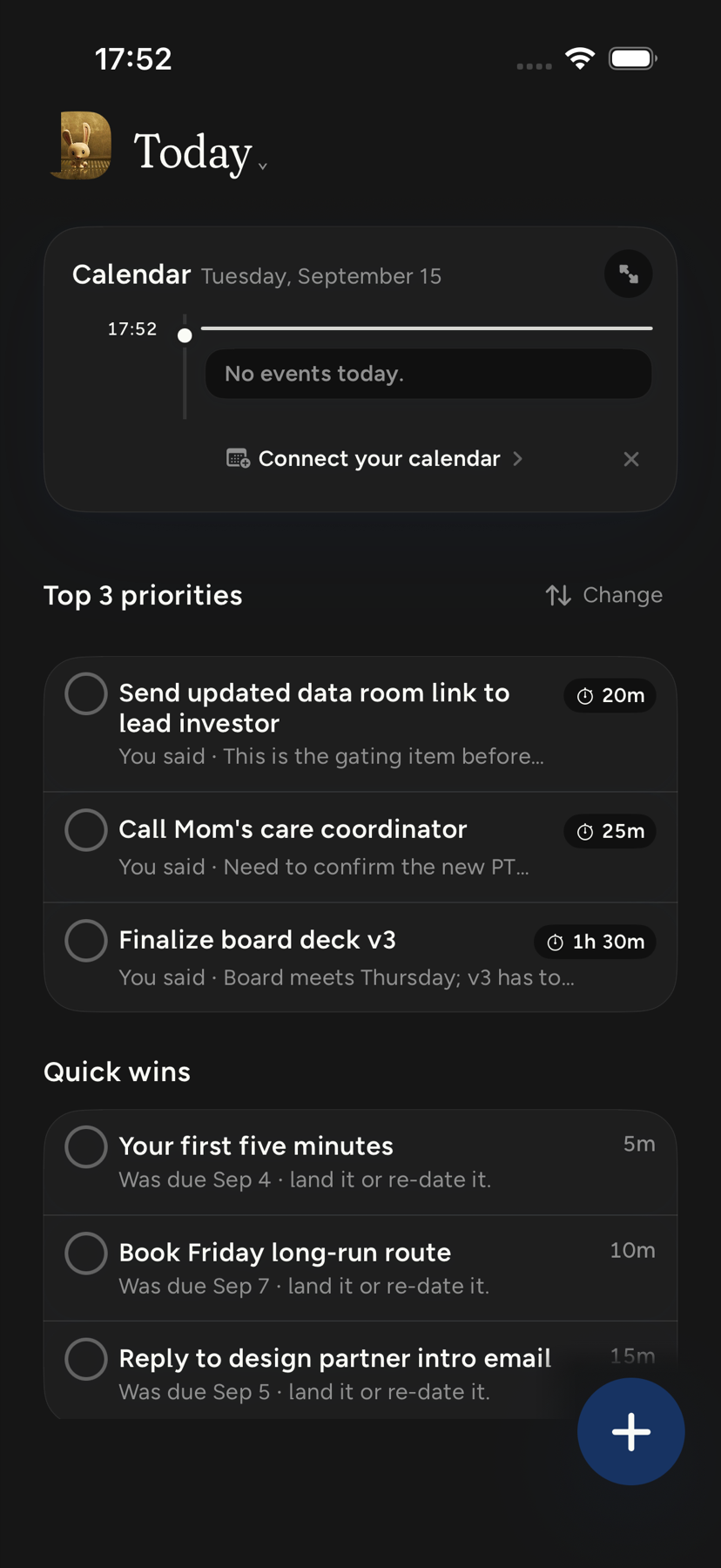
Top 3, Quick wins, and Habits can each be hidden from Today. On iPhone, hold the block. On Mac, right-click it or open its ⋯ menu. Hide for today takes it off until tomorrow, and the toast offers Undo. Hide every day keeps it off until you turn it back on in Today note settings. The same sheet opens from Today note settings… on that menu. On iPhone the settings control sits beside the date at the top of Today, whether Top 3 is shown or hidden. The hidden row takes no space. On Mac it sits beside the date in Today's note. A block hidden for today offers Show now in the sheet, and Undo is on the sheet as well. The choice is saved to your account, so a hide on one device is the hide the other device reads.
The sheet lists Top 3, Quick wins, and Habits. On means the block shows every day. On iPhone that list is one group on the page's surface. The switches use the ink color. When nightly filing is on for your account, Sort my notes each night is on that sheet too: file copies where they clearly belong, keep your originals, and leave uncertain lines in the day's note. A current iPhone or Mac app has to have opened while you were signed in, or nightly filing stays off. If a matching note already exists, the copy lands at the bottom of it. If it does not, Kept starts one. Cloud AI has to be allowed or nothing is copied. The switch's existing choice is kept; turning it off stops filing. Calendar beside the note is on the Mac sheet only. On a wide window it puts the day's calendar beside the note. Habits on Today, above, still shows or hides the habit rows from Settings. Hiding the Habits block on Today is the separate choice.
Menu
Habits switches that place into or out of the drawer. Body is paused in Kept 1.8.6, so its switch and navigation entry are hidden on iPhone and Mac. Kept preserves the saved Body choice and all Body data for a future update. See Modules and layout.
Notifications
At accessibility text sizes on iPhone, every switch in Settings and Notifications sits below its explanation, which takes the full width, and the row's icon steps aside. Appearance's choices and swatches stack the same way, so a name such as _Graphite_ never breaks inside a word. VoiceOver says which look, dark color, and highlight is selected. The push switch is still one control named Push notifications, with its On or Off state. Its on state uses the same ink switch track as the other settings.
Whether the system currently allows Kept to notify you, Working hours (when Kept may suggest times; the row names the days and hours, and the screen behind it sets them), then the daily rhythm: Daily briefing, Briefing time, Midday refocus, and Nightly reflection. The rhythm switches work in Kept with push off; the one thing push changes is whether the morning briefing also arrives as a notification, and while it is off a line above them says so. Working hours replaced the Quiet hours row; opening it changes nothing until you edit it. If you said no to notifications in setup, Push notifications is where you turn them on later; if iOS has them off for Kept, the row offers Open iPhone Settings instead. After the daily rhythm, under Email, Email preferences opens kept.do/email-preferences in your browser, where you sign in and choose whether Kept sends product-guidance email to your account. See Briefings and reminders.
Health & wellness
Body metrics, Nutrition principles, Body goals, and Apple Health belong to the preserved Body implementation. Apple Health is not shown in Settings while Body is paused, and Kept 1.8.6 does not request or sync Health data. See Apple Health and Kept.
Calendars
Show picks which layers the calendar draws, New events sets where a captured event goes, and Merge duplicate meetings collapses the same meeting from more than one calendar; then Apple Calendar and optional Google Calendar accounts with their calendars and colors. Opened from Today or the Calendar screen, the page is a sheet with Done at the top; from Settings it has Back. The note behind the (i) beside Google Calendar also closes with Done. See Connect calendars.
Notion
Under Connections, below Calendars, when Import from Notion is available. Connect Notion brings your Notion pages and task lists into Kept; while it runs the row reads Importing with a count of pages done, and afterwards Imported with what came across, Open Notion folder, and Import again. Stop import ends a run and keeps what arrived. See Bring your Notion into Kept.
Connect to your AI
The one-sentence setup for any MCP agent, per-client steps for Claude, Claude Code, and ChatGPT, and Connected agents with Disconnect for each. See Connect Kept to your AI. What Kept changed is not in Settings yet, and a connected agent cannot list that history until the owner-scoped backend and rollout gates pass.
AI & your data
Intelligence, once it is on for your account, is the first row here: where AI runs and what works on your notes in the background, with your level as its value. See Intelligence.
What Kept should know is a page of notes you write for the assistant, up to two thousand characters, with the reminder that these are notes, not commands. Words you type and leave without saving are kept on this iPhone for your account: come back and they are still in the editor, with _Draft kept · tap Save to use it_. Nothing leaves the device until you tap Save, which sits in the top bar so the keyboard never covers it while you type, and a draft never shows for anyone else signed in on the same iPhone. Signing out or deleting your account clears it. People Kept knows lists contacts the assistant has confirmed with you, with Forget. Memories shows what Kept remembers; its row in Settings shows how many memories Kept holds, and no number while there are none. Inside, memories are grouped by kind, with Remember something, Correct this, Forget, and Keep. Trends opens the same charts as the Body tab, with Close to put it away. Each life area's name under Life balance reads in full; at the largest text sizes the areas sit in a grid across the page. Each goal sits under its own life area, the one its goal page names, or under Goals when it has none, and names its goal, then how it is going, with the percent shown once. A goal Kept has not measured shows its name alone. At the largest text sizes the name takes the full width with its status beneath. Health & fitness shows weight and lifting only, and only when there are some. The page says _Building your trends_ only when it has nothing at all to show. Skills appears where the skills library is on for your account.
Privacy
Cloud AI is the account-wide permission for OpenAI and Anthropic; turning it on opens the permission sheet that names who receives what and why. Turning it off takes effect at once, and the Privacy card says so under its switches, with what still works; nothing above the switch moves. Help improve Capture is a separate opt-in to share the corrections you make to capture routing. See Cloud AI, explained.
On iPhone, Cloud AI for Do sits below Cloud AI on accounts where Do is turned on. Turn on reopens Do's introduction to ask for Do's own permission. With Do on, Review introduction reopens it, and Turn off withdraws Do's permission without changing Cloud AI for the rest of Kept. Turning Cloud AI off also turns Do off, and turning it back on leaves Do off until you choose Turn on here. See Do.
Tools
Tips & shortcuts holds the hidden moves. Automations holds Shortcuts recipes and an Open Shortcuts button. See Siri, Shortcuts, and automations.
Feedback
Shake to report is on by default; turn it off if you shake your phone for other reasons. Report a bug at the bottom of the menu stays either way. Show feedback button adds a small always-on button at the edge of the screen that opens the report sheet.
About
Avatar artwork credits the photographers behind Kept's built-in avatars. It has a Close button, and swiping it down works too. Privacy Policy and Terms of Service open the web pages. The version and build number sit at the very bottom; you will be asked for them when you write in.
Account
Sign out and Delete account. See Your account.
On MacMac
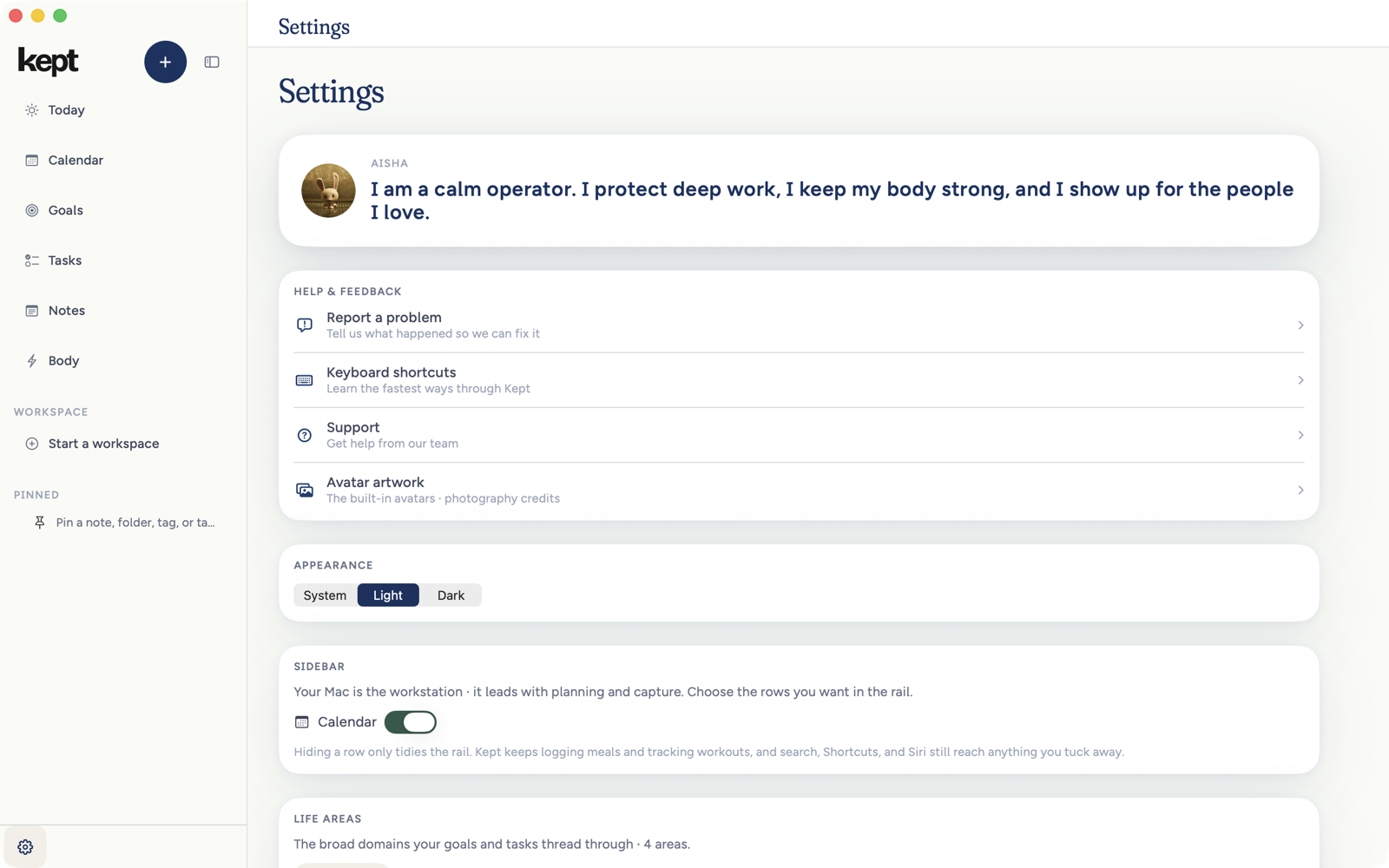
Open Mac Settings from the gear at the foot of the sidebar, from Kept → Settings…, or with ⌘,. It is one scrolling page of cards, in one readable column no wider than about 760 points and centered in the window, in this order: your identity card (click the portrait to change your avatar; name and vow are edited on iPhone), Help & feedback with Report a problem, Keyboard shortcuts, Support, and Avatar artwork, Appearance (System, Light, or Dark), Sidebar (the Calendar row on this Mac), Life areas, Time & units, Notifications with working hours (the days and times are set right in the card) and the briefing rhythms, Coaching & cadence with coaching prompts and your morning ritual, Integrations for Apple and Google calendars, Connect to your AI (MCP), Capture with the global hotkey and On-device routing, Keyboard, Import (Notion, when available, and the meeting folder), Intelligence (once it is on for your account), Privacy with Cloud AI and Help improve Capture, Assistant data (What Kept should know, People Kept knows), Memories, About, and Account. Body and Apple Health settings are hidden while Body is paused. The Sidebar explanation describes navigation only and does not promise meal or workout tracking. With Cloud AI off, the briefing switches keep your choices and say Paused while Cloud AI is off, because briefings, the midday refocus and nightly reflection are Cloud AI work.
The whole page works from the keyboard. Tab moves from the identity card down to Sign out, and each control you reach scrolls into view with a visible focus ring. Under Capture, Global capture hotkey is a button that names your chord: open it with Space or Return, press the new chord to record it, press Escape to keep the one you have, or choose Reset to Option Space. Closing it puts the keyboard back on that button, so Tab carries on through Settings. Kept → Sign Out… in the menu bar signs out from anywhere, through the same check as Settings.
Next: Modules and layout.
System permission and push delivery
Notifications shows whether the operating system allows Kept to notify you. Allowed means local reminders can ring, even when Push notifications is off for the account. The push switch controls remote delivery separately. Returning from system Settings refreshes the permission shown here, including while the Mac Settings page stays open.
On the Duo spread, Settings opens at the start of its list, and Appearance is visibly selected until you choose another section. The list and pane share the same paper ground, title size and title band. The pane's pinned title has a solid scroll edge.
On Duo, the Ink highlight swatch previews the filled accent role in both appearances, with its selection ring in the same color. It stays blue in dark mode rather than inverting into a cream disc; the ordinary iPhone preview is unchanged.
A pushed phone Settings pane uses its native title and Back as its single header; the outer avatar row yields that space. Duo Appearance uses the shared page title band with its native bar hidden, so it cannot show a second title above the pane.