

GuideHabits and GoalsiPhoneMac
Goals
The reasons behind the work. Link tasks and habits to a goal, see what comes next, and decide for yourself what counts as progress.
On iPhone Duo, the Goals list and an open goal fill their allocated pages up to the dock and status column. Tap a goal on the cover to open its full page. Folding into a partial spread keeps the page ground and title band with the goal. The page keeps its final text measure while its aperture changes, so words do not re-wrap during the move. On a standard iPhone, the list continues beneath the home indicator while its last row remains reachable above the capture button.
On the Duo spread, the selected goal has a quiet wash and a narrow spine in the list. Its page opens with the full serif title; the compact running title appears only after that title scrolls above the page's band. On the cover, Goals cards and Add goal keep their right edge and chevron inside the content column, and the goal’s Next card keeps the same side margins. Folding back to the cover fits the list and Add goal row to the cover again. In Goal Builder on Duo, Continue stays below the opening field while the keyboard is up.
A goal you opened stays the same page as you fold or unfold Duo. It moves between the full cover and its place beside the list, keeping the chosen goal and your place in its scroll. Reduce Motion changes the layout in place. A goal preview selected automatically on the spread returns to the list when you fold; it does not open itself on the cover.
When you unfold from the Goals list, the goal and its title appear with the first spread frame. An open goal stays drawn as it moves to its pane; it does not wait on blank paper for a second fade-in. A row tap remains its own opening action.
Opening a goal and unfolding immediately keeps its words visible throughout. Its page continues to fit the available space during the move. Upright, the goal uses the shell's one Back and actions row, without a second native bar covering the title. Back returns to the list in the same position.
On Duo, Link a task keeps matches in the same scrolling list as search and Create a new task. Create follows the matches, so the keyboard cannot squeeze them out beneath a pinned button. Empty, loading, error and offline states keep the same page ground in light and dark appearances.
An automatic Duo preview softens in during the unfold, with its content already drawn. With VoiceOver, opening a goal on the cover or upright announces the page when it is ready. The escape scrub returns to the list, as does Back; focus returns after the closing page leaves the screen. The list keeps its position beneath the upright navigation bar.
Duo keyboard browsing keeps the same list and goal during a fold; a preview leaving the cover releases its touch area as soon as the list returns. A brief partial fold during an unfold does not change the page twice.
With a hardware keyboard on Duo, Escape and Command-[ close the current goal tool even while its text field is focused. These shortcuts belong to the active Goals surface and yield while an overlay or sheet covers it.
On Duo, Edit goal, Talk to Goal Coach, Set a target, Link a task and Log progress open above the visible goal page, including when you enter Goals from the drawer. Closing a tool returns control to that page.
On Duo, the goal's More menu is titled This goal. Edit goal opens its editor on the cover and beside the goal on a spread, keeping an unsaved edit when you unfold. A numeric goal that accepts manual readings also offers Log progress there. The full-width goal block starts on the24pt page keyline; a physical crease keeps its existing inner gutter.
A habit you keep from a goal's starter plan is linked to that goal on iPhone and Mac. Ticking it supplies practice evidence on the goal page. Other habits you choose during setup do not get attached to that goal.
A goal is the reason a task exists. Kept keeps goals separate from the day's list on purpose: the list is what you do, the goal is why. Linking the two is a deliberate act; a capture in the Health area does not attach itself to your Health goal.
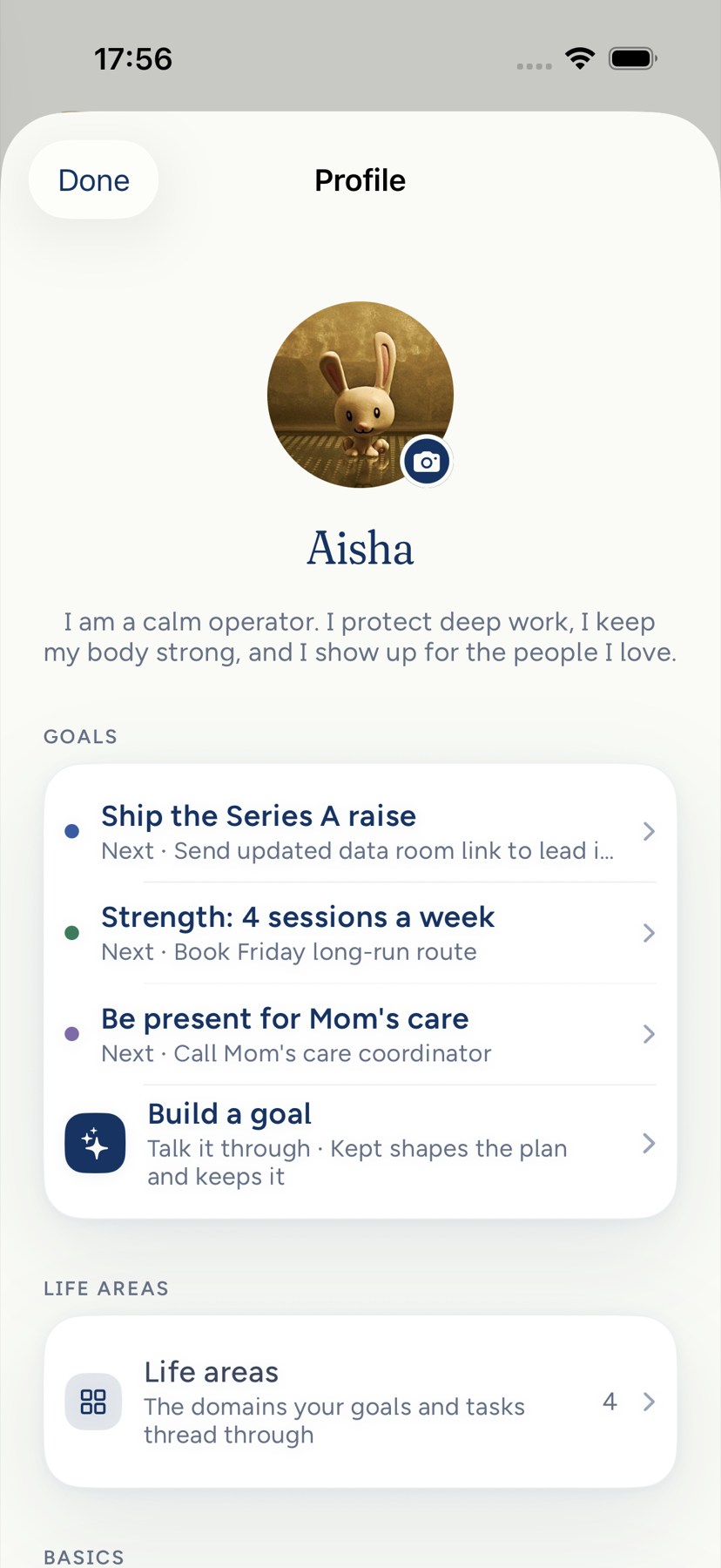
On iPhone, the Goals list uses quiet area headings and a compact Add goal row. A goal row has no separate area dot beside an area already named by its heading. Opening a goal from the Goals tab replaces the root avatar, Goals title and search row with one Back and actions band above the page; Back returns to the list. A goal opened inside Profile keeps that native stack’s Back and actions bar.
The Goals list groups your goals under your own areas, in your order. A goal Goal Builder filed under one of its areas, such as Career, sits under the area of yours it matches, such as Work. A builder area none of yours matches keeps its own heading, and a goal with no area sits under General. On Mac, the area filter above the goals list offers the same areas, in the same order.
With VoiceOver, a linked task's title opens that task; its separate completion control still marks it done. This works on ordinary iPhone and on the Duo cover and spread.
Create a goal
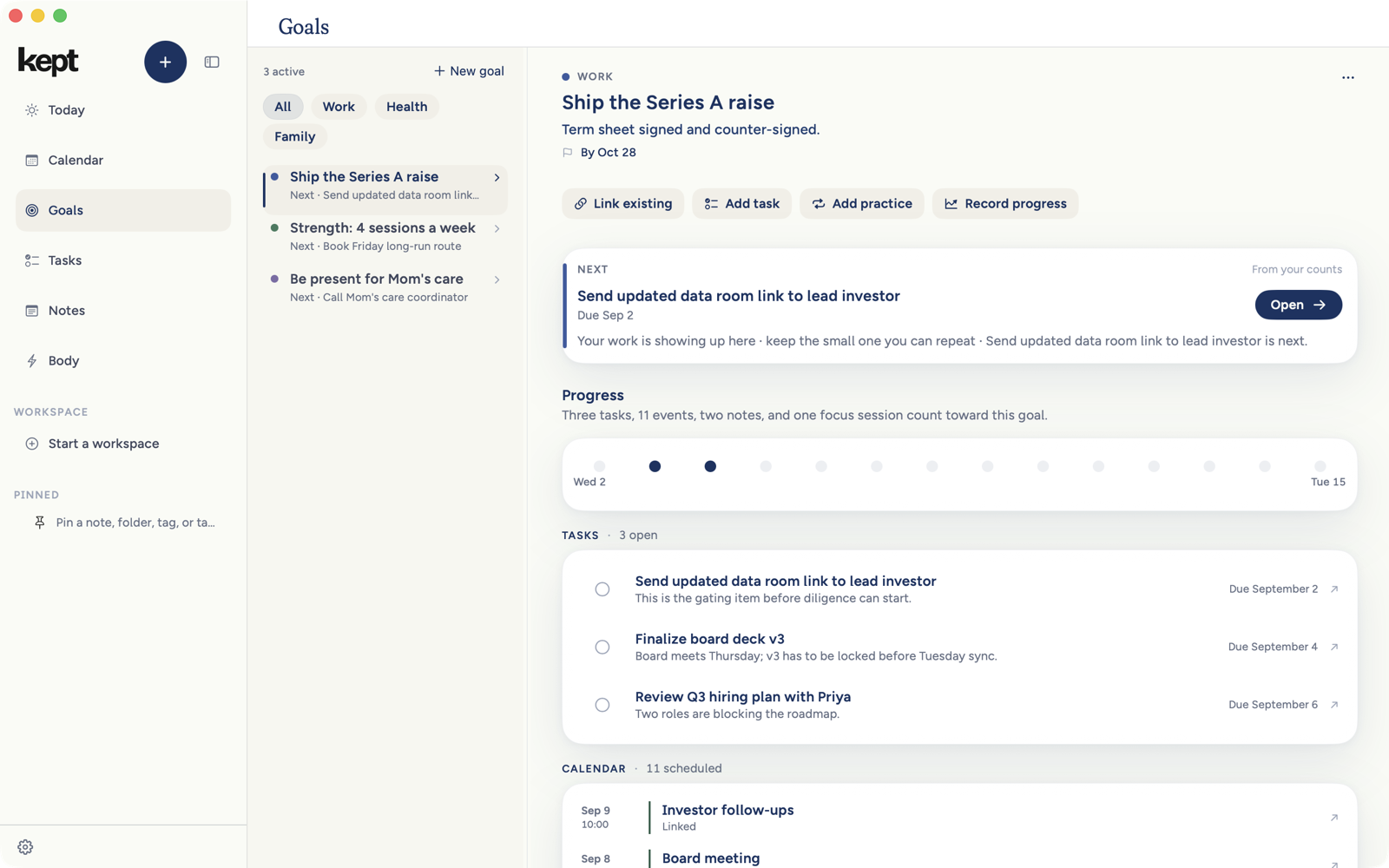
On iPhone, open the menu and tap Goals for all your goals; once you have one, Add goal is the last item on that page, under every area. They also sit on your Profile (tap your avatar, then your name at the top of the menu), with See all when you have more than three. Add goal is always the last item in that Profile preview and is the first item when you have no goals. On Mac, Goals is a sidebar destination, ⌘5 in the default order; its goal navigator ends with the same Add goal tile and leads with it when the navigator is empty.
With no goals yet, Goals asks _What would you like to work toward?_ with one Build a goal button, which opens Goal Builder, on iPhone (Goals in the menu, or See all on Profile) and in the Mac Goals workspace. While your goals are still loading, the page shows plain placeholder cards instead, never the invitation, and if they could not load it says so and offers Retry. Once your goals have loaded, the page stays put while Kept refreshes in the background, for example after a capture, so words you are typing into Goal Builder there stay where they are. It never shows sample goals.
Add goal on the iPhone Goals page, in the iPhone Profile preview, and in the Mac Goals navigator opens Goal Builder. Other creation doors, including task detail and the Mac File menu, may read New goal; they open that same builder, not a second creator. If Goal Builder cannot open for your account, Kept shows Try Goal Builder again with Try again. It does not open Goal Coach or a plain goal editor instead.
Inside Goal Builder, say what you want in your own words, or start from an area. Setup offers Body & Health, Career & Craft, Wealth & Money, Relationships, Growth & Mind, and School & Study. Goal Builder uses the same labels and colors for those areas and also offers Productivity and Hobbies. Its header shows Build a goal and progress such as 1 of 3 as separate elements, including with larger accessibility text.
With Cloud AI off, a goal you write keeps its complete wording on iPhone and Mac. Choose its area, review those words, then choose Start this goal. This saves the goal and a note containing those words. It creates no suggested task, habit, milestone, target date or check-in. You can link work or add a tracker later. A server that cannot preserve this review cannot save it; the words stay in your draft.
When you choose a catalog suggestion without writing a goal, or allow Cloud AI, answer up to three quick questions. Above the sentence, the builder names your goal in your words, exactly as it will be saved; the sentence beneath it fills in as you go, and every answer in it reopens its question when you tap it (click it on Mac). On Mac, number keys pick options when you are outside a text field; while typing, numbers and letters stay in your answer. Return belongs to the field you are typing in, so it never picks for you. If you name two goals in one line, the one you pick keeps only its own words as its title, and a date you change is the date the title says. At Ready your answers stay listed, including any Kept chose for you ("Kept's pick for the date"), so you can change one before you keep the goal. A one-time outcome, such as finishing a reading by Friday or a project with a deadline, is asked about at Ready only: Keep as one time keeps it with no weekly check-in, and Add a rhythm gives it one. A habit such as reading before bed, or a weight goal with a date, keeps its weekly check-in and is not asked, and so does a habit you say you will start tomorrow or tonight ("start running tomorrow") or keep up to a date ("read more by next month"). A goal with no date, such as writing a book someday, asks for one instead of choosing it quietly. Start this goal sets up the tracker, first step, and check-in in one step. The practice it sets up is named for what you do ("20 minutes of reading", "Ten minutes on the big project", "20 minutes of guitar"), or for the goal itself when your answer was in your own words, and the first step names what to do and when ("Tonight, after dinner: 20 minutes of guitar"). The first step's day matches its words, so "Weigh in tomorrow morning" is due tomorrow. On the goal's page, the practice says its own rhythm, such as Every day or 3 times a week. Goal Builder keeps what you have said. Words you typed before choosing an area stay your goal's title, even when you then pick one of that area's suggested goals, and when nothing in the builder fits your own words for an area and it offers the areas again, choosing the same area keeps the answer you already gave there; a different area asks its own question. A reply that arrives late for words you have moved on from never replaces a newer answer. Closing the builder saves your draft, and the toast says _Draft saved. Choose Add goal to continue._ Undo on the _Goal started_ toast takes the goal back. Once you have answered anything, Start over sits at the top of the builder beside Close: it asks first, then clears your answers so you can describe your goal again, which is the way out when you landed on the wrong goal and do not want to keep it just to delete it. If the words you type point to something serious, the builder stops before any goal is made, on iPhone and Mac alike: a crisis line names a person to reach (call or text 988 in the US), and a concern about food, pregnancy, pain, medicine, or alcohol offers Try different words. Closing the builder at that stop leaves no draft behind, so Add goal opens fresh next time. Offline, or if the builder is closed to your account, your answers stay saved and Start this goal waits; nothing is queued for later.
Add a tracker on a goal that has none opens the builder titled _Add a tracker_, with your goal named above What do you want to track?, so you know which goal the tracker joins. The tracker keeps your goal's title. On Mac, the sentence beside it shows the words you are typing for the tracker. If you close it partway, it reopens on the question you left, with your answers kept, on iPhone and Mac.
When you start from an area and the words you type under its Other match none of its goals, they stay with the goal you began: the card says _Your words stay with this goal. Choose the closest one, or say it another way._
Edit goal changes an existing goal. On Mac, Record progress still records a percentage or a measured value. Neither action starts a new goal. From a task's detail page, New goal opens Goal Builder; after Start this goal, Kept links that goal to the task once. If the task was deleted or no longer belongs to the current account, the goal stays kept and Kept says it could not link the task.
The builder reads what you already said, so it does not ask it again. A date in your words becomes the goal's date, whether you type it at the start or as your own answer to the date question: "Run the city marathon on Oct 25", "save $1,000 by the end of February", "by Thanksgiving", or "by 12/15". A date with no year is the next one on the calendar, and a race too close to train for gets a note that says so. How often, said as "3x a week", "five mornings a week", or "every other day" (three a week), becomes the weekly count your practice keeps. Your own answer to a how-many question is read the same way: "maybe 2 or 3 if I can" is 2 a week, and an answer with no number is asked again, with your words still showing. Everyday phrasings such as "get a job", "land a marketing job", "run twice a week", or "keep moving" start at the matching goal, "meditate 10 minutes every morning" starts a meditation practice, "start journaling" starts a journal, and "call my mom more" plans calls rather than meals, and so do common goals written in Spanish, such as "ahorrar para un coche" or "bajar 10 kilos". Words that only sound like one of those goals keep their own meaning: "the second half of the audit" is not a race, "study 2 hours every night" is not a sleep goal, and "get a bigger role on my team" is not a job search. A line the builder cannot place takes you to the areas, where you pick one. The stop for serious words also covers skipping meals to lose weight and training through an injury, which offer Try different words, and a crisis line written in Spanish, Portuguese, French, or German, which names a person to reach the same way.
Goal Builder keeps savings goals in US dollars for now, storing cents and showing and editing dollars, and keeps a loss such as “lose 20 lb” distinct from a weight to reach such as “get to 180 lb.” An amount with no currency, such as “save 5k” or 5000 typed at the amount question, is in dollars, and the amount can sit anywhere in your words: “over the next 6 months save $3k” is $3,000, and in “$500 a month until $6,000” the goal is $6,000. “5 000 $” is $5,000. A weekly or monthly amount such as “$200 a week” is never the total; on its own it asks for the total. At the amount question, “10 grand” is $10,000; a year is the amount only when every number is a year (“1000 by Christmas 2027” is $1,000, “2000 for my 2027 trip” is $2,000); a percent, a duration or a slash date is not the amount; and a number written like a phone number (with hyphens, or seven or more digits in a row) asks again. Whatever Kept reads shows on the review screen before Keep, where tapping it changes it. Any other written currency, such as €, £, pounds or a code like EUR or ZAR, asks again: “Kept tracks savings goals in US dollars for now. What’s the amount in dollars?” Anything else it cannot read asks “What’s the total you want to save? A number like 5000 works.” Words like NYC or MBA beside a number do not. Dollars show the way your region writes numbers, so a German member sees “5.000 $”, and a loss shows in your own unit, so “lose 10 kg” stays 10 kg. A goal written in kilograms gets its pace note and its suggested amount in kilograms. A target typed as “80,5” or “1,000” reads in your region's way of writing numbers, a target that is not a number is refused with a note instead of clearing the goal, and saving a target editor without changing the amount leaves the stored amount exactly as it was. An explicit calendar date takes precedence over a duration, slash dates follow your locale, and a deadline in your opening words stays on the saved project even when its title omits the date.
School & Study offers A thesis or long paper alongside reading, a new skill, a language, an exam or certificate, and better grades. Type "write my thesis", "finish my dissertation", "my term paper" or "my capstone" and the builder starts there, asks what you are writing, what done looks like, how many writing sessions a week you want, and when it is due, and files the goal under School & Study. Tap School & Study and then type, and the builder still files it there. A novel, a screenplay or an album is still a creative project under Hobbies.
On iPhone Duo in open landscape, Goals keeps your list on the left and the selected goal on the right. Tap another goal to read it beside the list. A partial fold leaves an empty space at the crease. A goal you chose stays selected when you fold; upright while flat uses the phone's list and pushed goal page. In an upright partial fold, the goal stays on the top page and its list sits below the crease. In the side dock, Back returns from a pushed goal and Goal actions holds the goal's menu. On those column layouts, the goal's own title leads the page and Link a task fits its words. On two pages, Link a task, Set a target, Log progress, Edit goal, and Talk to Goal Coach open on the context page while the goal stays in view: left in landscape, below the crease when upright. On the cover, Edit goal, Set a target, Link a task and Talk to Goal Coach open their visible editor. Fold to a single page and the same tool opens in a sheet, keeping your search, unfinished target values, progress reading, goal edits, and unsent Coach reply. While you fold, the goal's reading width stays steady and moves clear of the crease. With a hardware keyboard in these Duo layouts, Up and Down browse goals; Return chooses the goal and moves focus to its page, or opens it from a single-page list. Escape closes the current tool or returns from a pushed goal. These Goals shortcuts yield while Quick Find, Capture, the drawer, or a native sheet is covering the page, keeping the goal and its unfinished tool beneath it. Command-[ returns from a pushed goal. On a spread, returning keeps the selected goal and moves focus to the list. When the goal's full title scrolls past the header baseline, a compact title keeps its name in view; scrolling back removes the compact title. Reduce Motion uses a brief opacity fade. Opening a goal from its row on Duo prepares the page at its final reading width before revealing it. The page moves from the row without changing the width of its text during the move. Back reverses that move to the row. Reduce Motion opens and closes with a short crossfade. In a partial fold the motion stays inside its page, clear of the crease. Folding an open goal keeps that same goal and its reading place; it does not replay the row opening.
Link the work that serves it
A goal page has three parts:
- Progress is the work already linked: open tasks, active habits and their recent check-ins, and on Mac the linked events, notes, focus sessions, and training that count too.
- Suggested is nearby work that could count once you link it. On iPhone, Kept suggests from the goal's own words. On Mac, it also offers work from the same area. Nothing counts until you link it.
- Why explains the goal and never counts as progress. On Mac this context also carries what Kept remembers that bears on the goal.
On iPhone at the largest text sizes, each task on the goal page puts its estimate under its name and gives its area, priority and due date a line each, so no word breaks in the middle.
Tap Link a task on iPhone to choose from your open tasks; a task already on another goal can move here. On Mac, the action bar under every goal reads Link existing, Add task, Add practice, Record progress. Link existing opens one sheet with Tasks, Practices, Events, and Notes segments, each row offering Link, Unlink, or Move here; Add task and Add practice create something new that counts from today. Adding a practice offers Suggested drafts from the goal's own words on both devices; a draft fills the editor and nothing is created until you save. With Cloud AI off, you can still name a practice yourself. The goal's … menu holds Edit goal, Refresh today's read, Talk to Goal Coach, Choose what Kept counts, and Archive goal, and archiving offers Undo.
Next
On iPhone, tap Open in Next or a linked task row to open that task in the two-stop task sheet. On Duo, this works from both the cover and the spread, including a goal opened through the drawer. Close the task to return to the same goal, ready to open the next linked task.
Each goal names a Next action: the earliest-due open task linked to it, then the highest priority, with undated tasks after dated ones. The same order applies on iPhone and Mac. If no task qualifies, Next offers a linked habit; on Mac it then falls to a planned training session or an upcoming event, and on iPhone it suggests the setup step that would give the goal a Next.
When goal proposals are enabled for your account and a goal has no actionable next step, Kept can prepare one proposal from the next incomplete milestone or a named obstacle. If your goal already points to an open task, the proposal reuses that task instead of creating a duplicate. A recurring habit does not create another daily task. Accept can keep the wording as proposed or keep your edit; Dismiss holds that exact proposal back until the relevant goal context changes. Only an accepted proposal can link work to the goal or influence Today. After 72 hours without real use, preparing goal next steps in the background pauses until you return; see When you are away.
Progress you declare
On Mac, Record progress sets a percentage or a measured value against your target, and Choose what Kept counts decides which signals feed the goal. A number you enter is labeled Your estimate, so it is never confused with something measured. On iPhone, Edit goal in the goal page's … menu sets the target and finish date. Changing the number does not complete any work or archive the goal.
On Mac, Activity counts real completions this week or month, never a percentage and never a scheduled event, because an event is an intention, not an outcome. Consistency shows kept versus scheduled for linked habits, built from each habit's own rhythm. A weekday habit is not counted against on a Sunday.
The daily read
With Cloud AI allowed, Kept can write a short daily read of the goal from its linked work: what happened, what is next, and, on iPhone, Sources naming every item it cited. The read appears the next time you open the goal, never while you are reading the previous one; Show latest read on iPhone and Refresh today's read on Mac fetch it now. With Cloud AI off, the counts and Next still work, and the card says so in a plainer line.
When Goal Builder is on, a Mac goal that already has a tracker (number, practice, or project) uses the tracker page instead of that daily read: the area and title, a weekly check-in when one is due, the tracker, This week, Open plan (the plan note opens in the note editor you already use), and Activity. A number goal also lists its readings in a read-only Log. Until a check-in arrives, that Log says "Your check-ins land here." Log rows are dated the way you would write them ("Sep 17"), and a weekly check-in reads in your own clock: "Sundays at 7:00 pm" if the Mac shows a 12-hour clock, "Sundays at 19:00" if it shows 24. A project with no milestones yet leaves that space empty. Below 850 pt the two columns become one, in the same order as iPhone. Goals without a tracker, and every goal while Goal Builder is off, keep the page you have today. The weekly check-in stays unavailable, and nothing is written, until its hooks are live.
On iPhone, with Goal Builder on, the page shows the area and your title, then the first step and the day that step is due. The bar says Goal, and Back is the same plain chevron a note uses. A project with no milestones yet does not show an empty card. A number with nothing logged yet shows the days of this week and one line: "Log where you are today. That's your starting line." Log progress, on the tracker card and in the … menu, takes a reading in your own terms (your weight unit, dollars); a savings total takes an amount you added or the total so far, and Undo on its toast takes the reading back. A first step that is a reading, such as "Log a weight tomorrow morning", offers Log it, and the reading completes the step. A project's milestones tick from the page. Once you log, the large number is your latest reading with its unit (68 min), the same as on Mac, and a note you add to a reading stays on its row in the Log. Until a check-in arrives, the Log says "Your check-ins land here." Log rows are dated the way you would write them ("Sep 17"), and a weekly check-in reads in your own clock: "Sundays at 7:00 pm" if your iPhone shows a 12-hour clock, "Sundays at 19:00" if it shows 24.
Edit, archive, restore
Edit any field from the goal page: on iPhone and Mac, the … beside the goal holds Log progress (for a number you log yourself), Edit goal, Talk to Goal Coach and Archive goal. Edit goal changes the title, area, target, finish date and why; the why sits under the goal's sentence and never replaces it. A reading you log is the line under the goal in Goals, on Profile and in the Mac navigator ("190.4 lb · 15.4 to go · by Jun 20, 2027", "$1,200 of $5,000 · $3,800 to go"), and the practice under This week reads the way Habits does ("1 of 3 this week"). On iPhone, Kept also sends only the fields you changed. On Mac, Kept sends only the fields you changed, so editing a title never overwrites a target another device just set; if you both changed the same field, Kept says so and offers Keep my edit or Load the saved version.
Archive a goal when it is no longer active. Its builder-created practice and open first step leave Habits and Today with it. In 1.9.8 this also applies to builder goals archived in earlier versions, where archive left the work visible. Restore the goal to bring that work back, or keep using work you linked by hand. Work you linked by hand stays available, without the archived goal's reason. The goal keeps its history in Archived (n) at the foot of Goals on iPhone and in the Mac navigator. Restore brings back the same work; it does not reopen a completed task or reactivate a practice you archived separately. Undo stays available for at least eight seconds. If a background refresh finishes after you archive or restore a goal, your change stays in place on iPhone and Mac.
The goal page, Goals list, Profile, and Mac navigator read progress from the same tracker. Number goals name the latest reading, the distance left, and the finish date. Totals read 2 of 12 books · 10 to go; milestones read 1 of 4 steps; practice goals count completed weeks with a logged check-in, such as Logged in 3 of the last 4 weeks. The sage track measures from the starting line. A target or date edit updates matching amounts and dates in the goal's plan sentence; independently authored wording and your title stay in your words. When a changed target no longer matches a number in your title, Update title to “…” offers the new title for you to accept; the title changes only if you choose it. A blank sentence can be filled from the new target. The separate plan note remains an editable record of the plan you started.
A builder-created reading step opens Log progress when you tick it, including from Today. It stays open without a Done receipt until you save a reading. Canceling Log leaves the step open. Saving completes that step, and Undo takes back that reading and its completion. Other linked tasks stay as you left them.
The builder reads in 6 months, in 12 weeks, and by summer or by spring. Seasons mean their first day and show the year. A weight goal written from 190 to 175 keeps 175 as the target and retains the typed range in the plan, in your weight unit. At Ready, Use 190 lb as my starting line lets you confirm the first number: it becomes the tracker's starting line, not a measured reading. On the goal page, Log progress then offers Use starting line, which fills in that value in your display units; save it only if it is today's reading. For a savings goal, a starting balance is offered under Total so far, never as an amount added. Monthly practices are not supported yet: an answer such as $1,000 a month is quoted back with a note that Kept can’t keep a monthly practice yet, and the builder asks for one that repeats more often before you start.
How Kept keeps this goal on a goal page explains the tracker, practice, and first step. The same explanation appears as a closed How Kept keeps this goal row at Ready, and in the Welcome note. A practice's first week has no streak claim, and check-in receipts describe what you logged. Habit rows in the Habits tab may name the goal they serve. Goals, goal pages, and the task detail goal picker keep that context.
Connected agents
Connected agents can use the existing goal tools within the goal permissions you approved. A newer staged flow for reading the authored plan as Markdown, recording a progress entry, completing a milestone, or building and confirming a full goal plan is registered for review but is not available to connections yet. It stays out until owner-bound staging, replay, Undo, access, and consent checks are approved. Health-linked history still needs the separate health:read permission and is never copied into an ordinary goal-progress row.
Next: Calendar.
Goal next-step proposals, when enabled, use current task and milestone evidence. Older pending proposals are superseded when that evidence changes. Automatic note similarity alone does not count as a reference you made to a goal.
Restoring the same manual task link can make a superseded next-step proposal available again after Kept checks the current evidence. Proposals you dismissed or accepted remain closed.
Accepting a suggestion to link an existing task to a goal preserves any recorded estimate choice. A manual task without a recorded estimate choice keeps that estimate as unknown; accepting the goal link does not turn it into an estimate you supplied.
Coach-generated first-step tasks start without a due date, so a suggestion does not become overdue before you choose when to do it.
Checking in with Goal Coach
Opening Talk to Goal Coach from a goal opens Check in on iPhone and Mac. Coach receives that goal's target, starting value, finish date and five latest undeleted readings with their dates. Coach reads the target and starting value in the goal's saved unit and each reading in the unit it was recorded in, with money in whole currency units. The selected goal's current record takes priority over older summaries. If the goal or log cannot be read, Coach is told that it is unavailable; another goal's record is not a substitute.
Coach talks a goal through and never changes it; the conversation says so. A check-in never offers to build a new goal. Anything Coach suggests stays a suggestion for you to make in the goal editor. If a check-in cannot finish, Coach says _I couldn't finish this check-in. Try again. Your goal hasn't changed._ The places to change a goal are the ones on the goal page. Edit goal holds the title, area, target, finish date and why (on the Mac, also the north star and declared progress); it has no starting-value or reading field. Log progress adds a reading, and a number goal with nothing logged says "Log where you are today. That's your starting line." The Log is read-only: Undo on the toast right after you log is how a reading is taken back, and a reading cannot be removed later. When you type a range such as "from 190 to 175", Goal Builder offers to use the first number as your starting line. If you skip that, the goal has no starting value and Coach may say so; it still reads the readings you have logged. If Coach points you to a field or button the goal page does not have, that is a mistake in what Coach said, not a missing step of yours.
The builder opens with: “Say it in your words. Kept asks two or three questions and sets up the first step.” The Ready screen and goal page explain how the measurement, practice and linked steps fit together.
On a Duo landscape spread, Link a task, Set a target, Log progress, Edit goal and Goal Coach open on the left page while the goal remains on the right. Folding changes the tool to a sheet and keeps its draft, including an unsent Coach reply. Upright while flat uses the phone navigation. In an upright partial fold, the goal stays above the crease and the list or current tool sits below it.
On Duo, a goal page uses the same serif title and small uppercase section headings upright and on a spread. Its next action fits its words, with space below the final explanation row to clear Capture. Upright, Back and the goal menu replace the root rail controls in one header. The area is named when it resolves; no empty area badge is shown. In the Duo list, Add goal is a quiet final row without a chevron, and the section names use the app’s small uppercase heading style.
On the Duo cover, the Goals list leaves24pt of page ground on each side of its native scrolling viewport. A complete rounded goal row ends before the dock, and the quiet Add goal row follows the same reading column.
On Mac, selected signals in What Kept counts show a checkmark as well as a selected fill. Select a pill to count that signal, or deselect it to hide it. VoiceOver announces selected pills.