

GuideToday and TasksiPhoneMac
Tasks
The whole list, sorted Kept's way or by date, with filters, steps, reminders, comments, and Undo on everything that matters.
Tasks holds everything open in a quiet, Things-style list. It keeps the order Kept recommends without hiding the rest, and every action on it is reversible.
On iPhone Duo held sideways and open, the list sits beside the selected task. Held upright, a task opens as a card and then a full page, as on iPhone. On the closed phone, the dock holds the X and the task's menu. Folding keeps the open task and lays out its whole description for the new page before showing it. The formatting bar stays clear of the column while you write.
On an upright Duo, opening the full page keeps the card's checkbox and title on the same left edge. Descriptions, steps and comments keep a comfortable reading width along that edge. Dragging the page down rounds its edges toward the card while the words keep their size and position. Releasing a short drag restores the full page; with Reduce Motion on, opening and closing use a crossfade.
On Duo, linked notes share the description and comments' left edge, including when a note is already linked. The action bar has its own space below the page; the comment field can scroll fully above it. On iPhone, the page reserves the measured height of Complete, Focus and Snooze in its scroll area, so the final added-date line can scroll fully clear of those controls.
Quick wins count estimates you set yourself.
If estimate or goal suggestions are temporarily unavailable, Kept keeps your choices and syncs each when its feature is available again. A paused estimate does not hold up a goal choice, or the reverse.
Read the list
On Duo, task titles use the list's full text column. Capture sits in the separate dock and does not shorten those rows. Long titles can wrap to two lines.
On iPhone and Duo, an inline task card edits each set property through its pill; Add details holds the remaining properties and steps. Its action bar offers Complete, Focus and Snooze. Choose Open full page on an expanded card to open its task page. Overdue tasks keep their goal, priority and estimate when opened this way. The list can scroll its final row at least 12pt clear of the bar. Complete still works after the opened card has scrolled away.
Task pages opened from Search, Today or Tasks on iPhone and Duo use the same serif header, rounded task checkbox and profile-avatar comment field. Tasks keeps its compact inline preview before the full page. The Duo cover, upright and flat spread use symmetric 20pt page margins. A held crease retains its existing fixed-measure trailing compensation. The title keyline continues through the description, properties, steps, linked notes and comments. The comments field shows your profile avatar and keeps its draft until a send is accepted. The page's action bar occupies its own height with a 12pt gap; it does not fade over the comment field. Duo progress tracks sit slightly above dark paper, using the shared inset role. Inline cards in a Duo column use a close shadow that keeps the page edge clear. Task checkboxes on iPhone and Duo share one 15pt rounded-square face, including linked tasks in Goals; habits retain their circular check-in control.
A task opened locally from Search keeps its own Close action and returns to the surface underneath. If a task opened from search is no longer available to this account, its page says so and can still be closed. On iPhone and Duo, Close stays clear of the status bar; a full page also keeps pull-down, edge Back and VoiceOver escape. A Duo column offers Close in its dock. Closing an unavailable task does not change it.
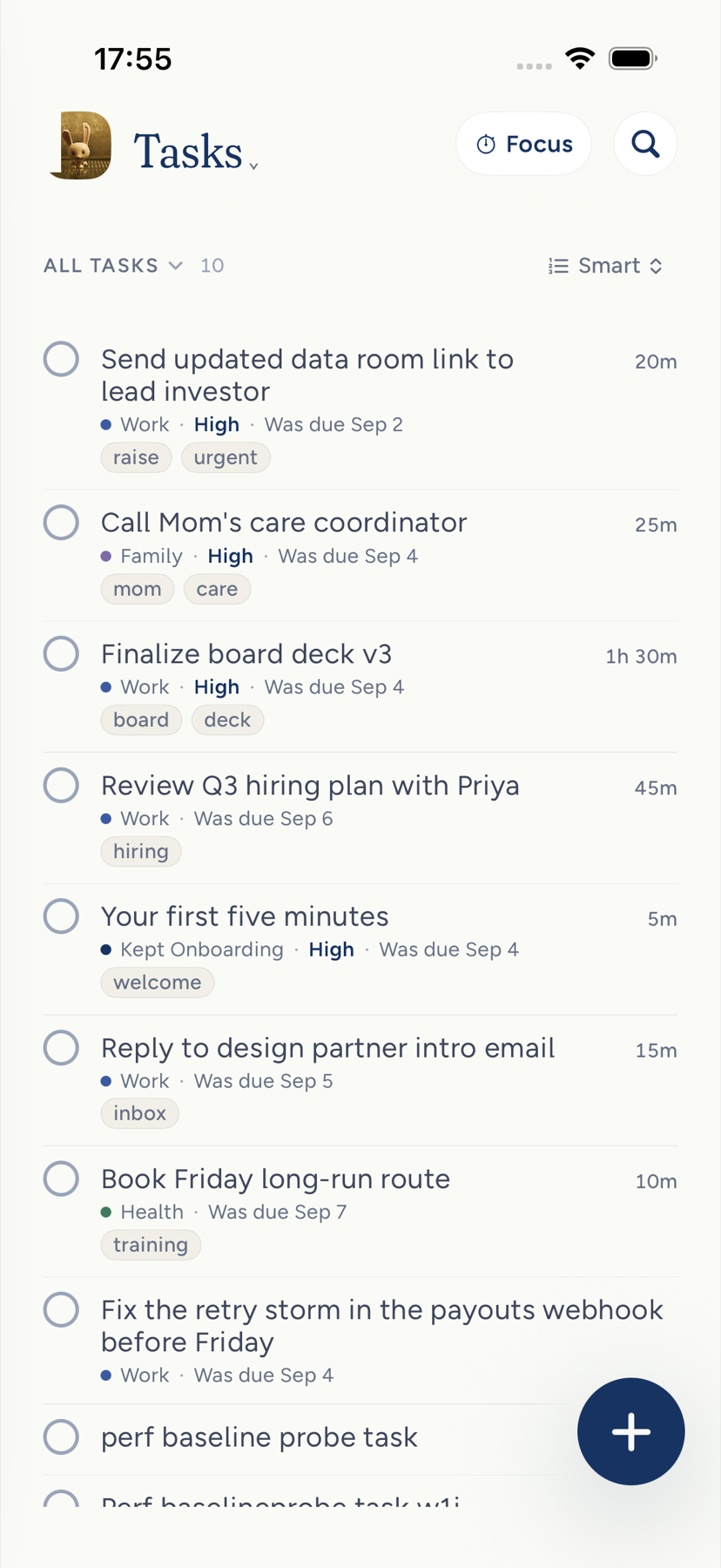
- iPhone. Tap your avatar, then Tasks. The whole list is here; the three that lead the day live on Today. The top of the screen holds Focus, the search circle and a ⋯ circle, and nothing sits between them and your tasks. ⋯ is a menu: Filter (it says 2 on while filters are on), Sort by Smart or Date, and Row detail. Under Smart it says when your plan last ordered the list, as _Smart follows your plan · updated 7:42 AM_. While any filter is on, the ⋯ circle fills dark, and a strip of chips appears under the top row, one per filter, with 4 of 13 at the right; tap a chip's × to take that filter off, and the strip goes when the last one does. Search the same way: tap the search circle and it stretches into a field; Return folds it back, the circle fills dark, and your words become the strip's first chip, with the matching words in each title set in bold. A Done today section at the foot folds away what you finished today, wherever you finished it (Tasks, Today, a widget, another device), so a completion is never lost behind a fading receipt. While a search or a filter is on, Done today shows only the finished tasks it matches, and is left off when none do. When everything a search finds was finished today, Done today opens on those tasks instead of saying nothing matches.
- Mac. Click Tasks in the sidebar or press ⌘5. Three sections show Top 3, Quick wins, and All tasks, with a Smart or By date switch. A task already shown above is left out below, so each open task appears once. While the first two sections hold anything, the last is headed All other tasks. Click a row to open its card in place, then open that card to use the inspector as the task's page. A Filters panel stands beside All tasks with Area, Priority, Due, Labels, and Quick wins only. Narrow the window and it becomes a Filters button in the section header. Clear stays in the panel's header, dimmed until a filter is on. The page title reads Tasks and does not announce how many tasks are open.
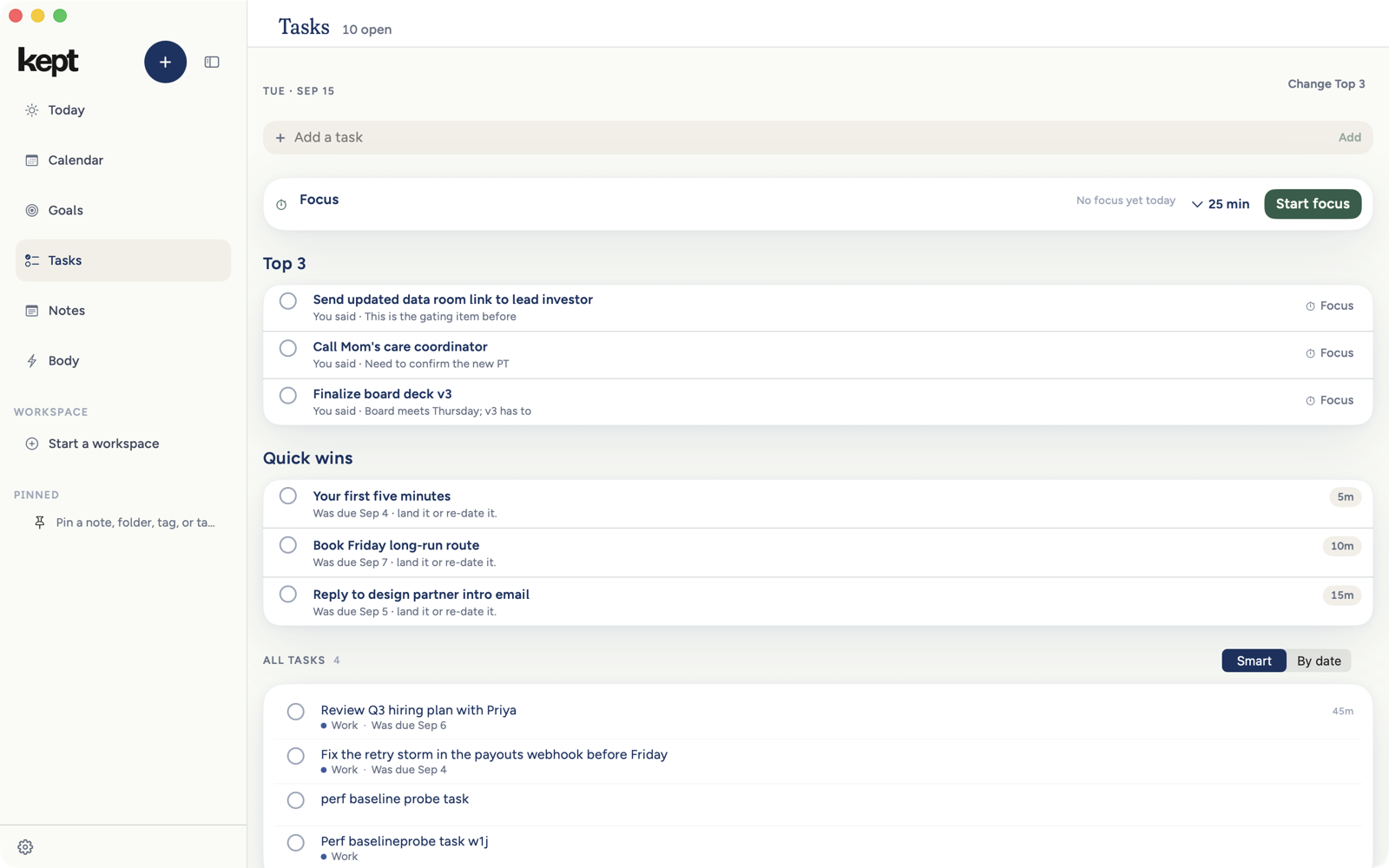
While a filter is on, the All tasks header says how much of the list you are looking at, as 5 of 7. With no filter on there is nothing to compare, so the count is left off.
A medium left swipe reveals Tomorrow; a full left swipe applies it. Swiping back across an open action tray closes it without completing the task. Complete needs a fresh right swipe from the closed row.
Pull down for Quick Find
- iPhone. On Tasks, pull the list down past its top. A circle comes down with your finger: an arc fills as you pull, closes into a magnifying glass, and once you have pulled far enough the circle takes your accent color with a light tap, while the small chevron under it drifts further down. Let go then and Quick Find opens. Let go before and the list springs back, and nothing else happens. Only a pull that starts with the list already at its top counts: scrolling fast to the top never opens it, and neither does dragging the list back up and on past its top in one stroke. Quick Find is a card that grows out of the circle, over a dimmed list, with the keyboard already up. Before you type it shows Recent: the list you are looking at (checked), All tasks right under it whenever a filter is on, the areas and filters you switched to lately, then Due today, This week and your areas, each with how many open tasks it holds, and a line that says what to type. Type and it searches as you go: Switch to lists the areas and filters that match, Tasks lists matching tasks drawn like their rows (a match in a task's notes shows that line), and Tags lists matching labels. Every word you type has to match. Return opens the highlighted top result. Tap a task and the list brings it to the middle and opens it as a card. Tap an area, a filter or a tag and the list switches to it, from the top. If a filter or a search was hiding the task you picked, it comes off first. Close Quick Find with ×, by swiping the card down, or by tapping the dimmed list, and the card shrinks back into the circle. Quick Find searches what is already on your iPhone and never asks Kept's assistant: on Tasks the pull is Quick Find, and on Today, Notes and the other screens the same pull still opens Quick Search. With Reduce Motion on, the card fades in and out in place and the circle shows the magnifying glass without the turning arc. With VoiceOver on, Search tasks at the top of the list opens Quick Find without the gesture, with the field ready to type.
- Mac. On Tasks, press ⌘F (Edit, Quick Find…). The same card opens over the page, with the same Recent list and the same results. Press the up and down arrow keys to move, Return to open, and Escape to close. A task opens in the inspector; an area, a filter or a tag switches All tasks to it.
What a row on iPhone showsiPhone
A row is a small square box, the title on one line, and small marks after the title for what else the task holds: a page for a description, a tag for labels, and from Normal up a steps mark with 1/3. Rows have no lines between them. The estimate is not on the row; it is on the task's page, and VoiceOver still reads it. A second line appears at Normal only when the date is worth acting on: Overdue 2d in clay, Today, or Tomorrow, with a time when the task has one, then Back Oct 3 with a moon for a task held off Today, a reminder's bell and time, and the area's dot. When notifications are off or not on yet, the reminder keeps its time but uses the slashed bell in clay, and VoiceOver says why it will not ring.
A task you have finished is never called overdue. As you complete it, its date line and its clay go with the same beat as the check, on iPhone and on Mac, and VoiceOver stops reading the date too. The due date is kept: it stays on the task's own page, and reopening the task brings the line back.
Urgency is not printed on a row. It sets the order instead, so in Smart the most important work is simply at the top. The words High and Critical appear on a row only at Detailed row detail.
A task with no steps shows no step count, a task with no estimate shows no estimate, and a task with no area shows no dot. Nothing is reported as a zero. When you filter to exactly one area, the dots step aside, since every row is in that area and the filter already says so; VoiceOver still reads each task's area, and the task itself still shows it.
The Area filter lists each of your areas once, by the name you gave it, however a task saved it: a task you captured and a task whose area you picked from its menu land under the same filter. The Kept Onboarding area of the starter tasks is never offered as one of yours. An area name Kept doesn't recognize stays in the list, in the words it was saved with.
The Filters sheet on iPhoneiPhone
⋯ → Filter opens it. The sheet has two stops.
- Half height, for filtering. It opens here. Each question is one row of choices with no heading, and a row that runs past the edge scrolls sideways. Tap what you want and look at the list above.
- Nearly full height, for setting up. Drag the handle up, or tap More options in the header. Each row gains its heading, its choices wrap so every one is visible at once, and the count becomes a sentence such as 12 of 104 tasks · 2 filters on. Tap Fewer options, or drag the handle down, to go back.
The headings arrive while you are still dragging, so you can see what the taller stop holds before you let go. You feel a light tap as the sheet starts to grow and a firmer click at each stop. Drag down past the half-height stop, or tap outside the sheet, to close it.
The header holds the count and Show all from the moment the sheet opens: All 24 tasks with nothing chosen, 5 of 24 once you choose something, and Show all greyed out until there is a filter to clear. Nothing in the sheet moves or resizes when you tap a choice, so the next one is still where you saw it. Show all clears every filter at either stop. With VoiceOver, More options and Fewer options move between the stops and say whether the sheet is expanded. With Reduce Motion on, the sheet moves between its stops without the animation, and the headings are shown at both. At the largest text sizes (the accessibility sizes), the sheet opens nearly full height, and if you make the text that large while it is open, it moves there once your finger is off it. Making the text smaller leaves it where you put it. At those sizes the header stacks so every word fits: the title on its own line, then More options or Fewer options, then the count, then Show all, all inside the page's margins.
Row detail
On iPhone, choose it from ⋯ → Row detail, or in Settings → Appearance → Task row detail. It is one choice and it applies to every list.
| Setting | A row shows |
|---|---|
| Minimal (the default for a new choice) | The box, the title on one line ending in the day the task is due (_Overdue · Nd_ in clay for a late open task; otherwise _Today_, _Tomorrow_ or a date such as _Oct 23_), and the description, label and repeat marks. |
| Normal | Adds the steps mark with its count, and a second line with the date and time, however far off, a hold, a reminder, and the area dot. |
| Detailed | The title on up to two lines; a second line with every date, the hold, the reminder, the area's dot and name, the urgency word and the estimate; and a third line of label pills. |
Minimal and Normal are fixed on purpose, so the row cannot fill back up. Detailed is where the extra fields live.
On iPhone at Detailed, labels sit as pills on a line of their own under the date, wrapping onto another line when they do not all fit.
At the largest text sizes (the accessibility sizes) on iPhone, every row detail shows the task's date, whenever it falls, with its repeat mark, and its hold and reminder, each on a line of its own under the title. The title takes the full width and wraps between words, never inside one, and the description, steps and label marks move under it. In the top row, Focus becomes its round mark beside search, so Tasks reads in full; touch and hold the mark to read its name enlarged.
However much a row shows, VoiceOver reads the whole task: title, urgency, the full due date, any reminder, the steps, the estimate, the area, and the labels.
When nothing is showing
Two different things, said two different ways. Nothing matches these filters means the list is intact and the filters are narrower than it, so it names the true total and offers Clear filters. An empty list says so in its own words and offers Capture a task. While the list is still arriving you see the list it is about to show, drawn as soft bars: each row in its own shape, its title's width, its date, its marks, at the row detail you chose. The bars breathe in a slow wave down the list, and as your tasks arrive each row fades in exactly where its bars were, so nothing moves. Kept remembers only the shapes on this iPhone, never the words. With Reduce Motion on the bars hold still. Never a spinner.
The order holds still
Smart is Kept's order for today, and on the first open of a day it can land a moment after your tasks do. Tasks does not show the list and then rearrange it. On iPhone the top of the screen is there straight away, so you can filter or switch to Date from ⋯, and the rows wait as placeholders in their own places until the order is ready, for a second and a half at most. Past that the list appears in a simpler local order. The first look at a new day works the same way, including when you come back to the app the next morning and it was still open on Tasks.
Once the list is on screen, its rows do not move on their own. A newer order waits until nobody is reading this one: when you leave Tasks or the app and come back, the list opens in it. On iPhone, switching to Date also lets it in, so Smart comes back current. Rows still move when you move them: completing, capturing, filtering, or switching between Smart and Date, when every row slides to its new place. On iPhone the menu line _Smart follows your plan_ is shown only while the list is in that plan's order.
On Mac, Tasks appears as soon as your tasks do, in the simpler local order if today's plan is still on its way. Top 3, Quick wins and All tasks each hold still once they show something. A section that has shown nothing yet fills in when the plan is ready, so an empty Top 3 takes its picks while you stay on Tasks, and those tasks leave the sections below it. The rows still shown there keep the order you saw. A newer plan waits until you leave Tasks and come back. A new Top 3 you ask for yourself, with Change Top 3, Try again, or Not today on a pick, shows up as soon as it is ready.
Add a task
Capture is the fast way: one line, and Kept files it. On Mac, Tasks also has an Add a task field at the top that saves a title with no detection step, and ⌘N opens Capture. From Siri, say "Add a task in Kept".
Complete, reopen, undo
Completion receipts say Task completed for starter tasks and tasks you added, on iPhone and Mac. On iPhone the receipt keeps its Undo action.
On iPhone, tap a row's box, or swipe the row right. The box squishes and fills, a check draws in it, the title is struck through, and you feel one firm tap; VoiceOver says Completed. Undo available. The box, the swipe and VoiceOver's Complete action all give that same single tap. The row then waits for just under a second: tap the box again in that time and the task was never completed, with nothing saved. After the wait the row folds away, the rows below close up, and Done today counts up by one. A swipe only ever completes; it never opens the task. The task is saved even if the row scrolls away while it waits, and a task already completed on another device does not replay the motion. With Reduce Motion on, the box fills and the line appears without moving, and the wait is the same.
On Mac, click a task's circle and the task is complete: the check draws, the row settles, and a receipt offers Undo for a moment. In the inspector, Complete and Reopen can also be taken back with Edit → Undo (⌘Z) and done again with Redo (⇧⌘Z). Undoing a reopen puts back the task's original completion date and credit, rather than completing it again today. VoiceOver says Completed. Undo available. or Reopened.
Reopen from Done today, from the task itself, or from the Top 3 card.
Swipe a row left on iPhone for Tomorrow, which moves the due date one day with its own Undo.
The revealed action is a separate VoiceOver button as well as a tap target. Activating it performs the action once and closes the tray; the task row keeps its own named swipe actions.
Open a task
On iPhone, a task opens where it sits. Tap a row and it grows into a card in place: the title stays exactly where it was and wraps onto as many lines as it needs, the description, the set properties and four tools (When, Area and labels, Steps, Reminder) grow in beneath it, the rows below make room, and the other rows dim. A bar rises at the bottom with Focus, Tomorrow, delete, and ⋯ for the rest of the row's menu. Tap outside the card, or another row, to fold it back. However the card goes away (a tap outside, Tomorrow, delete, or ticking its box), the other rows brighten in one even fade as it folds, and the bar sinks with them. With Reduce Motion on, the dim comes and goes as a short crossfade.
The card is a working surface, so most changes never need the full page:
- Title. Tap it to edit it right where it is, in the same type, with the cursor where you tapped. Return or a tap anywhere else saves it; Escape on a keyboard puts the old title back.
- Description. Tap it, or _Description_ on a task with none, to write in the same editor the page uses. The card grows as you add lines, and stays above the keyboard while you type. Tap away to save. Emptying a description offers Undo.
- Properties. Tap a chip to change it on the card: the date (Today, Tomorrow, Next week, Pick a date…, Clear), the reminder, Not today, the priority, the area, the goal, or the estimate. A reminder that will not ring shows a slashed bell in clay beside its time, and VoiceOver adds _notifications are off_. Tap the chip and its menu opens with Open Settings, then the usual times. If you never answered the system's question, the menu says _Notifications are not on yet_ and offers Allow notifications instead. A reminder whose time has passed, or whose task is done, keeps the plain bell.
- Tools. When sets the date, Area and labels sets the area and adds or removes labels (adding one opens a field on the card), Steps lists the steps on the card with Add a step under them, and Reminder offers In an hour, This evening, Tomorrow morning, Next week or Pick a time….
When day curation is enabled for your account, a task with no useful breakdown can receive one to three proposed steps. Kept composes them from the task, an accepted goal link, its next milestone, permitted note excerpts, and the steps already present. It does not save them during enrichment or overwrite a step you wrote. You decide with Add or Add suggested steps. If the task or goal changes before you add them, Kept prepares a current proposal instead of applying stale steps.
While you type on the card, the bar at the bottom steps aside and comes back when you finish. Each change saves the same way it does on the page.
Only the card's background and the ↗ at the end of its title open the full page. Tap the card's background, or the ↗, and the card grows into the task's whole page. Its title, box, description and properties glide from the card to the page without changing size, so nothing re-wraps, and the list steps back behind it. Close the page with ↙ in its top right corner (the same control, turned around), by dragging it down from the top, or with Escape on a keyboard, and the page shrinks back onto the task's own row in the list, not the card. Keep on the page does the same, then completes the task on its row. During the move, the smaller title fades out before the page title fades in; closing reverses that handoff. The words keep their layout while the page moves. With Reduce Motion on, the card and the page fade in and out in place. A link, a search result or a widget that opens a task opens its page the same way.
On Mac, click a row to open its card in place. Open the card to move into the inspector, which is the task's page. Expand task gives that page the whole workspace, and esc closes it.
A description that cannot be accepted
A description that cannot be accepted remains available on this device for review and retry, including edits made after the first failure. This includes descriptions that are too large or changed elsewhere. A recovered page keeps its original formatting and earlier versions separate from the current task; it does not overwrite a newer description just because you reopen it. Copy the words you want to keep before resolving the versions. Local recovery does not mean the description has synced. This recovery update is part of the 1.9.8 candidate.
On Mac: open a row in place, then the inspectorMac
Every task row on the Mac Tasks page, in Top 3 and in the list below, starts with a small rounded square. Click the square to keep the task: it squishes, fills with green and draws its tick, the title strikes through, and in the list the row holds for a moment before it leaves, so a second click in that moment takes it back. Quick wins rows keep their estimate, because the estimate is what makes them quick. The rows in the list no longer show an estimate: after the title they show a page mark when the task has a description, its steps as 2/4, and its area's dot. VoiceOver still reads the estimate.
Click a row and it opens into a card right where it sits. The rows below slide down to make room and the rest of the page dims, so the card is the one thing to read. The card shows the title, the description, the properties that are set (date, reminder, priority, area, goal, estimate, steps), and a row of tools: When, Area, Steps and Remind.
You can change the task on the card itself. Click the title to edit it where it is, with the cursor where you clicked; return or a click elsewhere saves it and esc puts the old title back. Click the description, or _Description_ on a task with none, to write in the same editor the inspector uses; it saves as you type. Click a chip to change that property from a menu, and click Steps to see the steps on the card with Add a step.
Click the card's background, press Space, double-click the row, or click ↗ in the card's top-right corner to open the task in the inspector; the title moves across from the card into it. Clicking another row, clicking the page around the card, or pressing esc puts the card back, and the rest of the page brightens in one even fade as it does.
The inspector reads in the same order as the iPhone page: the square and the title, the notes, one row of property chips with a dashed + for everything not set yet, the steps under a green progress bar, files, linked notes, comments with Add a comment right after them, and when the task was added. Click a chip to change it; click + to add a date, a reminder, a priority, an area, a goal, an estimate or a label. Focus, the … menu (pin, Not today, Expand task, delete) and × sit at the top right, and esc closes the inspector after any open card. The row you opened stays tinted while its inspector is open.
What the iPhone page showsiPhone
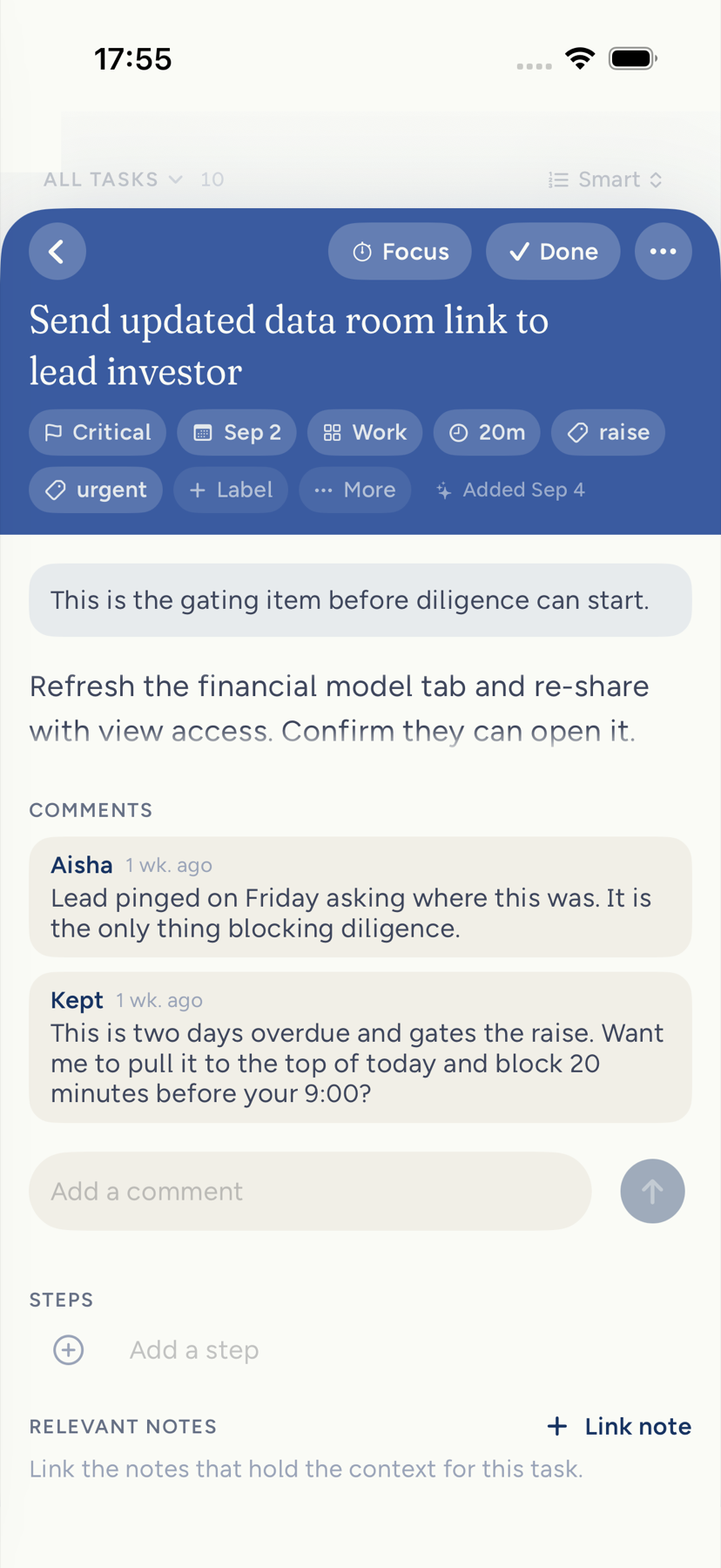
Top to bottom:
- ⋯ at the top left (edit the description, choose which properties show, delete the task) and ↙ at the top right to close.
- The box and the title, in the same type and width as the card. Tap the box to complete the task (or reopen a finished one). Tap the title to edit it.
- Description, the task's own words about it. Tap it to write; the description editor opens in place with its bold, lists, checkboxes and links. A task with none says _Description_.
- Properties, one wrapping row of chips with values only: when it is due (in clay once late), the reminder (a slashed bell in clay when notifications are off, with Open Settings and Pick a time… in its menu), the day a held task comes back, urgency as signal bars (Critical is a clay square with a mark), the area with its dot, the goal, the estimate, then each label as #label. Tap a chip to change it; a label chip offers Remove label. The dashed + at the end holds every property the task does not have yet, plus Label, Add a step and Link a note.
- Steps, once the task has any: _STEPS 1 OF 3_, a thin green bar that fills as you keep them, a small box for each, and Add a step. Press and hold a step to remove it.
- Linked notes, as rows that open the note, or Link a note. Press and hold a linked note to unlink it.
- Comments: the thread, then Add a comment in the page's flow. A comment you just sent reads Just now, then its age, such as 1 min. ago. A comment still waiting to reach Kept reads Will sync.
- Added, one quiet line such as _Added today by you_ or _Added Sep 24_, naming who added it when Kept knows.
- The bottom bar: Complete (or Reopen), Focus, and the moon for Not today, which appears only here. Complete saves at once, holds the check for a beat, then closes the page; Reopen during that beat keeps the page open. Close only closes the page and never changes whether the task is complete.
Anything you are typing is kept when the page closes, whichever way it closes. Description edits are also kept when you dismiss the keyboard, so you can close the task straight away. If the task was assigned, has an Ask, or carries the reason you gave when you captured it, those sit between the description and the properties.
On iPhone and Mac, a description's private pictures stay in its rich content. The text version saved for older clients includes each picture's description, without its private storage reference.
| Field | What it does |
|---|---|
| Title | The words you captured. Edit them any time. |
| Description | Room to write what done looks like. Bold, italic, strike, code, and links; headings, lists, checkboxes, quotes, and tables from /. |
| Priority | None, medium, high, or critical. Critical is one of the signals that can seat a task in Top 3 on its own, along with a due date that has arrived, a linked goal, a why you wrote, or a reminder that fired. |
| Due | A day, with an optional time. Add time turns a due day into an exact deadline shown beside the day in your lists; Remove time keeps the day. A due time is not a reminder and never asks for notification permission. Clearing the day clears both. |
| Area | One of your life areas, by name, never a code. The menu always lists the task's own area, checked, even one Capture or an agent named that is not in your list, so you can keep it; however the area was spelled when it was saved, the checked row is the one the task's chip names. After your own areas it lists every other area your tasks already carry, once each, so an area Capture, an agent or a goal gave other tasks is one tap away. Kept's own setup area is not offered as one of yours. |
| Goal | The goal this work serves, if any. Kept links it when you add the task from a goal's page, link it yourself, or accept a proposed next step for that goal. An unaccepted suggestion does not count. |
| Estimate | Minutes. The Top 3 chip and Focus use it. |
| Labels | Short tags such as raise or hiring. Add one with Label. |
| Reminder | A local notification at the time you choose, scheduled by each of your devices; it says the task exactly as you wrote it. Remind me opens full height with In an hour, This evening and Tomorrow morning above the calendar, one tap each, and Set reminder in view. |
| Steps | Small ordered pieces. Drag to reorder on Mac. |
| Notes | Link an existing note as reference. |
| Comments | A running thread on the task, including replies from Kept or an agent. |
On Mac, the Description editor keeps its block insert and reorder controls in a reserved leading lane. The controls stay beside the first line, never over your words or the empty-line cue, and showing them does not rewrap the description or move your place on the page.
Reminders
A reminder is a time on the task. Each signed-in device schedules its own local alert from it when notifications are allowed there, so a reminder set on Mac is scheduled on your iPhone too. A saved reminder time, or notifications showing as allowed, does not by itself confirm that an alert appeared. Completing or deleting the task cancels the alert immediately, even offline. Reopening restores it. Kept asks for notification permission the first time you set one. On iPhone, tapping a task reminder opens that task, including when Kept needs to reopen; if the account or task cannot be recovered, Kept opens Today.
Repeat
A task can repeat: every day, every weekday, every week on the days you choose, every month, or every year, and every 2 or more of any of those. Each occurrence is its own task. When you complete one, it stays done (it still counts for your day and your Top 3) and the next occurrence appears on the list, due on the next date the repeat falls on. Complete it late and the next one lands on the first date still ahead, so you never get a pile of missed copies. A monthly repeat on the 31st falls on the last day of shorter months and returns to the 31st after them.
To set a repeat on iPhone, open the task and tap Repeat. When the task has no repeat yet, Repeat is with the other empty details: tap Add details on the task page, or the dashed + on the Tasks page, or choose Repeat under When on an open card. On Mac, choose Repeat under the dashed + in the task's inspector, or under the When tool on an open card. The menu offers Never, Every day, Every weekday, a weekly repeat on the task's due weekday (for example Every Thursday), the same every 2 weeks, Every month, and Every year. Choose On days to repeat weekly on several days: each day you choose is added, and choosing a ticked day takes it away. A repeat set somewhere else, such as Ask Kept's "every 3 days", shows at the top of the menu in its own words.
Once a task repeats, its repeat is a chip beside its date, in words such as Every Thursday, and choosing it opens the same menu. In your lists, a repeating task shows a small repeat mark right after its date, and VoiceOver reads it as "Repeats every Thursday". A row that shows no date keeps the mark after the title, so a repeating task always says it repeats. A completed occurrence drops the mark, because the next one carries it. When you are online, the next occurrence appears on your list moments after you complete one, without a refresh, and Undo takes it back off.
The next occurrence keeps the title, area, priority, estimate, labels, goal and description, and the note it came from. It starts without a time-of-day hold or comments. A deadline with a time keeps its time, and a reminder moves with the date: a daily task due today with a 9:00 reminder comes back due tomorrow with a 9:00 reminder, and a repeating task with no date comes back with its reminder at the same time on the day it is next due.
Undo a completion right away and the next occurrence goes away with it. Once you have changed the next occurrence, added a step to it, or completed it, reopening the earlier one leaves it in place. Completing the same occurrence again never makes a second copy.
A repeat set on a task with no due date dates it to its first occurrence: today for a daily, monthly or yearly repeat, or the first chosen day for a weekly one. To stop a task repeating, set its repeat to Never on the next occurrence. Earlier occurrences are not touched.
Repeats work the same on iPhone, on Mac, and from widgets, Shortcuts, Ask Kept and connected agents, because Kept makes the next occurrence itself when any of them completes a task.
Not today
Press and hold a task row for its native action menu. From there you can add it to Today, add a comment, focus on it, schedule it, edit it, or delete it. Today changes go through Top 3 review when seats are full, and scheduling changes only the task's due date and time. The completion box and swipe actions remain separate controls.
When a task leads your day and you disagree, open Modify plan from the Top 3 header and choose Not today for that task, or open the task from its card and use the moon in its bottom bar on iPhone; on Mac use the row's menu or the inspector's … menu. It leaves Top 3 and Quick wins until tomorrow. A second Not today within a week holds it for seven days. The task's page shows the return date as a Back chip, and tapping it offers Show in Top 3 to bring it back early. Not today never moves the due date: on the Tasks list the row keeps its date and adds the moon and Back Sep 28, the same day the toast and the task's page name. At Minimal the row leaves both off, and VoiceOver still reads them.
Delete
Choose Delete task from the task page's ⋯ menu, or the trash in an open card's bar, on iPhone or Delete task… from the inspector's menu on Mac. Kept saves the deletion on the device first, then offers Undo. Comments, steps, and note links stay intact while the offer stands. If the app closes before you decide, the same account gets a fresh Undo offer on return.
Files on MacMac
Open a task and choose Attach file to add documents up to 100 MB each, twenty per task. Files are private to you. Save downloads one with its original name. Removing an attachment removes access and queues the storage for cleanup.
Tasks that came from notes
A checkbox you write in a note, with words after it, is a real task. It appears in Tasks, checking it in either place completes it in both, and a linked to-do in the note wears a faint mint tint. The task names its note: open it and the note sits first under Notes, marked This task came from this note, on iPhone and on Mac. See Writing in the editor.
Removed note links are excluded from the context used to suggest steps. When curated steps are enabled, they remain suggestions until you choose Add steps; your existing steps keep their wording and order.
Step suggestions can use linked notes saved in both current and older note formats, including writing inside toggles.
Suggested steps can include playing or replaying a recording, saying a dialogue aloud, listening, looking up unfamiliar words, or practicing a recorded exchange when those actions come from the task and its linked notes. Each suggested step stands alone and starts with a concrete action.
Next: Focus.
Curated step suggestions omit dependency claims such as waiting for approval until Kept can verify the relationship in the cited text. Merely linking a note does not establish that relationship.
On iPhone Duo, Minimal rows show only the checkbox and title. Titles wrap to two lines, and VoiceOver keeps the due date. Open sideways, the list takes a smaller column beside the task page. Partially folding the display balances the pages around an empty crease. Upright, tasks open as cards and full pages, as on iPhone. In column mode, the dock holds Focus, View options, the task menu and the X that closes a full task page. View options fills with ink while a list filter is active. Its first menu action is Clear filters, which restores the unfiltered list without changing your search.
On Duo, a task card and its full page lay out at their final size before opening. Open and Back use one smooth move, keeping the words at one measure throughout. The title, description and properties travel together with their final spacing. Spread selections fade inside the existing task column. Reduce Motion uses a crossfade. Rotating or folding keeps the task and replaces its layout once.
On iPhone Duo, a task link or Quick Find result selects and reveals the matching row in the open spread's list and detail pages. A route received during startup waits for that same chosen task to pass into the spread; a delayed cover-page reveal cannot cover the list. Partial-fold steps keep the list and detail text measures fixed and leave the physical crease empty. The task page aligns its first baseline with the shell's title rail. View options holds the list's filters, ordering and density beside This task in the dock.
The cover task page uses the full title measure, with its checkbox and action bar on the content keylines. On upright Duo, More and Close form two trailing circles; Complete is the single primary action, Focus hugs its content, and Not today stays circular. Complete uses the control ink token in light, Graphite and Navy. Ordinary iPhone keeps its existing presentation and task-led Focus confirmation is unchanged.
On a Duo page, a title that is just too wide for one line can use tighter letter spacing while keeping its 17 pt face. Longer titles wrap normally. The final line measure is chosen during layout before the opening animation.
On Duo, switching to another section parks the task you chose. Folding while Goals, Settings or another section is visible keeps that section in front. Returning to Tasks restores the chosen task in the current pose: beside the list when open, or as its full page on the cover. An automatically selected first task stays a list when folded.
On Duo's cover and open spread, task rows share the title rail’s 24 pt checkbox keyline, with titles at 48.27 pt. The cover preview card and its opening title use those same keylines. Upright keeps the iPhone’s 20 pt checkbox and 44.27 pt title keylines shared by its card and full page. A pull on a full page follows your finger directly; a swipe from the cover's left edge closes it while that page is in front. Quick Find and other layers keep that gesture for themselves. The list keeps the first visible task and its reading offset as the crease changes. When you unfold a scrolled list, the detail starts with the first visible open task that matches your filters.
The task dock's This task menu offers the row's actions: Add to Today or Not today, Add comment, Focus on this, scheduling, Edit task and Delete task. Schedule for holds the quick dates and date/time picker. Property visibility lives together under Properties. Task-bound Focus keeps the task and your25min,45min or Stopwatch choice while you fold or unfold.
An open task moves between the cover page and spread pane on the same fold clock. The destination already holds that task before the outgoing page leaves; folding reverses the move. Changing between cover and upright keeps the page and its editing state. Words you type in a description just before you fold or unfold are saved, and the description on the other screen keeps saving as you go on typing. Starting Focus on the Duo task page keeps the task visible while the timer runs.
On Duo, the list keeps its flat reading width while the physical crease opens or closes, so the same first visible task keeps its line breaks and reading position. If the spread arrives before the wide canvas, the previous list measure stays in place until the final split is ready. The selected task and its row highlight are ready in that first split. A pull measures the finger in the window, so moving the page does not slow or cancel its travel.
Tasks follows the shell's settled fold posture: moving through half-open does not add a temporary crease layout. Holding the device half-open uses its physical crease layout, with the gutter empty and the list's reading width unchanged.
Closing a task while a fold is still moving puts that choice away. Returning to Tasks or unfolding again does not reopen it. A deleted task cannot become a blank cover page. When you change the fold in another section, returning to Tasks restores the task at its current page position; the fold motion plays while Tasks is visible. Upright rows keep the same checkbox and title keylines as the preview and full page in both flat and half-open poses.
The open task keeps its dock controls through appearance and chrome changes. During unfold, Tasks holds its previous reading width as soon as the wide canvas arrives, even when native size classes update a frame later; accessibility layouts that deliberately use one page keep their full reading area.
On Duo, the first fully visible open row is the reading anchor; a clipped sliver above it does not become the task page on unfold. Layout clamps cannot replace a still-open, mounted anchor. Completing the reading row adopts the next visible open row. Tapping the Tasks tab again adopts the top of the list. Returning to the cover restores the reading row at its previous offset. Completing a task in the spread selects the next visible open task that takes its place; completing the last one selects the nearest preceding task.
During a Duo unfold, the column keeps the cover’s reading measure until the final split is ready, even if a width arrives with the previous pose’s height. Reading-position restoration also follows the task rows’ native layout, so a viewport resize cannot leave the list at a temporary clamped offset.
Closing the spread’s task pane, including with VoiceOver escape, leaves Choose a task until you select another row. Folding and returning to Tasks preserve that dismissal. The provisional list measure waits for at most one pose clock; a new pose cancels its old deadline.
After an unfold lands, the spread pane alone owns the chosen task and the cover page is retired. Folding keeps the same Tasks list and restores the chosen task as an already-open page. A missing pane-geometry publication cannot retain the outgoing global page beyond one pose clock.
On Duo, completing the reading row saves the next open row’s position as soon as the check lands, including during the undo grace. Unfolding before that row collapses, or undoing and then unfolding, keeps the saved reading position. Removing the anchored row also saves a replacement immediately.
Task details use the current directory name for both the creator and assignee on iPhone and Mac. If an identity is disconnected, its saved name remains available when the task carries it.