

GuideStartiPhoneMac
Get around Kept
The drawer and the title menus on iPhone, the sidebar and command palette on Mac, and the one search that finds anything you kept.
Kept has a small number of places, and the way you move between them is different on each device on purpose, because a thumb and a keyboard want different things.
On iPhoneiPhone
Your places live in a menu that slides in from the left: Today, Tasks, Calendar, Notes, Goals, and Habits. Body is paused in Kept 1.8.6 and does not appear. Kept Workplace has retired from the Apple apps. Cloud Agents are paused in this Apple release. Tap your avatar at the top left of any main screen, or the screen's title beside it (the down chevron after the title marks it as the way in), and the menu opens with those rows, anything you have pinned, Search, a Capture button, Settings, and, quietly under Settings at the very bottom, Report a bug. Swiping in from the left edge opens it too, unless you are inside a pushed screen, where the same swipe goes back. On a pushed screen you can also swipe right from most of the screen to go back. On a main screen, such as Habits, Goals, or Settings, there is nothing behind it and no back button, so a swipe from the middle leaves you where you are and the menu is always one tap away.
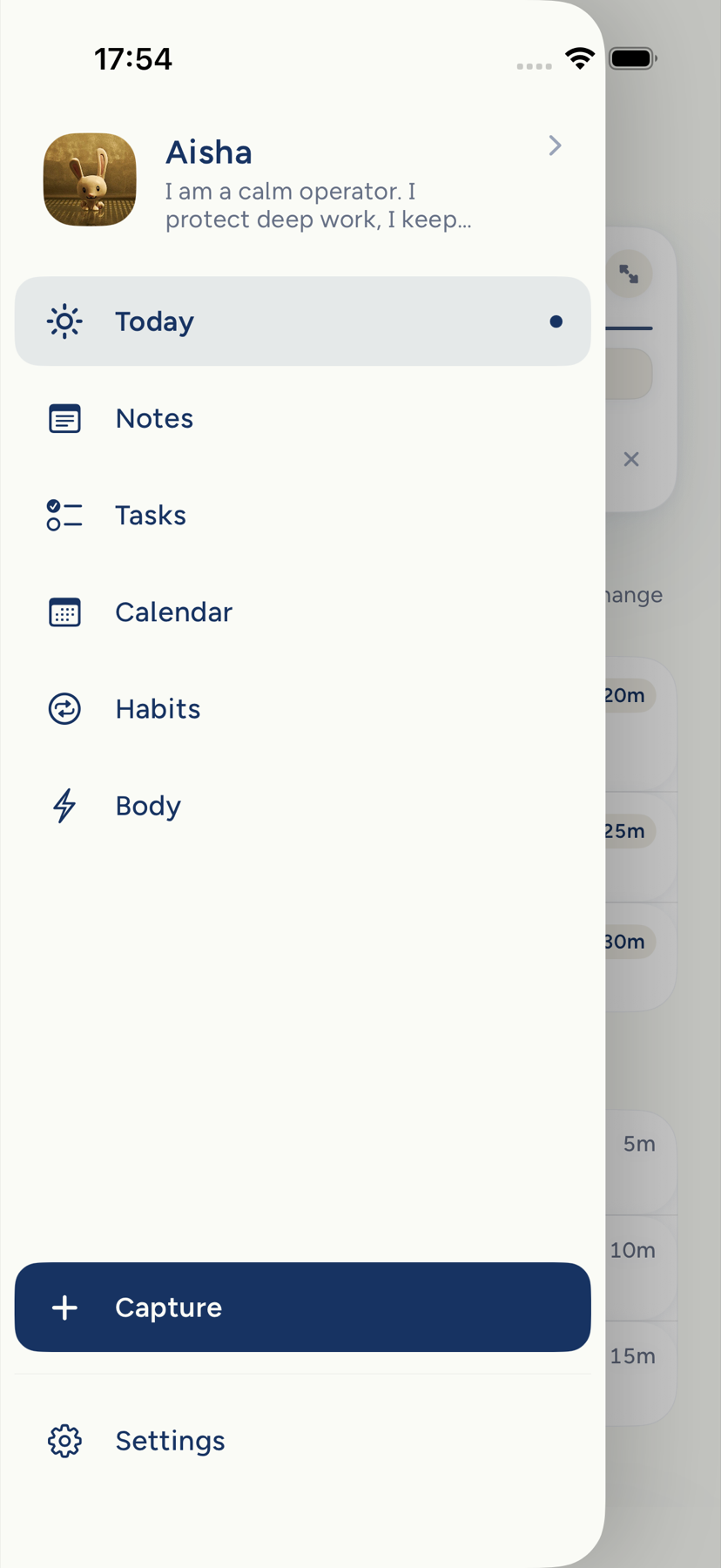
The menu lives underneath the screen you are on. Opening it slides that whole screen to the right, and the menu is waiting on a slightly darker page below. As you open it the two trade places: the screen you came from settles back in tone as it slides aside, and the menu comes into focus as it arrives, soft while it is still mostly covered and sharp once it is fully open, keeping pace with your finger the whole way. Attention moves steadily from one to the other rather than switching over at some point in between. Closing it hands the foreground back the same way, in reverse: the menu softens as the screen covers it again. The screen itself never blurs. With Reduce Transparency on, the menu stays sharp the whole way in, and the screen still settles back in tone. With Reduce Motion on, nothing slides and nothing blurs: tapping your avatar puts the screen at its open place at once, settled back in tone, and the menu fades in, and closing puts it back at once. If you turn Reduce Motion on while the menu is moving, the screen finishes that move at once without repeating it. With Increase Contrast on, both screens keep their full color, the menu stays sharp, and the menu's own edge carries the separation. You can also drag the screen open yourself: start at the left edge, or anywhere along the top row beside your avatar and title, and it follows your finger, including when Reduce Motion is on. To go back, tap the strip of screen still showing on the right, swipe it or the menu to the left, or choose a place.
Notes is the one exception. There, the title opens the list's own picker: All notes, Daily notes, Folders, Tags, and Sort. On Notes, the avatar is the door to the menu.
The round Capture button floats at the bottom of every main screen. It never moves, so your thumb learns where it is. Every main screen runs all the way to the bottom edge, at every text size; whatever scrolls under the button keeps its full color, and the last row always scrolls clear of it so you can reach it, resting a short breath above it rather than far up the screen. That holds on every screen the button floats over, Calendar included: the last hour of a day, the last week of a month, and the end of the schedule and year views stop the same short breath above it. While a receipt is showing, the list makes room for it at its end, and a task you just captured lands above it, never under it. While the keyboard is up, or a sheet sits over the screen, the button steps aside and comes back when they leave. A pushed screen keeps the top row with your avatar, so the menu stays one tap away, except an open note, whose own row (Back, then Share and ⋯) takes that row's place; the button steps aside until you come back. An open task rises as a sheet over the screen instead. When Kept confirms something with Undo, Undo sits at the right end of the receipt every time; at the largest text sizes (the accessibility sizes) the receipt's words grow with your text and wrap across its full width, and Undo or Open sits on its own row under them, a full-size target; the receipt stays while your finger or VoiceOver is on it, and a tap on it never reaches what is underneath, even while it fades.
Pull down past the top of most screens, Today, even Settings, a real pull, not a bounce, to open Quick Search. Notes and Tasks use that pull for Quick Find instead, and never ask Kept: Notes searches titles and bodies with Starred, Daily notes, and Open tasks filters, while Tasks searches tasks, areas, filters, and tags. A sheet is the exception: pulling down on an open task puts the task away. Quick Search greets you by the time of day and offers a few prompts. Type a few letters and Kept shows matching notes, tags, folders, today's events, habits, and what it remembers about you. Press the send arrow to hand the same words to Ask Kept. With a hardware keyboard, / opens Quick Search from anywhere. Search in the menu opens it too, at any text size, over the screen you were on. Notes and Tasks also carry a magnifying glass in the rail that filters the list you are looking at without asking Kept anything.
Kept remembers which destination you left. A warm relaunch returns you there, always at the root and never inside a pushed screen. On iPhone, that destination appears first while the other common places warm quietly behind it, so the first move after opening stays quick. A fresh sign-in lands on Today. If you leave the app while the menu is moving, it finishes open or closed so it is not halfway when you come back. A link or quick action that arrives while the menu is closing still opens.
On iPhone Duo the menu is the same, and your controls stand in a column on the side of the screen when the phone is closed or held sideways. See Kept on iPhone Duo.
On MacMac
The sidebar on the left lists Today, Tasks, Calendar, Notes, Goals, and Habits in the same order as iPhone, then Pinned, then a footer with the Settings gear and Report a bug. Body is paused and absent from the sidebar, Go menu, and command palette. Kept Workplace has retired from the Apple apps, so there is no Workspace, Inbox, Paper, Todos, Desk, or Spaces section and no Workplace entry in the Go menu or command palette. Cloud Agents are paused in this Apple release, so there are no agent entries either. Numbers reach the available surfaces in the order of the Go menu: ⌘1 Today, ⌘2 Tasks, ⌘3 Calendar, ⌘4 Notes, ⌘5 Goals, and ⌘6 Habits when all six are showing. ⌘, opens Settings from anywhere. One button, immediately after the window's traffic lights, shows or hides the sidebar; it stays in that chrome spot as the sidebar opens, closes, or you move between surfaces. Hover it for Show Sidebar · ⌘ B or Hide Sidebar · ⌘ B. While you are formatting text, ⌘B is Bold instead. ⌃⌘S always shows or hides the sidebar. Every main surface's title sits on one line with the kept mark at the top of the sidebar, and keeps that line when the sidebar is hidden. Drag the empty space at the top of the window to move it.
The two chevrons after the sidebar button are Back and Forward. They stay on the same line as the native window controls and never move as they enable or disable. Back, or ⌘[, returns to the last place you chose: a sidebar row, an open Today priority, a note, or a folder. Forward, or ⌘], retraces a place you backed out of. Choosing a new place clears that abandoned forward path. Open Notes and a Home button appears immediately after the sidebar button. Home leaves Notes for the main menu in one step, even after you have opened several notes; Back and Forward keep walking that Notes history. The sidebar becomes the inner Notes library, with Starred when you have them, Today, Recents, All Notes, Daily Notes, your folders, and tags. Its top title changes from kept to Notes to show that you entered a new menu level. Search sits directly under that title; ⌘F puts the caret there. The small menu beside it sorts matches by Last edited or Created, then Newest first or Oldest first. There is no tag filter in that menu. Back or ⌘[ from the Notes browser returns to the main menu and the place you came from. Daily Notes is one chronological collection. The outer Kept sidebar and inner Notes library never show at once.
Goals is a destination in its own right on both devices. On iPhone it is a row in the menu, and your goals also appear on your Profile, one tap from your name at the top of the drawer. Choosing Goals from the menu always opens your list of goals, even if you left a goal open when you went elsewhere, and the Capture button floats over it, as it does on Today, Notes, Tasks, Calendar, and Habits.
The command palette is the Mac's front door. Press ⌘K and start typing. It finds tasks, notes, events, and goals; jumps to any surface by name; moves your text into Capture with ⌘↩; and hands it to Ask Kept with ⌥↩. ⌘F opens the palette in search outside Notes. In Notes it focuses the library search, and ⇧⌘F finds inside the open note.
Use Star note when you want a note at the top of Notes. Use Pin to sidebar when you want it under Pinned in the main navigation from anywhere. On iPhone, the main sidebar is the navigation drawer; drag its pinned rows to reorder and long-press to unpin. On Mac, a star appears only in the inner Notes library, while a sidebar pin appears only in the outer Kept sidebar. ⌘D stars or unstars the selected note on Mac.
⌘ / opens the shortcuts sheet inside the app, and Keyboard shortcuts reproduces it here.
Optional parts
Habits is optional. It joins iPhone navigation when you use it, and Settings → Menu adds or tucks it away. Settings → Habits on Today decides whether habits appear on the Today screen. On Mac, Settings → Sidebar can tuck the Calendar row away. Body choices remain saved but are not shown while Body is paused. See Modules and layout.
Where Settings lives
- iPhone: tap your avatar, then Settings at the bottom of the drawer.
- Mac: press ⌘,, or click the gear at the bottom of the sidebar.
Settings holds your profile, life areas, layout, appearance, notifications, calendars, the AI connection, Cloud AI permissions, and your account, plus Apple Health and Automations on iPhone and Keyboard and Import on Mac. Settings, explained walks through every row.
Report a bug from anywhere
Report a bug is always one tap from the menu on iPhone and one click from the sidebar on Mac, on every screen and whether or not Shake to report is on. On iPhone it sits under Settings at the very bottom of the menu; tapping it closes the menu and opens the report over the screen you were on, with a screenshot of that screen. On Mac it sits at the foot of the sidebar, opposite the Settings gear, and opens the same report Settings does. See Report a bug.
Next: Sync, offline, and pending changes.
On iPhone Duo, opening the drawer keeps the moving page clear of the system's clock and status column. Lists use the full height of their page, with room to scroll the last row above the home indicator. Dark inset controls use a subtle lift from the surrounding paper.
On Duo, the drawer marks the current place with one quiet pill and keeps Capture filled in light and dark. Quick Find hides Recent as soon as a query or filter is active. Results use the same heading and group counts in upright and spread layouts; task titles can take two lines. Clear empties the query, while Close leaves Quick Find. Its dim covers the whole window, including the dock column.
Duo header and dock actions share 48-point glass controls. Notes keeps Share and a plain More ellipsis together in one capsule, and its Back uses the same face. Today’s spread title starts on its content keyline in the shared title band; its time actions lift slightly above dark cards. The ordinary iPhone keeps its existing chrome.
Duo lists keep text at full opacity up to the solid title band, rather than dissolving rows as they pass beneath it. Scrolling continues to the physical screen edge, with bottom room inside the scroller so the final row can move above the home indicator.
On the Duo cover and spread, opening the drawer keeps the same native page, editor and closed reading width while the whole card moves aside. Search aligns the typed query with result titles. Cards use a small contact shadow inside their content inset, keeping the ground beside the dock continuous. The drawer clips the displaced card before the system column only while it is revealed; the resting column has no added shell paint clip.
The shared header measures its title without changing state during trial layout. It publishes a baseline only after a changed placement, keeping idle screens quiet while preserving alignment as text size changes.
The drawer uses one selected-place pill and a filled Capture action in light and dark on ordinary iPhone as well as Duo. At accessibility sizes the full Report a bug target can scroll into view above the bottom safe area. Focus uses the same brain symbol at every entry point, including its phone controls and shortcuts.
On Today, a visible receipt sits on the reading page’s centre line, clear of the system column, and reserves its complete footprint in the reading viewport, so a paragraph cannot sit underneath it; the space returns when the receipt closes. Phone and Duo scroll canvases reach the physical bottom, with bottom safety carried by content insets. Shared scrolling text stays opaque up to the pinned header and bottom edge.