

GuideNotesMac
Notes on Mac
The library column, keyboard-first block commands, hover previews, the dossier, and meeting transcripts that file themselves.
The Mac gives Notes a wider desk. The library sits in the sidebar, the page has room to breathe, and almost everything can be done without reaching for the mouse.
The Notes library refreshes search text and previews in the background while you write. On first opening, the library shows a placeholder while it gets ready. Leaving an account clears its results before the next account's library appears.
The library column
All notes keeps subpages under their parent. Expand the parent to see the pages inside it; search and filters can show a matching subpage directly. The unfiltered list has no note-count or nested-page-count subtitle.
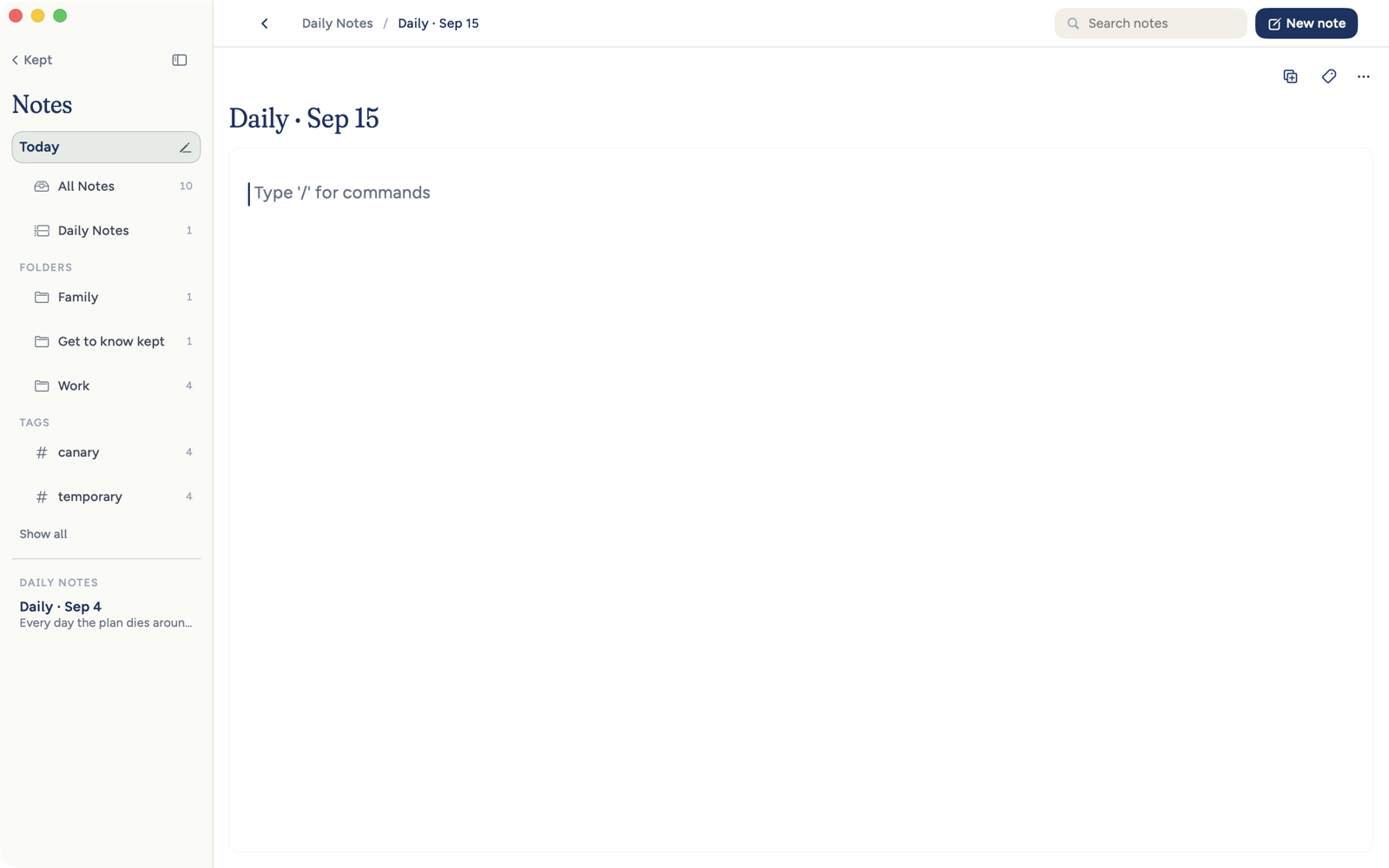
Open Notes and the sidebar becomes the Notes library. Its identity row says Notes. Below that: Today, Recents once you have them (the notes you made, edited on any device, or opened here most recently, so a note from your iPhone is there before you open it; see Recents), All Notes, Daily Notes, then your Folders and Tags. Daily Notes is the chronological archive of every daily note, not a regular folder. All Notes is the default and shows standalone notes plus today's daily note; earlier days wait in Daily Notes.
A folder with anything in it has an arrow beside it. Click the arrow to show what the folder holds right in the sidebar: its folders first, then its notes. Click the folder's name to open it. The number beside a folder counts the notes directly inside it, not the notes in its folders. Only the note you have open is highlighted in the tree. The folders that hold it take a quieter tint so you can see the path, without lighting as a second selection. Opening a note from Recents, search, a pinned row, or Handoff expands those folders and scrolls the note into view. Folders you already had open stay open. Right-click a folder or a tag to pin it, or a note for its usual actions. With Full Keyboard Access, Up Arrow and Down Arrow move through the rows (from Today down, or through the results while you search), Return opens the focused row, Right Arrow and Left Arrow open and close a folder, and Left Arrow on a note moves to its folder. When Shared with me is showing, the arrows walk it too, between Today and Recents: an invitation's Open, the section's heading, then each shared note. Return on the heading opens or closes the section, and Left Arrow on a shared note moves up to the heading. VoiceOver reads each row's kind, level, whether it is open, and how many notes are directly inside.
With typed tables on (off in public builds), pages that are in no folder are also listed under Pages, above Folders. Expand one to browse its subpages, and use Right Arrow and Left Arrow to open or close that part of the tree. A page opened from search reveals its place there. Pages attached to table rows stay inside their tables; a detached page returns to ordinary Notes browsing.
Click a folder, All Notes, or a tag, and the page becomes a library for that place: a centered column of notes, the count at the top, and a compact row of Sort, Filter, and More. The name of the place is in the header, once. The list stays a list at every window width. Sort offers Updated, Created, Title A to Z, and Manual in an ordinary folder. Filter combines tags, a linked goal, and whether the note has tasks, then says how many of the folder's notes still match, such as 8 of 21 notes. More starts a note in that folder. Drag a note onto a folder in the library, or onto All Notes to unfile it. Daily Notes, tags, Recents, and Today will not take the drop. After a move, Kept says Moved to … and offers Undo. Right-click, the row's ⋯, or VoiceOver's Move to folder does the same filing. Open a note from there, and the folder button beside the title can take you back through that path and show what the current folder holds. Previous note in that same menu walks the note you just left. A folder that holds only folders says so, and an empty one offers Write a note. While a new Mac is still loading your library for the first time, the count at the top says Loading notes instead of a number that is not yet the total. The list draws only the rows on screen, so a library of thousands scrolls as easily as a short one, and as rows come into view Kept fetches the notes behind the top few, so clicking one shows its words straight away rather than a placeholder. If Kept can't load your folders, the sidebar and the page say so and offer Try again; a folder you had already loaded stays readable in the meantime.
Daily Notes opens a calendar archive instead of that folder list. Quiet dots show the dates that hold notes, and the selected date's preview sits beside the calendar on a wide window or below it on a narrow one. Previous, Next, Today, and the month and year picker move through the full history, back to the earliest daily note. Page Up and Page Down move by month; hold Option to move by year. Future dates stay visible but unavailable. Browsing gaps never creates a note. Write today's note opens the existing lazy draft and creates it only when you begin writing. On an empty past date, Start this day's note is the one explicit action that creates that day's note. Open a note and use Back to return to the same selected day.
The chevrons beside the traffic lights are Back and Forward, on every surface, not only in Notes. Back returns you to the last place you chose, and sits quiet when there is nowhere to go. Inside Notes it walks the notes and folders you just left, then the surface you came from. In Notes, the house after them is Back to Kept, and leaves Notes for the surface you came from. Come back to Notes, or quit and reopen Kept, and Notes opens where you were: the same note, or the same folder. If that note or folder is gone, it opens the folder that last held it, or the nearest folder above it that is still there, or All Notes. With nothing to return to, it opens All Notes, and today's note is one click away on Today. If a note you have open moves to another folder from another device, its path follows it.
Hide the sidebar and the library stays one gesture away. Rest the pointer on the sidebar button and the library slides in over the page, below the header, without moving what you are writing; move away and it slides back. Click the button, choose View → Show Sidebar, or press ⌘B to keep it open. While you are formatting in the note, ⌘B is Bold instead. ⌃⌘S always shows or hides the sidebar.
Toolbar
Beside the window's traffic lights sit the sidebar button, then Back and Forward together, then, in Notes, Back to Kept. They keep the same places on every surface, and opening or closing the sidebar moves none of them. New note has one place: the end of the note's header row, across from its name, whether the sidebar is open or closed and whether you are in a note, a folder, or today's page. That button, File → New Note, ⌘N while Notes is open, and ⇧⌘N use the same action. It saves any typing in the note you were editing, starts exactly one note in the folder you are looking at, or an unfiled one from All Notes, Daily Notes, or a tag, opens it, and puts the caret in its name. A rapid double-click or key repeat still creates one note. If creation fails, Kept says Couldn't create the note. and offers Try again. Press return to move down into the writing. ⌘[ is Back. ⇧⌘F puts the caret in search; esc clears it, then leaves it. Search lists its results in the library. A search is a detour: one Back from a note you opened in the results returns to where you were before you searched. Clearing the query keeps the note you just found. Leaving Notes ends the search, so coming back does not reopen it.
The open note has one title: the large name on the page, or in the header when Notes sits in window chrome. The header always names what is selected: a note's name, today's date for today's note before you write in it, or the place, such as All Notes. The folder with a small arrow beside it is Show location: it opens the note's path and what the current folder holds, without occupying a second title row. At the end of the same row sit the note's actions: New note, Show tools, and More. When the window is so narrow that the page keeps less than 360 points beside the tools, Show tools moves into More. Under the name is one row for the note's tags, with Add tag at its end when you point at the row or focus it, and in the note's actions, and the save status at its far end, and the page starts right under that row, with no box drawn around it. New note and Rename put the caret in the name, so the first thing you type names the note; press Return to move into the page.
The first letter in a new note or today's empty note appears in its final Kept type and color at once. Its face, size, line spacing, and caret stay the same while the note saves, becomes today's dated note, returns from Undo, or reopens.
Save status
At the end of the tags row, above the page, a small status line says how the note is doing: nothing while you type or rename it, _Saving…_, _Offline_, or _Not synced_ when something needs you, and nothing at all when the note is in sync, as in Today's note. Writing kept only on this device or held for recovery keeps the note from being called in sync. A checkbox can finish syncing after Kept adds its task link; task completion shown from Tasks does not keep that writing waiting. While Kept checks local recovery storage after opening, the status stays quiet and its details and VoiceOver say Checking save status. Finishing that check does not count as a save. If local recovery storage cannot be read, Kept waits to confirm its contents before calling the note in sync. Keeping a matching copy after a completed save does not block that status. It never changes size, so the page never moves. Hover it for the full sentence, or click it for the details, Retry, Review, and anything else the account needs from you, such as a refresh that failed. It shows no time yet. See Save status.
In a shared note, Offline · your edits are saved on this Mac confirms a durable local receipt for the latest edits, whether Tables is on or off. Offline · saving your edits on this Mac is still waiting for that receipt. Couldn't save your edits on this Mac asks you to keep the note open and try again, including when the connection is available. Retained shared edits resume after restarting without opening the note, and a lost response does not duplicate the edit. This local receipt does not confirm delivery to another person.
Review recovered writing
When a newer copy is available after reopening, it stays on the page while you inspect earlier writing with its formatting. Use note version keeps the saved version in the note and preserves the original recovered page until the chosen version is safely accepted. Undo restores the recovered version for review; Redo restores the choice. Closing and reopening Kept does not clear an unresolved choice. See Review earlier writing for the candidate's availability and limits.
If a collaborator deleted the last paragraph while you were typing, reopening keeps the note empty and offers your held words for review. Use note version keeps the note empty. Click the empty page to begin writing again. Empty notes with no recovered writing still open with a blank line ready to type.
In a shared-link note, the choice is Use latest version. Open Your draft or Your full draft, then Copy full draft, to inspect and copy earlier chosen words and original unplaced words before reapplying selected text. Loading the latest version keeps unresolved drafts beside it. Local recovery and delivery to the other person are separate.
When your edit-link save replaces newer words, Kept says Your edit was saved and replaced newer words. The receipt stays through refreshes until a later save without a replacement. That delivered edit is no longer offered as a lost draft. If only some lines were saved, retrying sends only the unsaved lines. If you own the note, Replaced by a collaborator shows the displaced words from the note's saved history when you open it or receive the change while it is open. Kept shows the most recent replacement it can restore, or the most recent notice if none can be restored. Restore saves those words as a new change, keeping other lines and earlier revisions. If the earlier block cannot be recovered exactly or the line has changed again, Kept leaves the note alone and explains why. Copy words keeps any recovered words for you to place yourself. Dismiss remembers that revision for this note and account on this Mac, including after you reopen the note, without hiding a later replacement. See Review words replaced by a collaborator for the candidate's availability and limits.
Tags
Tags sit in one row above the document. The small + field appears when you point at the row or focus it, even when the note has no tags; tags a note already has always show. Type a word or short phrase and press Return once to add it. There is no second confirmation.
Kept may add up to two grounded automatic tags, and it is normal for Kept to add none. An automatic tag looks settled, not proposed. Rest the pointer on any tag for its remove button, right-click it for Remove tag, or focus it from the keyboard and press Delete. VoiceOver offers the same Remove tag action. Removing an automatic tag teaches Kept not to add that tag back to the same note. Tags you add yourself stay yours and are not replaced by the overnight pass.
Outline and word count
In the open note's More menu, Outline and word count lists the word count, such as 12 words · 64 characters, and the headings in the order you wrote them, read from the note as it is when you open the menu. A heading inside a folded section stays out of the list. The Mac editor cannot scroll to a heading yet, so those rows are listed and dimmed: choosing one does not jump. A note with no headings says No headings. Words inside a table, and words inside a folded section, still count.
Insert and Style
Show tools, beside New note at the end of the note's header row, opens the tools at the trailing edge of the Notes column, beside your note; the note's actions stay above the page, never above the tools. Show Insert and Show Style in the note's More menu open them straight to either one, and ⌃⌥I shows or hides them from the keyboard. The tools are part of the window: nothing floats over the page, and while there is room beside them the page keeps its reading width.
- Insert adds something new under the line you are on: a table, a callout, a code block, a divider, an image, or a template. The words you were writing stay where they are; on a note with one empty line, a template takes that line's place. The template's headings and writing spaces land together as one Undo step, and the caret moves to its first writing space. The headings stay in search, share, and export, as do the first words you type into a writing space.
- Style turns the line you are on into text, a heading, a to-do, a list, a collapsible, or a quote, or into a callout or a code block, and formats selected words as bold, italic, strikethrough, inline code, or a highlight. A heading that becomes a collapsible keeps its size. Several selected lines become one collapsible with those lines inside it. Every choice shows what it looks like before you pick it, and the style your line already has is checked. Formatting applies to selected words; with nothing selected, Style tells you to select text first.
- On a wide window, Insert and Style sit on a narrow rail beside the list, and the list starts with its search field and Close tools on one row. On a narrower window, a switch at the top of the list chooses between them, above the search. Each has its own search.
- At the right of a row, in small type, is what you can type in the note instead. A key you press is drawn as a key: a table is a complete pipe row, such as
| A | B |, then Return; A and B become its headers, and a heading is#then Space at the start of a line. A callout, a code block, and a divider need no Space, and a mark such as**goes before and after the words. Rest the pointer on a row to read the same thing in words. A style with nothing to type, such as Text, shows nothing there. When the window is too narrow for the note and the tools side by side, the tools take the note's place until you choose Return to note, which brings the note back as you left it. - The tools stay open while you work, so you can pick one thing and then another. Each choice is one Undo. If the note changed from somewhere else since you last clicked in it, nothing changes and the tools say so: click in the note and try again.
- Close tools, Hide tools, or esc puts you back in the note with your selection; the first esc clears a search. The tools close when you open another note, and next time open on Insert or Style, whichever you used last in that window.
Keyboard in the editor
- ⌘A, or Edit → Select All, selects the whole note body across writing, tables, columns, pictures, embeds, link cards, callouts, code, quotes, and dividers. Copy carries the complete note in its structured, Markdown, and plain-text forms and keeps reading order. Cut, Delete, paste, or typing replaces that selection as one change, so one Undo brings the entire note back. In a table cell, the first ⌘A selects the cell and the second selects the whole note. A click, Escape, Find, another field, or opening a different note returns Select All to that local place. A read-only import may still be selected and copied, but cannot be changed.
- Click, double-click, triple-click, or drag within one writing area and the caret, word, line, selection, and edge scrolling follow the pointer as they do in any Mac text field. Kept takes over only after the pointer crosses into another block, column, table, picture, embed, or link card, then keeps selecting in the note's reading order. Drag back through the starting point to reverse the active edge exactly. Shift-click and Shift-arrow extend that same document selection. Copy carries only the selected slice; Cut, Delete, or typing replaces it as one change, and one Undo restores both the words and the range. Paste over that range uses the ordinary paste path, including separate paragraphs, styled text, links, and pictures. Selection color stays visible over an authored highlight without removing the highlight.
/opens the block palette. Hold ⌘ while it is open and the first nine rows show a number; ⌘1 through ⌘9 insert without typing a name.- Abbreviations filter the palette:
h1h2h3for headings,tdfor a to-do,nlandblfor numbered and bulleted lists, plusulolhrbqsepif that is what your fingers know. - ⌘B, ⌘I, ⇧⌘X, ⇧⌘H, ⇧⌘E for bold, italic, strikethrough, highlight, and code on a selection. The formatting bar that repeats those commands stays away while the note cannot change. It sits on a raised surface with an edge, in light and in dark, and follows the window if you switch between them while it is open. See Links in your words for Add link.
- With words selected, ⌃⌥F puts the keyboard on the formatting bar. Left Arrow and Right Arrow walk the controls, Space uses the one you are on, and Escape returns to the words with the same selection.
- Selected words sit on a wash of the note's own ink, so they stay readable in light and in dark, whatever accent color the Mac uses.
- ⌘Z, or Edit → Undo, takes back the last change in the note, and the menu names it, such as Undo Paste. If that change has scrolled out of view, Undo scrolls back to it with the words you had selected, and the formatting bar follows them. ⇧⌘Z, or Edit → Redo, puts it back.
- When a note ends on a picture, table, link card, embed, or divider, click the typing line under it to keep writing. Return or Down Arrow on a selected picture does the same, and so does Down Arrow from a table's last row. A selected link card still opens on Return; Down Arrow continues past it. Opening the note does not add a blank line by itself.
- The formatting bar's Turn into works on a selection that spans several lines too, not only one: it converts every touched line as a single undo step, except Collapsible, which wraps the selection as one group. It grays out a target it cannot use with a short reason, such as Divider or a heading level the lines already have. Right-click still turns just the clicked line.
- Rest the pointer on a block to show its leading handle. Its plus and grip sit level with the letters of the block's first line, while you type into it and after, including headings, quotes, code, callouts, empty lines, wrapped text, large text, and columns. A table's handle sits beside the first row of its toolbar, and a link card's beside its first line of text. A one-line code block stays compact instead of filling spare page height. The handle's drag rail contains the whole block, including a tall card or code block. Drag onto an expanded collapsible or the middle of a numbered item to nest; drop before or after to stay at that level. Escape cancels with no change.
- ⌘F finds inside the open note's body, not the title; ⇧⌘F searches every note by words; ⇧⌘K (Edit → Search Notes by Meaning…) searches every note by meaning, when Cloud AI is on.
- ⌃⌥I shows or hides the tools (see Insert and Style). In the tools' search, the arrow keys walk the list and Return applies the choice you are on.
- esc closes whatever is on top first: a mention or block palette, the formatting bar, Find, and so on down to the inspector. Closing Find leaves the current match selected, or restores the caret if you never walked.
- Find: Return next, Shift-Return previous, and Replace for one match or all. Reopening restores the last query selected.
Tables, pictures and other blocks
A table, a picture, a link card, a divider, and a Today pane are each one block you can select whole, move, and remove.
- A table with properties has its own chapter, Tables. On Mac it opens in the Table view with its Title column held in place as you scroll sideways. Table options and a row's details open in the docked tools pane and replace the pane that was there. Closing brings that pane back. A narrow window replaces the note, and a row's details offer Back to table. Tab and Shift-Tab move between editable cells, ⌘⏎ adds a row, ⇧⌘⏎ opens the row's page, Return starts and commits an edit, and Escape cancels it. VoiceOver reads each cell as its property, row, value, and type, and offers Open page, move, edit, and delete as actions on each row.
- Click a picture or a link card to select it. Double-click it, or press Space, to open it: a picture in Quick Look, a card in your browser. Command-click selects too, and never opens. A selected block wears one edge around it, drawn outside a picture so the picture's own colors cannot hide it; a table cell that holds your caret gets only a quiet outline of its own.
- A column stays wide enough for its longest word, so a word is never split in half. A phrase wraps between words. When the table is wider than the note, it scrolls sideways. Those extra widths are not saved into the note.
- Click in a table cell to type in it straight away. To select the whole table, press Escape in a cell, click the table's toolbar strip away from its buttons, or choose Select table. Press Escape again to let go: the caret goes back to the writing beside the table. While you are choosing a Japanese or Chinese candidate, Escape belongs to the input method, and nothing is chosen for you.
- Right-click a table cell, the table's toolbar strip, a picture, a card, or a Today pane for Delete table, Delete picture, Delete link card, or Delete block, with Duplicate, Move up, and Move down where they apply. Right-click a line of writing or a divider for the same Move up and Move down, and Delete block or Delete divider. A click on the hover handle opens the same menu, and the table's More menu carries Delete table too. Nothing asks you to confirm: ⌘Z brings the block back exactly, selected, with every cell, width, and alt text as it was.
- With a block selected, Delete or Forward Delete removes it in one step, and the caret lands in the writing after it, else the writing before it, else on one new empty line. Select from your words into a picture or a table and Delete removes every whole block you covered; a paragraph you covered only partly keeps its other words.
- At the start of the line under a block, the first Delete selects the block and changes nothing; press Delete again to remove it. Forward Delete at the end of the line above a block does the same from the other side. Holding the key down never does both: let go, then press again. Typing, an arrow key, or Escape lets go of the block and keeps your place. A list item that can move out a level still does that first, and a block in another column is never reached this way.
- In a table, Tab and Shift-Tab move between cells, Tab in the last cell adds a row, and ⌘↩ adds a row below. The arrow keys leave the table at its edges instead of stopping there: Down from the last row goes to the line under the table, or makes one new line when the table ends the note; Up from the first row, Left at the start of the first cell, and Shift-Tab from the first cell go to the end of the line above; Right at the end of the last cell goes to the line below. Up from the line under a table enters its last row, in the column you last worked in, at the end of that cell's words; Down from the line above enters its first row. In a cell with several lines, Up and Down move through its lines first. Return on a selected table goes back into the cell you last worked in.
- VoiceOver offers the same verbs as actions on each block: Select, Delete, Duplicate, Move up, and Move down, plus Edit table, Edit alt text, or Open picture where they apply. It announces the change, such as "Table selected, 3 rows, 3 columns" or "Table deleted. Undo available", and never reads a picture's alt text back in a deletion. In a read-only note, or while Kept is recovering a note, the delete and move actions refuse and change nothing.
To-dos become tasks
A checkbox you write in a note, with words after it, becomes a task in Tasks, linked back to this note. On the Mac it happens as you finish the line: press Return, click or arrow to another line, click away from the note, or open another note, and the line becomes a task. If the note has just changed on another device or through an assistant, finishing the line does not write over that change; the line becomes a task the next time you edit the note. While you are still writing the line, the note keeps saving your words but leaves the task for later, so each to-do becomes exactly one task, named with the whole line you wrote. A checkbox with nothing after it stays a checkbox. Until a future update, today's note has one exception: the save that first creates the day's note turns a to-do into a task at once, even if you are still writing the line. The task then takes the rest of the line as you finish it, so it is still one task.
When a line becomes a task, a small message appears at the bottom of the window: Added to Tasks, with Undo. Each line gets exactly one, however many times the note saves after it, and VoiceOver hears it once. If several lines finish together, one message counts them. Undo takes that back: your words stay exactly as you wrote them, the line goes back to plain ink, the task leaves Tasks, and the note will not make it a task again. The next message replaces this one, so reach for Undo before the next line lands. The first save of a new day's note, the exception above, shows no message and no Undo.
Hover previews
A linked to-do wears a faint mint tint. Rest the pointer on it and a small preview of the task appears beside the words; ⌘-click the checkbox opens the same preview. Open task in the preview opens the full inspector.
Links in your words
- Select words and choose Add link in the formatting bar, Edit → Add Link…, or ⌘K. A field opens over the words with the keyboard in it; type or paste the address and press Return, and the words become an ordinary underlined link in the note's ink. If you have let Kept paste from other apps without asking, an address already on your clipboard starts in the field, selected, so Return uses it and typing or pasting replaces it; otherwise Kept does not look at your clipboard until you paste. Escape closes the field and leaves the words selected exactly as they were. ⌘K anywhere outside a note's words still opens the command palette.
- Kept links web pages and email addresses. An address Kept will never open, such as
ftp:orjavascript:, is refused in the field and the field says so, so nothing turns into a link that does nothing. - The field keeps what you typed until the link is in the note. If the note can't change just then, or the words changed while the field was open, the address stays in the field and a line under it says why; VoiceOver hears the same line. Once the link lands, VoiceOver hears Link added.
- Linking words to another note keeps your selected words. The field names the target before Return, and the words stay yours after a save or a rename of that note. With nothing selected, the new link uses the note’s title.
- Right-click linked words for Open Link, Copy Link, Edit Link…, and Remove Link, first in the menu. Edit Link… opens the field over the whole link with its address in it. Remove Link takes the link off the whole of it, even with just the caret inside, and keeps the words and any bold or italic they wore. Both are one Undo.
- Paste a web address over selected words and those words become the link; they are not replaced by the address. Paste one inside a sentence and it lands as a link whose words are the address. A code block takes it as plain text. Paste over a whole-note selection and the note is replaced, as any paste over it is.
Pages inside a note
A note can hold other notes. A page inside a note is a subpage (see Notes for what that means everywhere); on the Mac it shows in the note one of four ways, and every way opens the page the same way.
- Make one. Type
/pageor/subpageand the words on your line become the new page's name, with a link to it where the line was./cardmakes the page with a card instead. In the tools, Insert → Page does the same at the caret. Select a paragraph, heading, quote, or list line and choose Turn into → Page from the formatting bar or the block's menu: the first block names the page and the rest of the selection moves inside it, bold and links intact. Each is one change; ⌘Z puts your note back, and the page stays in Notes. - Four ways to show it. Right-click a page in a note for Show as Link (its name in your text), Small card (a square, like a Today card), Card (the column's width), or Wide card (more of its first lines). The size you pick is the same block, so ⌘Z undoes it. Small cards side by side share one row: two, three, or four across as the window widens, every page in a row starting at the same height, and a short last row keeps the same square size. A card shows the page's name and its first lines; a page with nothing in it yet says Empty page, and one that is gone says Page unavailable. A page that belongs to another note, linked here, carries a small link mark.
- Put small cards side by side. However small cards end up next to each other, they share a row. Drag a card by its handle and let it go over a small card: a guide stands in the gap on the side you are over, and the card lands there. Small card on a card right after another small card puts it in the row,
/cardon the line right under a small card makes a small card too, and deleting a card from a row closes the gap instead of leaving an empty line. The note glides to its new layout instead of jumping; with Reduce Motion on, it changes at once. - Open it. Click a card or a link and the page grows out of it into the editor column, its name flying up to become the page's title. Back, ⌘[, or Escape carries the page home into the card it came from, wherever you had scrolled. With Reduce Motion on, the page fades in instead.
- Find your way. A subpage shows its path above its title, from the top page down to its parent; click any page in it to go there. A path of more than three pages keeps the top page and the parent and folds the rest into Show page path. Under its words, a page lists Pages for the subpages it does not already show. In the sidebar, a page with subpages has a disclosure arrow in its folder; open it to see them, with deeper levels indented up to four steps. When Notes shows the Library column and a list beside it, the list draws pages the same way: an arrow beside a page opens its subpages under it (Right Arrow opens, Left Arrow closes or steps up to the page it is in), each indented up to four steps and opening like any note. The line under All notes counts top-level notes and names the pages inside them, such as _4 notes · 7 nested pages_. A tag filter lists a page that carries the tag even when the page it is in does not. Move a page under a closed page and the list opens its path to keep it in view; from a row's menu it also selects the moved page. A cancelled, unchanged, or refused move leaves the outline as it was. Each starred page keeps its star, including inside another starred page. Reorganize shows a flat list of the current scope's notes; in Unsorted, a filed page inside an unfiled page is left out of that selection. A subpage filed in another folder shows in that folder and under its parent, captioned with its folder when there is room. Folder counts still count the notes filed there.
- Arrange. Right-click a note in the sidebar or in the list, or open the note's More menu, for New subpage, Move to page…, and Make top-level. Move to page… lists the pages it can go under, searchable, with each page's own page or folder beneath its name, and never offers the note itself or anything inside it. When the note is inside a page, Top level is its first row. A page that the move would take past eight levels is listed but can't be chosen, and says why. Moving a page never changes its folder, and filing it in a folder never changes its parent.
- With a square selected, the arrow keys move between the squares in its row and column; past the edge they go back to your writing. Return or Space opens the selected page, and Delete removes the card only, never the page.
Link cards
Paste a web address on its own line and it becomes a card that shows where it goes. The card is as tall as what it shows, the site's name or the page's title above the address, however much room the window has. Over a card that can open, the pointer turns into a hand; rest it there to read where the card goes. Click the card to select it, and double-click it to open it in your browser. The hover text names the site and the page it opens; it leaves out any sign-in details the address carries and replaces whatever follows a ? or a # with an ellipsis. Copy Link and opening the card use the address exactly as you pasted it, and when an address cannot be opened as written the card reads Link unavailable instead of opening something else. Right-click a card to select it and choose Open Link, Copy Link, Show as Link, Duplicate, Move up, Move down, or Delete link card. From the start of the line under a card, Delete selects the card first; a second, separate press removes it. With a card selected, Return or Space opens it, Delete removes it, ⌘C copies its address, and Escape or the up or down arrow puts you back in the text.
Linking a task to a note
From a task's inspector, Link note opens a two-pane picker. Select a note on the left and its words appear on the right as plain text, so you can confirm it is the right one before you link it. A note whose full text has not reached this Mac loads it; a note made of pictures says what it holds rather than showing a blank pane.
From an open note, choose Link task… in the note's More menu or beside its linked tasks. Make a task in the same menu lists the note's checkbox lines, and choosing one makes that line a task linked to the note that is open. A searchable Link tasks sheet keeps linked tasks first, then shows open tasks in batches. Search uses task titles, labels, context, area, due details, priority, and goal names, and can find completed tasks too. Click a row or press Return to link or unlink it without closing the sheet, so you can update several links in one visit. The check at the right says what is linked; the status circle at the left only says whether the task is complete.
Imported documents open read-only
A document you brought into Kept through document import opens read-only: the words are there to read, select, and copy, but there is no caret, and the formatting bar, block palette, and paste do not act inside it. A line above the note explains why. Meeting transcripts below are not imports in this sense: they file in as ordinary, editable notes, as does anything you paste into a note of your own.
The whole document is read-only, not only its paragraphs. Its name stays as it was filed, so the library row offers no Rename, and a table or a picture inside it reads but does not take an edit. Find searches an import and walks its matches; Replace is not offered, and a match inside a folded section is counted while the section stays folded, because opening it would change the document. If you had already started typing when Kept learned the note was an import, Keep a copy saves your words as a note of your own and reloads the import, carrying any name you had typed onto that copy while the note returns to the name it was filed under.
Meeting transcripts
Kept can watch a folder on your Mac and file new transcripts as notes. Turn it on in Settings → Import (the meeting folder row) and choose the folder to watch. Each new .txt, .md, .vtt, or .srt file that lands there after you start watching, and that holds readable text, becomes an ordinary note in your account, unfiled, ready to search and to file where you like. A transcript is treated as text, never as instructions: Kept will not act on anything written inside one. If Notes is turned off, import pauses and says so.
Keep private details when sharing
Mac follows the same access checks as iPhone. Existing checklist connections, links, picture references and page cards do not pause invited opening or editing. Removing someone stops later reads and comment writes using that membership. A separate published link has its own access. See Shared note privacy.
Sharing and images
When you finish composing a letter in a shared note, waiting changes from other people can appear without another keystroke. Your composed letter stays in place with their words.
The Share button beside More in the note's header, or Share… in More, opens the share sheet with the iPhone's three tabs: Share (invite people by email to edit the note with you, the people already in it, who can open it, and Copy link), Publish (a live preview of the web page and one Publish button, then the link with Copy link and a Let search engines find this switch that starts off), and Export (PDF, Markdown, Plain text, and Print…). While shared notes are not available for your account yet, the sheet shows Publish and Export only, and opens on Publish. An export or print closes the sheet first, then opens the save panel or the print panel on the window. Done, or Escape, closes the sheet and leaves every link as it is. Export in More writes the note as Markdown, plain text, or PDF; the PDF carries every picture the note holds. ⌘P (File → Print…) prints the whole open note, paginated, with its pictures, never just the block your caret happens to be in. Link task… opens the searchable task picker described above. Hover or select a picture for S, M, and L sizes and alt text at its top-right. Click a picture to select it; double-click it, or press Space, to open it in Quick Look, and press Return to keep writing under it. Escape in the alt field keeps the words you typed and hands the keyboard back to the picture. Undo restores the previous size or alt.
Inviting waits for the note to finish syncing; a change that could not sync at all must be reviewed first. A shared note keeps a Shared label in its header when no one else is present, and an unnamed owner reads You in People. Its checkboxes all stay plain checklist items, including ones that were linked to your tasks before sharing; ticking them changes the shared note only. More offers no Make a task or Keep as a list in a shared note, the same rule the iPhone keeps. An invitation that could not be emailed reads Email not sent, with manual links offered in the sheet.
A new published link displays its address with Copy link and Open link. On a later visit, Show link reveals it again. Make a new link recovers from an address Kept cannot retrieve, leaving the old link active until you revoke it. If publishing is unavailable, the sheet says that no link was made.
Markdown export keeps a collapsible heading’s level, a to-do’s check, and a code block’s language and line breaks inside the exported section. Words selected for a page link keep their wording after you join paragraphs, reopen the note or rename the linked page.
A note shared by link. Open a kept.do/d/… link and choose Open in Kept on its web page for a view or comment link, or Edit in Kept for an edit link. Sign in with your Kept account if you have not already, and the shared note opens in the Notes pane instead of being looked up among notes you own. Its access badge says View only, Can comment, or Can edit. A view link is read-only. A comment link is read-only and adds Comment. An edit link lets you write and comment, and sends those edits through the shared note rather than making a note in your account. Kept checks for other people's changes when the note opens, when the app comes forward, and periodically while the note stays open. Link-recipient notes have their own Shared with me section and never join your folders, tasks, search results, assistant context, or owned-note list. The section is kept separately for each signed-in account on this Mac. If the owner revokes the link, the page removes the delivered words and says This link no longer works. Ask the owner to share it again. If Keychain is temporarily locked, Kept remembers to remove the revoked credential and retries when the Mac unlocks, when you reopen Kept or when the shared list refreshes.
Writing together on the Mac. In a note other people are in, the note's header shows who is there right now, left of Share: up to three circles with each person's initials in their color, then + and how many more. Click them for a line per person, such as _Ana · on iPhone · editing_; someone on two devices is one line, _on iPhone and Mac_, and someone who stepped away reads _idle_ and fades. Each other person's caret is a thin bar in their color with their first name and a small iPhone or Mac mark above it; the name shows while they move and fades a few seconds after they stop, and words they select are tinted in their color. Notes shared with you sit under Shared with me at the top of the Notes library, below Today, with who shared each one and when it last changed, and an invitation waiting for you reads Sam invited you with Open. If Open cannot join the note (the invitation expired or is no longer active, the note already has 100 people, or shared notes are not available), a message says so and Open stays ready for you to try again. The section opens and closes at once when Reduce Motion is on. On the Mac, notes you were invited to and notes shared by link sit together under Shared with me; on iPhone, notes you were invited to sit under Shared with you, and Shared with me holds the notes shared by link. A view or comment link opens with Open in Kept, while an edit link says Edit in Kept. A shared note opens in the Notes pane with its title, who it is from, who is there, and Share, where you can copy its link, export or print it, or Leave note. If you are removed, the note is deleted, or sharing is paused, the page stops taking typing and says so; any words that had not reached the others yet stay offered as Keep your unsent edits, which saves them as a note of your own. A plain table, one without properties, shows its rows and numbers in a shared note but takes no typing, and a plain table in your own note stops taking typing as soon as you invite someone. People who can edit a shared note can edit a table that has properties. Someone who can only view it sees You can view this table. Ask the owner for edit access. The pages inside it read Not shared with you. While shared notes are not available for your account, none of this appears.
A connected agent can read and edit notes you grant it, but it cannot yet list automatic naming or filing. That Changes-history tool stays unavailable.
Selected words linked to a page keep their wording when you copy or cut them and paste into another line, including at its start or end. Renaming that page later leaves those words as you wrote them. Reopening a note restores the cursor within its own line, including spaces and indentation at the end of code.
If an image uploads but cannot yet be displayed, Try again checks that same uploaded picture. It stays outside the note until it can be shown.
Next: Tables.
Selected-word page links keep their own labels independently of automatic title links to the same page, including after Cut, Paste into a task-linked to-do, target rename and reopening. Inline HTML paste preserves spaces around the copied words, just as plain-text paste does. The additive authored_label run field records each occurrence; older authored_link_hrefs content remains readable.
Make a blank note
Command N in Notes, New Note, and Write a note from Today all open a blank page with the caret in its title. A new empty subpage starts at its title too. A page with words opens for reading.
Changes by Kept
Nightly filing adds ordinary content to your notes without maintenance labels, filing headers, or receipt summaries. Note previews show the writing itself. For a note with filing history, choose ⋯ → Changes by Kept to read the dated entries and Undo an individual filing. Later edits are preserved. This entry appears only for notes with recorded changes.
Shared-note privacy protection, when enabled, keeps private source details and picture or page references with the owner while people edit the same writing. Saved table values and views stay shared. See Shared note privacy.
When copied Markdown arrives inside an HTML heading, several structured lines with no rich formatting become separate editable blocks: headings by level, paragraphs, lists, checklists, quotes and fenced code. A single heading or text carrying rich formatting keeps its original heading level, literal markers, marks and links. A pasted heading such as “# Support # pointer” keeps its heading typography after saving and reopening, even without bold, italic or a link. The same paste handling applies on iPhone.