

GuideCalendariPhone
Calendar
Day, week, and month views with your Apple and Google events beside what you plan in Kept. Pinch to zoom out, swipe to move, hold to drag.
Moving an event's start keeps its length in the edit form on iPhone and Mac, including short and overnight events. You can change its end separately to change the length. On iPhone, the earliest end offered is one minute after the start, and Save stays unavailable for an event with no length. Dragging an event moves it in 15-minute steps from its original time, so a start at 9:07 stays at seven minutes past the hour when you move it by an hour, and a drag that returns to where it began leaves the time unchanged. If an older capture left the original day and time in the title, moving the event removes those old date and time words when they match its saved time. A title you edit yourself stays as you wrote it.
Calendar is where your plans meet the clock. It shows events from the calendars you connect, the events you create in Kept, and, if you like, your scheduled habits, tasks, and daily notes on the same grid.
Opening an Apple Calendar event from Today, a widget, or the Next-event Quick Action opens its event card in Calendar. On iPhone, Week and 3 Day date headings grow with your text size so the weekday and date stay above the grid.
When you unfold Duo in Day, the same day stays on the right and the month planner appears on the left, with its title and selected week already in place. Folding back returns to that day at the same hour. Folding, unfolding and bending the spread keep the planner on its first mostly visible week, placed flush at the top. The left planner stays still as the right page makes room for the crease. Page widths and positions change together in one step, and opening the crease returns directly to the flat layout.
On Duo, hold an empty slot to offer New at that time; a quick tap leaves the day alone. When you open a day from Month, Back to month returns to the same row and scroll position. On a one-page Day view, a swipe from the leading edge also goes back. With an event open on the cover or the spread’s left page, the leading-edge swipe closes it before opening navigation. An event on the right page leaves the left edge available for navigation. Calendar’s edge gestures pause while Capture, Search, Calendars, or navigation is open. The event card also closes with VoiceOver’s two-finger scrub. On the open spread, Calendars opens a card on the right page with its title and Done pinned above the scrolling preferences. Opening and scrolling Calendars on the cover before unfolding still gives the spread its full-height card and reachable Done.
On Duo, event details keep the title, calendar and time together, with Edit and Delete directly beneath the facts. RSVP, call details and notes follow. Upright opens an opaque full page with the same glass Close event button as the spread; the cover keeps its close in the dock. Opening an event beside Day leaves its hours in place. The selected block carries a fine ring in its calendar colour.
Duo’s month chips shorten at whole words with an ellipsis; a single long word fades softly at its trailing edge. Weekday headings stay readable on paper while the dates scroll below, and the grid fills both pages to the dock. Upright Day and Month stop above the floating +, keeping dates and events clear of it. The current-time line draws across events, and the hour labels share the page’s inset. To connect a calendar on Duo, open Calendars; the connection choices sit there rather than between all-day events and the hours.
Choose a view
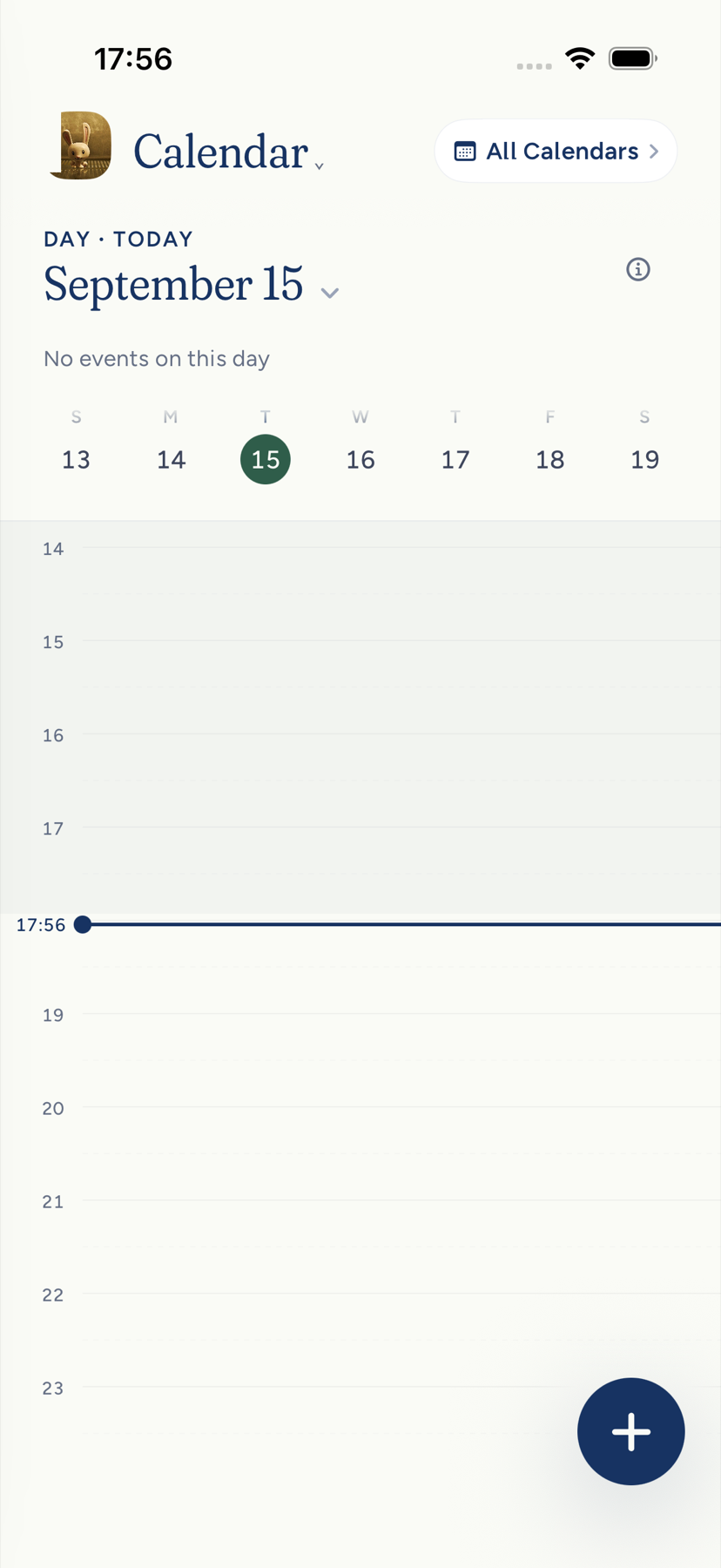
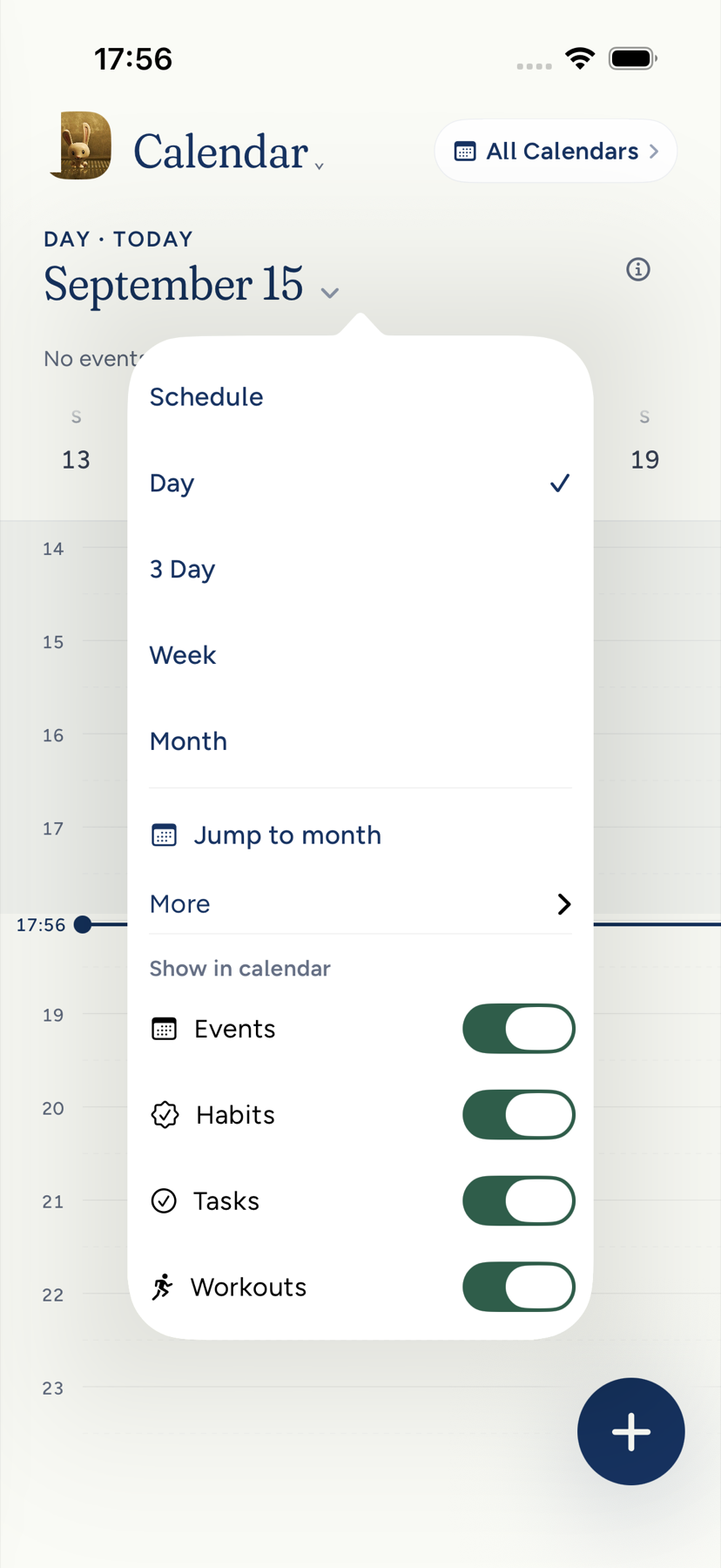
Tap the date heading to pick Schedule, Day, 3 Day, Week, or Month, with Year under More and a Jump to month shortcut. The same menu lets you show or hide Events, Habits, Tasks, Workouts, and Daily notes, for whichever of those you have turned on. Calendars in the top corner opens Calendar settings, and the information button beside it explains how Kept blends your calendars into one view. Turning a calendar off simply removes its events; Kept does not add a notice about it above your grid. Each account remembers its view. When the date heading runs short of room, it shortens the month, Oct 2026 for October 2026, and stays on one line; only at accessibility text sizes, when even the short form cannot fit, does it take two lines.
On iPhone, tap an empty slot in the day grid and Kept offers New at that time, a half-hour block with the title field ready. Calendar settings open with Show, the layers on the grid; then New events, which picks where new events go; then Merge duplicate meetings, which shows the same meeting once when it appears on more than one connected calendar (on by default); then your connected accounts, where each calendar can take a color of your choosing that syncs to your other devices and never changes the color at the source; then How calendar sync works, a disclosure that explains what stays on your device, what syncs, and what hiding a calendar does and does not do. The Calendars title and Done action stay pinned while you scroll these settings.
On iPhone, when you have a calendar to connect, a compact Connect calendars row offers Apple and Google Calendar without holding the day at midnight. Open it to read the connection details and choose one, or hide the prompt for 30 days. In Day view the row stays above the hours while your schedule opens at a useful time.
- Day keeps its hour grid while you tap other dates in the week strip: the days slide to the date you tap, later dates in from the right and earlier ones in from the left, in one slide however far away.
- Schedule lists seven days of plans as a running list that starts on the day you open it on, so from today it reads forward through the coming week. Swipe for the next seven days, and keep swiping to browse farther. Two quick swipes take you two weeks forward; swipe back to return. On Duo, VoiceOver’s three-finger swipe left advances one week; swipe right returns to the previous week. Calendar announces the new week. Each time stays on one line, such as _9:30 AM_.
- 3 Day and Week scroll sideways through their columns; Week opens with the selected day's column, today's when Calendar opens, in view. On Duo’s open spread, Week also keeps the hour you were viewing; scrolling takes over immediately. The arrows slide to the next or previous period, later from the right and earlier from the left.
- Month shows short titles and an overflow count. On Duo’s cover, compact coloured bars show the events instead of squeezing their titles into narrow cells; tap a bar to open the event, or hear its full name with VoiceOver. Month dividers share the title’s inset, and the grid leaves paper beside the dock. Tap a date to open its day, then Back to month. On Duo, Month opens at the week before the selected date, with that date already visible. Folding and unfolding keeps the same mostly visible top week, placed flush at the top in each pose.
After you open a day from Month, choosing Today also clears the old Month position. Pinching back to Month then opens today’s week. Today brings you back from anywhere, to now as well as to the date: in Day it slides back to today and opens at the current time, and in 3 Day and Week it returns the grid to the current hour rather than leaving you at the hour you had scrolled to. On an open spread, it also brings the month planner back to today. Opening a date or choosing Today brings its week into view. At rest, the month heading follows the month that occupies more of the visible rows, including the last week of a month.
When several timed events start together, Day keeps the same cards visible across a refresh that leaves those events unchanged. Additional simultaneous events stay in the card's overflow menu.
Move around
- Calendar opens on today at the current time. If you leave Day view on another day, it is back on today the next time you open Calendar. A day you pick opens at its first timed item, or at 9:00 AM when it has none. Using Capture from Calendar keeps the day and the hours you were looking at.
- In Day, the days are cards you drag through. The next day is already there as you drag, showing the same hours as the day you are on (today always waits at the current time), so you can look at tomorrow and let go to come back. When those hours would show none of a day's events, the day opens just above its first one instead, whether you drag to it or tap it in the week strip. Let go past halfway, or with a flick, and the new day settles in; later days come in from the right and earlier days from the left. The week strip's highlight moves with the card, and the strip slides to the next week when you cross into it. With Reduce Motion on, the day fades to the new one instead of sliding.
- Swipe the week strip to jump a week; the day below moves with it.
- The week strip keeps all seven dates on one line at larger text sizes. Each date has a full spoken weekday and date; iPhone keeps accessibility-sized date text, while Duo uses compact date buttons within its header band.
- Swipe right from the left edge to open the sidebar. Swipe farther inside the calendar to turn to an earlier day or week.
- In 3 Day, the days are one strip under your finger. Part way through a swipe you can see both periods at once with the join between them wherever you have dragged it, you can push it back the way it came without letting go, and taking hold again while it is still settling picks it up where it is. A long press, not a swipe, is what moves an event.
- Pinch to change altitude: pinching in on Month goes to Year, on Week goes to Month. Pinch out to step back down toward Day. On Day, pinching stretches or squeezes the hours; squeeze far enough and you land on Month.
- Tap an empty slot on the day grid to start a new event at that time.
- A quiet line marks the current time in today's column.
Open and edit an event
Tap an event and it grows into a detail card over a soft blur, below the date heading. Drag down or tap outside to put it back. A Google event's card names the account it came from in muted text under the title, so a work event and a personal one are easy to tell apart; a long address shortens in the middle rather than wrapping. A meeting with a video link shows a join button; a meeting with guests shows the roster and how each has replied. Color recolors a Google event with the same palette as your calendars.
On iPhone, an overnight event occupies both dates: a Saturday 7 PM–7:30 AM shift continues from midnight to 7:30 AM on Sunday, and its card names the ending date. Tapping either part opens the same event. Long blocks keep their titles at the top. Edit the continuation from its card; drag the block on its starting date to move the whole event.
On an open iPhone Duo, an event opens on the page opposite the day you tapped, keeping that day visible. Close it with the × at the top right of the event page to return to the month planner or covered days, with your place kept.
On iPhone Duo's cover, the event card opens below the header band on opaque paper, with no date heading or weekday letters showing through behind it. Its Edit and Delete actions sit just below the time. A longer card scrolls; paper around a shorter card stays available to tap and close it. A downward pull from its heading or details closes it when the details are at the top; a pull within scrolled details continues scrolling them. Calendars opens preferences with a pinned title and Done on Duo.
Edit changes the title, location, date, and times on an opaque sheet, so the event behind it does not show through the fields or header. On Duo, folding, unfolding, or holding a crease while this sheet is open keeps the sheet and its typed fields in place; only Save or Cancel ends the edit. For events you were invited to, Your response offers Going, Maybe, or Decline; the reply is sent at once and, if it cannot be delivered, Kept restores the previous answer and offers Retry. Apple Calendar events can be edited in place too, and Open in Calendar hands the event to Apple's app when you prefer it there. When you delete an Apple event, Kept says whether the deletion reaches Apple Calendar or only your copy.
Inviting other people to an event is a Mac and assistant action; see Calendar on Mac.
Move things by hand
Touch and hold an event, then drag it to a new time. A quick vertical swipe still scrolls the day, and a plain tap still opens the event.
Scheduled habits work the same way. Hold a habit chip and drag it, then choose Just this day or Every day. Moving a habit never checks it in.
All-day events and dates
A date without a time is an all-day event. It sits in the band above the hour grid, which stays in place while the hours scroll under it, so whatever the week strip's dot is counting for that day is on screen at any hour. One line per item, and a line reads across the whole band rather than stopping after two words. The band holds two lines. A third item, and anything after it, gathers behind +N more at the end of the second line, which lists them and opens any one of them. Capture makes them the same way: "Board offsite Friday" is all day; "Board offsite Friday 9am" has a start.
Tap an all-day event to see its title, date and calendar source above the editing actions. Google events also show the calendar name and connected account address when that information is available on the device.
Tasks on the grid
With the Tasks layer on, a task with a due time shows at that time in Day, 3 Day, and Week: a small marker on the hour it is due, with the time and the title. It marks a moment, not a block of time, so Kept never guesses how long the task takes. Tasks due close together sit one under another, each showing its own time. A task due during an event sits beside or below the event's title; when two events overlap, a marker can cover part of the later one. Tap a marker to open the task. In Schedule, a timed task reads with its time.
A task with a due date but no time has no moment to sit at, so it never lands at midnight. It appears in the band above the hour grid under Due this day, in view whatever hour you are looking at, and in 3 Day and Week under the same heading in each day's menu.
Daily notes on their dates
With the Notes layer on, a small link marks any date that already has a daily note. Tap it to keep writing, then come back. Browsing never creates a note, and empty notes stay hidden.
Widgets
The Agenda widget lists today's events and due tasks in time order; Next shows one true thing: a pinned item, the next event, the top task due today, or today's promise; Today leads with the day. A widget that says _Open Kept to check_ wants you to open the app once so it can refresh.
A priority from Today on your calendar
Open a Top 3 card on Today to see its suggested time. Earlier and Later step through the openings that fit today, including full-hour choices inside a long free stretch. Nothing is written to your calendar while the time is still a suggestion.
Choose Add to calendar to place the block at the time the card shows. Kept uses your writable default calendar, or your Kept calendar when no connected calendar can take it. With full Apple Calendar access, the matching Apple event appears there too. With add-only access, the block stays on your Kept calendar and the card warns that Kept cannot see whether the time clashes.
After the add, the card reads On your calendar and offers Remove from calendar. Earlier and Later now move that event instead of adding a second one. The Calendar tab shows the block as soon as the write returns. If the add fails, the card returns to Add to calendar and tells you it could not be added.
See Today and your Top 3 for the complete opened-card flow.
Next: Connect Apple and Google calendars.
On iPhone, weekday labels use the main body text color so they stay readable in dark mode.
Hour labels use the same format on iPhone and Mac: 2 PM in a 12-hour clock, or 14:00 when your device uses 24-hour time. Noon uses the hour format too.
Duo Day and its companion page use the same page ground through the trailing reading inset, so the timeline paper meets the dock without a separate tinted slab or ruled edge. The ordinary iPhone retains its existing timeline paper.
At accessibility text sizes, the phone header places Calendar information in the date row once; the rail reads the actual text size before sizing its own controls. At standard sizes information stays beside All Calendars in the rail.
In an event's details, tap the address under Where to open it in Apple Maps. Touch and hold the address and choose Copy Address to copy it. On Duo, the same actions are available in event details on either page.