

GuideCaptureMac
Capture on Mac
Summon Capture over any app with one chord, lock the kind with Option and a number, and commit with Command Return.
Mac and iPhone read a written event interval the same way. Lunch with Marcus Monday 12:30 to 1:30 keeps Monday, a 12:30 PM start and a 1:30 PM end, with Lunch with Marcus as the title. A zero-prefixed range such as 06:00 to 07:00 keeps those morning hours in the preview and after saving. A kind you choose yourself still stands. 12:30 to 1:30am previews and saves as 12:30–1:30 AM; 12:30 to 1:30pm stays 12:30–1:30 PM.
The Mac is where Capture disappears into muscle memory. You are in your editor, your browser, a video call. A thought arrives. You press one chord, type, press Return, and you never left.
The global shortcut
Press ⌥Space from anywhere on your Mac. The Capture panel appears over your current app, already focused. Type your line, press ↩, and it is kept. Press esc to dismiss without saving; an unfinished line is restored the next time you summon the panel, with a quiet _Picked up where you left off_.
The panel needs a signed-in account that has finished setup, because routing needs your life areas. Before that, the chord does nothing.
The panel does not bring the main Kept window forward, and it does not steal focus from the app you were in once it closes. That is the whole point.
Saving keeps you where you were. A task, event, or note shows a receipt without changing the open Kept page, selected item, folder, or inspector. The receipt is the same line the iPhone shows: where the item went, its title, and for a task with a due day or an event its day, such as _Added to Tasks · Dentist · Thu 3 Oct_. A task Kept made repeating from your words names its repeat instead of its day, such as _Added to Tasks · Call mom · Every Sunday_. Choose Open on that receipt when you want to go to the exact item you just made. There is one Open per item: in the ⌘N sheet and the command palette it is on the receipt in the Kept window, and in the floating panel and the menu bar, which have no Kept window behind them, it is on the card itself. While the card shows that it saved, its line and fields are held, so a second ⌘↩ cannot add the same item twice. The one exception is the todo that ticks the starter's Add a todo step: its receipt offers Undo instead, which takes the todo back and unticks the step.
If another app already uses Option Space, change one of them. In Kept, open Settings → Capture, choose Global capture hotkey (it names your current chord), and press a different chord; Escape keeps the one you have, and Reset to Option Space goes back to the default. Older installs may still have Control Space from an earlier default; the same setting shows what is current.
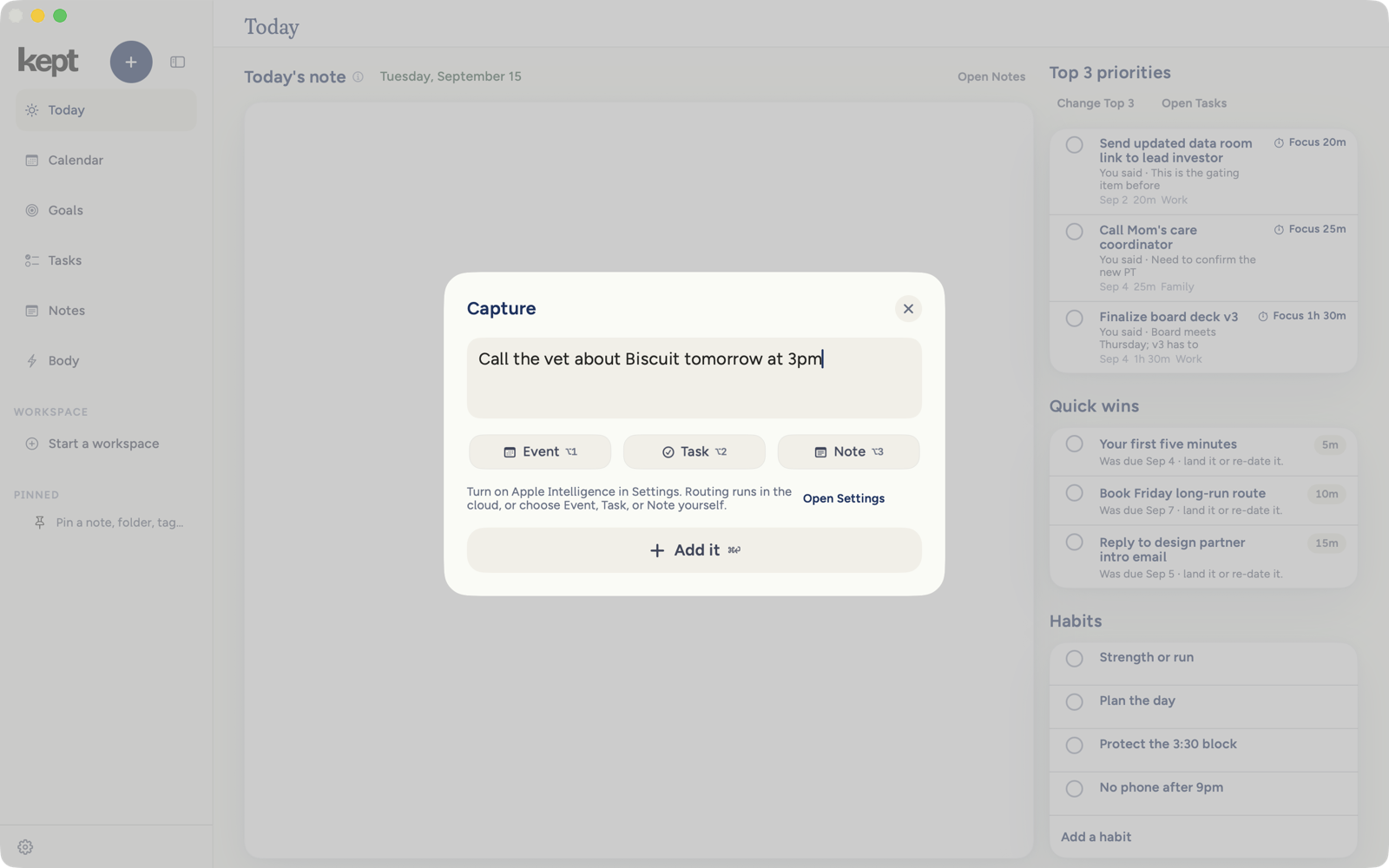
Inside the window
⌘N opens Capture inside the Kept window, the same sheet with the same stay-in-place behavior. Capture takes the keyboard as it opens, so your first letters land in its line even if you were typing in Notes search or moving through the sidebar, and esc gives the keyboard back to exactly where it was. The round button at the top of the sidebar does the same thing with a click. The command palette gets you there too: press ⌘K, type your line, and ⌘↩ moves it into Capture with the text already in place; press ↩ once more to keep it.
Lock the kind without leaving the keyboard
While Capture is open (the panel, the ⌘N sheet, or the menu bar), hold Option and press a number to force the kind. The chord only picks the kind; it never types a character such as ™ or £ into your line:
| Keys | Kind |
|---|---|
| ⌥1 | Event |
| ⌥2 | Task |
| ⌥3 | Note |
The locked kind stays for this capture. Release it by pressing the same chord again, and detection takes over. A kind whose module you have turned off in Settings is not offered, so a Notes-off account sees only Event and Task.
An event can pick its calendar inside the panel, and a Repeat rule when the destination allows one; Repeat explains itself when it cannot. With no calendar connected, Repeat is shown switched off. In the floating panel, Connect a calendar sits beside it: it sets the capture down the way closing it does and opens Settings, and the panel gives your words back the next time you summon it. The ⌘N sheet and the command palette would not keep what you typed, so there Repeat says to connect a calendar in Settings instead of offering a button that closes the card. Add area… in the area picker creates a new life area on the spot, with Undo until the panel closes; esc inside that field cancels the new area first, then the panel. A note offers Keep and open, which saves it and lands you in Notes with the caret ready.
Editable titles for tasks, events, and notes begin at the natural writing edge. Folder, area, date, time, priority, and calendar choices keep their compact trailing value column.
⌘↩ commits from anywhere in the sheet, including while a picker is open. If Kept is still reading the line, Save holds in place for up to two and a half seconds so the finished kind, date, and time can arrive before it commits. If no route finishes in that time, a short clear action or explicit repeat saves as a task when Tasks is available, keeping any day you typed; other lines stay notes when Notes is available.
The card is one height from the moment it opens. The rows for a task, an event, or a note fill a space already set aside for them, so the kind buttons never move while Kept reads your line, and a click aimed at Task lands on Task.
Capture from the menu bar
Kept keeps a small item in the menu bar. Click it for a compact window with a capture field, what is up next, today's habits, and focus controls. It is the same routing and the same account as everything else. If your account has not finished loading, the window tells you to open Kept rather than showing stale actions.
The Services menu
Select text in any app, right-click, and choose Services → Save to Kept. The selection is saved straight into Notes as a note titled Saved to Kept, without opening the panel. It works for text files and transcripts too, including .txt, .md, .vtt, and .srt. Kept needs to be signed in with Notes on; otherwise the service says so rather than saving somewhere you cannot see. It is a good way to keep a paragraph from an email or a meeting transcript without retyping it.
Your first todo on MacMac
A new account's Capture one todo starter works on Mac the way it does on iPhone (Your first todo). In its inspector, the Add a todo step has its own Capture a todo button beside the words, so the circle, the words and the button stay three separate controls. The button opens Capture inside the Kept window with Task already chosen: the card asks _What's one thing you keep meaning to do?_, Today is set as the due day (clear it like any date), and the button reads Add todo. ⌘↩ adds it, closes the sheet without moving the window, and shows one receipt naming the todo with Undo. Offline, the receipt says the todo is saved on this Mac and syncs when you are back online.
A task you capture any other way while the step is open, with ⌥Space or ⌘N, ticks the step too and leaves your current place unchanged.
On the Mac, setup can end the same way, after Add 3 to my plan or Skip setup, with _What's on your mind?_: ⏎ keeps it as whatever it reads as, a task (due today unless it names a day, ticking Add a todo), a note or an event, and esc is Later. The same screen names the capture shortcut you have set, such as ⌥Space, and Try it opens the Capture panel it brings up.
When you mark the starter done, the first-task card appears over the window. It credits your capture shortcut, ↩ runs its highlighted button (Remind me tomorrow at 9:00 AM when you captured a todo), and esc or the close button leaves it.
What is different from iPhoneiPhone
- The Mac panel does not show note tags. Kept still grounds them the same way; find and change them on the note in Notes.
- There is no deep-press quick log. Use ⌥1, ⌥2, ⌥3 instead.
- The panel offers Event, Task, and Note. To log a meal on Mac, type it on the Body page, where Read it and Log it live. Body on Mac has no camera capture.
Next: Today and your Top 3.
Setup's first todo keeps any day and time you name, defaults an undated line to today without a time, and shows that schedule before saving. Its receipt's Open opens that exact todo, and a later-day todo stays off today's first plan.
If setup's first-capture step is turned off while you have an unfinished line, Capture restores those words with Task selected, including when Capture was already opened for a task.
Start a note or review a capture
In Notes, Command N opens a blank note with the caret in its title. Write a note does the same from Today. Elsewhere, Command N opens Capture. Capture's selected kind is filled; choosing it again keeps your choice. The form and the event receipt include the parsed day and time, including 24-hour input such as 17:30.
The shared deterministic reader puts “next week’s Friday review” on Friday of the following calendar week. In “Submit next week’s grid by Tuesday”, the independent deadline uses the coming Tuesday; before, due and until follow the same rule. It recognizes bounded dated deliverables such as “bio lab report fri” as Tasks while preserving explicit Note prefixes. When a verified deadline suffix is lifted into its date field, its “due” introducer leaves the displayed title with it.